


Blurring the background in your iPhone photos instantly gives them a professional, eye-catching look. You don't need advanced photography skills or expensive gear to get that smooth, soft background effect your iPhone can do it in just a few taps.
In this guide, you'll discover 4 simple and effective ways how to blur background on iphone and make your photos look stunning in seconds.
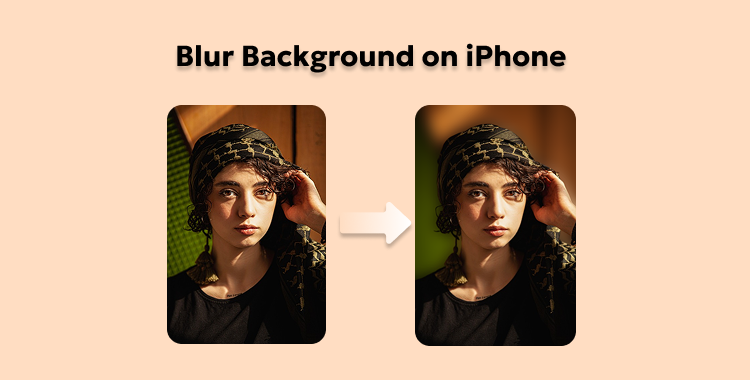
Table of Contents
Part 1. Why Blur Parts of an iPhone Photo?
Blurring select parts of an iPhone photo can transform a simple snapshot into something more artistic, intentional, and focused. Here's why this technique is so powerful:
- Draw attention to your subject. By softening or hiding the background, the main subject (a person, object, or detail) stands out more clearly.
- Reduce distractions. A cluttered background bright colors, random objects, other people can pull the eye away. Blurring those elements helps streamline what the viewer sees.
- Add depth and dimension. A blurred background adds a sense of "distance" between foreground and background, producing the pleasing "bokeh" or soft-focus look that many photos aspire to.
- Protect privacy or hide sensitive details. Sometimes you want to obscure things like faces, addresses, license plates, or other personal info. Using blur (or masking tools) lets you share images without revealing everything.
Part 2. How to Blur Background on iPhone
1. Blur Background on iPhone via Portrait Mode
Portrait Mode is one of the easiest and most effective ways to blur a photo on iphone 17. It uses depth-sensing technology to keep your subject sharp while softly blurring everything behind it. Whether you're taking a selfie, a pet photo, or a product shot, Portrait Mode instantly gives your pictures that professional DSLR look.
Even better, you can blur the background on iPhone after taking the photo meaning you can adjust or remove the blur anytime in the Photos app.
How to blur background on iphone with portrait mode:
Step 1: Open the Camera app on your iPhone and swipe to Portrait mode at the bottom of the screen.
Step 2: Make sure your subject is between 2 to 8 feet away and there's enough light. When the words "Natural Light" or another lighting effect appear in yellow, your iPhone is ready to capture with a blurred background.

Step 3: Tap the shutter button to take your photo. Your subject will stay crisp and clear, while the background becomes beautifully soft and blurred.
2. Blur Backgrounds on iPhone by Adjusting Distance
Try adjusting the distance between your iPhone, subject, and background if Portrait Mode doesn't give you the results you want. This simple trick works on any iPhone and helps you get a natural blur effect without using special modes or apps. It's an easy way to learn how to blur background on iPhone after taking photo.
Step 1. Move Closer to Your Subject
Bring your iPhone closer to the person or object you want to focus on. The closer you get, the blurrier the background becomes. Keep about 0.5 to 2 meters distance for best results.

Step 2. Keep the Background Far Away
Ask your subject to stand away from the wall or background. The more space between your subject and the background, the softer the blur will look.
Step 3. Tap to Focus
Tap on your subject's face or the main object to set focus. A yellow box will appear to confirm it. Hold your finger for a second to lock focus if you want to take more than one photo.

Step 4. Adjust if Needed
If the background doesn't look blurred enough, move a little closer or adjust the focus again. Try a few shots until you get the perfect blur.
3. Blur Backgrounds on iPhone with Photo Editing
If your iPhone doesn't support Portrait Mode or you want more control over the blur effect, using a photo editing app is the best option. Apps like Fotor make it super easy to blur parts of an iPhone photo and adjust the blur exactly how you like. You can highlight your subject, hide unwanted objects, or create that soft, dreamy look all in just a few taps.
Here's how to photo background blur online free:
Step 1. Go to online Fotor on your iPhone. Click blue background now to upload the photo you want to edit.

Step 2. Once your image opens, select the adjust and than "Blur" option from the editing tools.

Step 3. Choose your preferred blur effect and drag the slider to adjust the blur intensity. You can blur the entire background or specific parts of your photo.
Step 4. When you're happy with the result, tap Save to download your edited image.
4. PixPretty AI Lets You Blur Backgrounds on iPhone Instantly
To blur backgrounds on your iPhone quickly and easily, PixPretty AI Photo Editor is the perfect solution. It's a smart and easy tool that helps you edit photos with professional precision no editing skills required. Whether you're creating product photos, profile pictures, or creative visuals, PixPretty AI can instantly blur parts of an iPhone photo or remove backgrounds completely for a clean, polished look.
Its intelligent background detection can separate your subject from even the most complex scenes within seconds.
With PixPretty, you can:
- Instantly blur or remove any background in one click.
- Change background colors or add new ones.
- Resize or retouch photos automatically using AI.
- Edit multiple images in bulk to save time.
Part 3. FAQs on How to Blur Background on iPhone
Q1. Does blurring background reduce photo quality?
No, blurring the background doesn't lower your photo quality. It just softens the background and keeps your main subject clear. If you use too much blur, it might look fake, so try to keep it natural.
Q2. Does every iPhone have Portrait Mode?
Not every iPhone has Portrait Mode. It's available on models starting from the iPhone 7 Plus and newer. If your iPhone doesn't have it, you can still blur backgrounds using photo editing apps or by adjusting your shooting distance.
Q3. How to blur a video on iPhone?
You can blur videos on your iPhone using free apps like CapCut, InShot, or VN Editor. Just open your video, choose the blur tool, adjust the blur level, and save your video quick and easy.
Conclusion
Blurring the background in your iPhone photos is one of the easiest ways to make them professional, and eye-catching. Whether you use Portrait Mode, adjust your shooting distance learning how to blur background on iPhone helps you highlight what truly matters in your pictures. If you want the fastest and easiest way to do it, try PixPretty AI Photo Editor. It lets you blur or remove backgrounds in seconds no editing skills needed.
PixPretty AI Photo Editor
- 100% free AI Image Generator (Nano Banana 2 powered)
- 4K image quality with fast generation speed
- AI effects & filters for personal and e-commerce use



