


Low-resolution photos often fail to look clear on today's high-quality displays. They appear soft, grainy, and lack detail. This guide shows how to convert low quality photo in 4K resolution using Nano Banana without complex tools or editing skills.
Nano Banana intelligently enhances image sharpness, balances colors, and removes visual noise while keeping the photo realistic. This simple method helps improve old photos and create clear, sharp 4K images easily.
Table of Contents
- Part 1: Can You Use 4K in Nano Banana Pro?
- Part 2: How to Convert a Low Quality Photo to 4K Using Nano BananaHOT
- Part 3: Examples for Getting Better 4K Results with Nano Banana
- Part 4: Nano Banana vs Other Image Upscaling Tools
- Part 5: Convert Low-Quality Photos to Stunning 4K with PixPretty AI
- Part 6: FAQs on Converting Photos to 4K with Nano Banana
Part 1. Can You Use 4K in Nano Banana Pro?
Yes, Nano Banana Pro supports high-resolution image output, including 4K. It is designed for users who want professional-quality visuals with better clarity, sharper details, and accurate textures. With its advanced AI model, Nano Banana Pro can upscale image to 4K while keeping the image natural and clean, without heavy blur or distortion.
If your goal is to increase image resolution to 4K, Nano Banana Pro is a reliable option. It also improves edges and balances colors. This makes it suitable for restoring old photos, improving web images, and creating high-quality visuals for modern displays.
Part 2. How to Convert a Low Quality Photo to 4K Using Nano Banana
Converting low-resolution images into high-quality 4K visuals is now easier with Nano Banana Pro. It not only enlarges photos but intelligently reconstructs details, textures, and lighting to make images look natural and professional. Whether you want to convert low quality photo in 4K resolution using Nano Banana, this step-by-step guide will help you achieve studio-quality results quickly.
How to Convert a Low Quality Photo to 4K Using Nano Banana
Step 1: Upload Your Image
Open Nano Banana Pro. Upload your photo (supports JPG, PNG, or WebP up to 10MB). Use clear images for best results avoid heavily compressed or blurry files.
Step 2: Choose Your Upscaling Level
- 2x: Quick improvement for already decent photos.
- 4x: Best for significant resolution boost; ideal for most images.
- 8x: Maximum detail recovery; perfect for prints or large displays.
Step 3: Add Your Prompt
Type exactly what you want the AI to do. Examples:
- Upscale to 4K resolution.
- Upscale to 4K and enhance facial details.
- Upscale to 4K with better lighting and textures.
You can also include aspect ratios like 1:1, 16:9, or 9:16 for specific platforms.
Step 4: Enable Creative Controls (Optional)
Adjust lighting, focus, color grading, or style transfer. Apply changes only if needed to enhance your photo without losing natural look.
Step 5: Generate the 4K Image
Click Generate and wait. Processing usually completes in under 30 seconds, depending on image size.
Part 3. Examples for Getting Better 4K Results with Nano Banana
To get the most out of Nano Banana Pro's 4K capabilities, you need to combine precise prompting with its advanced features like reference uploading and creative controls. Here are examples of how to construct your request to generate stunning 4K visuals.
Example 1: The "Cinematic Detail" Prompt
This example focuses on generating a high-fidelity landscape by explicitly defining the resolution and lighting conditions in the text prompt. Since the standard Gemini app lacks a resolution selector, including "4K resolution" in the prompt is crucial for triggering the higher detail model.
Prompt Strategy: Start with a clear subject, specify the lighting ("golden light", "soft fog"), and explicitly request "4K resolution" and "cinematic composition."
Prompt: "A cinematic mountain landscape at sunrise, soft fog, golden light, and crystal-clear reflections on the lake, 4K resolution, balanced lighting and color grading."

Example 2: Complex Composition with Text Rendering
Nano Banana Pro excels at rendering legible text within images, which is often a struggle for other models. This example utilizes the model's ability to handle complex object relationships (a dog surfing) alongside accurate text generation (a neon sign) in 4K.
Prompt Strategy: Combine a surreal or complex action with a request for specific text. Mentioning "neon" and "lighting" helps the model integrate the text naturally into the environment.
Prompt: "A golden retriever surfing at sunset, neon 'Good Vibes' sign above, cinematic composition with balanced lighting and color grading, 4K resolution."

Example 3: Precision Editing (In-Painting)
Getting "better" results often means refining an existing image rather than generating a new one from scratch. This example demonstrates how to use Nano Banana Pro to edit a specific part of a 4K image without losing the resolution of the rest of the scene.
Prompt Strategy: Use the editing feature (or conversational prompt) to modify a specific element while maintaining the original outline.
Prompt: "Replace the sky with a starry night while keeping the mountain outline, 4K resolution."

Part 4. Nano Banana vs Other Image Upscaling Tools
| Nano Banana | Magnific AI | Let's Enhance | Freepik Image Upscaler | Upscale.media | |
| Ease of Use | Simple, intuitive online workflow | Easy but advanced controls may require learning | Easy point-and-click | Easy with sliders for creative control | Very easy UI, beginner friendly |
| Maximum Upscale Power | Up to 4K resolution (and beyond with Pro) | Very high (up to 16×, 10K+) with creative control | Up to 16× (large megapixel outputs) | Up to 16× (via Magnific) | Up to 8× (max ~4K) |
| Detail Enhancement | Good detail with intelligent reconstruction (strong AI) | Excellent with prompt and slider control | Strong clarity and texture with multiple boost filters | Strong results plus creative options (Magnific) | Strong artifact removal but simpler detail boost |
| Customization / Controls | Prompt-based detailed instructions | Rich sliders (Creativity, HDR, Resemblance) | Multiple modes (Balanced, Strong, Ultra) | Classic & creative within Freepik tools | Fewer advanced controls, more automatic |
| Batch / Bulk Processing | Depends on platform support | Available with proper plan | Yes, up to many images | Yes, multiple images at once | Yes; supports bulk/API via PixelBin |
| Speed | Fast results with modern AI | Fast, but complexity can add time | Fast processing | Fast, especially with presets | Very fast, optimized for quick results |
 Please swipe to view
Part 5: Convert Low-Quality Photos to Stunning 4K with PixPretty AI
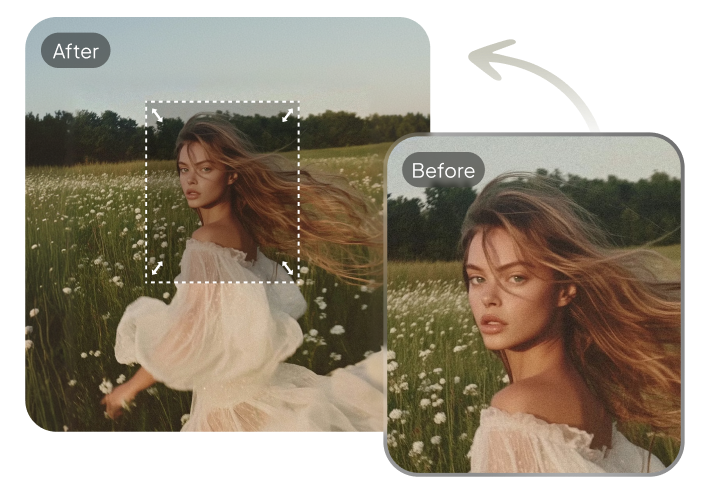
Transform blurry or low-resolution images into sharp, high-quality 4K photos with PixPretty AI. Whether it's a portrait, group photo, or product shot, PixPretty's advanced AI upscaling restores clarity, details, and natural textures while preserving the original composition. Perfect for social media, prints, or professional use, this AI-powered tool makes your images crisp and visually impressive in seconds.
Key Features of PixPretty AI Upscaler
- Enhance photo resolution from low-quality to 4K without losing details.
- Restore missing areas in cropped or incomplete images using AI uncrop technology.
- Maintain natural lighting, shadows, textures, and depth for realistic results.
- Expand group photos or crowded scenes seamlessly.
- Adjust image size or aspect ratio with precision for social media or printing needs.
How to Upscale Photos to 4K
Step 1: Upload Your Image
Drag and drop your photo into PixPretty AI or select it from your device. The AI begins analyzing your image automatically.

Step 2: Adjust & Generate
Choose the desired resolution, ratio, or expansion direction. PixPretty AI reconstructs missing areas, enhances textures, and sharpens details while preserving the original composition.

Step 3: Download Your 4K Image
Once processing is complete, download your upscaled, high-resolution image instantly. The final photo looks natural, crisp, and ready for any use.

Part 6. FAQs on Converting Photos to 4K with Nano Banana
Q1. Is there a free photo upscaler?
Yes, some tools are free, but they have limits. Most free tools only support low resolution and few downloads. True 4K usually needs a paid tool.
Q2. What makes Nano Banana Pro different?
Nano Banana Pro does more than stretch pixels. It understands image content, textures, lighting, and context. The AI rebuilds missing details, improves edges, balances lighting, and keeps faces and objects natural. This makes 4K results look realistic, not artificial or over-sharpened.
Q3. Who should use this?
Nano Banana Pro is ideal for anyone who wants high-quality images. It is useful for old photos, websites, social media, and professional work.
Conclusion:
Converting low-quality images into sharp, clear visuals no longer requires complex editing skills. With Nano Banana Pro, you can convert low quality photo in 4K resolution using Nano Banana in a simple and user-friendly way. If you want an even easier option for quick photo fixes and AI enhancements, tools like PixPretty AI are also worth exploring. They offer fast results with minimal effort, making image improvement accessible for everyone.
PixPretty AI Image Extender
- Expand and uncrop images with realistic AI detail
- Resize photos to any ratio with perfect detail
- Perfect for portraits, products, and social media visuals
Related Articles:


