


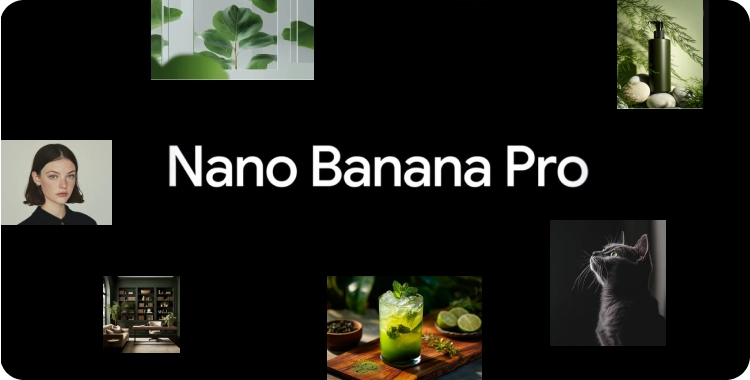
Nano Banana Pro Inpaint is a powerful tool for image editing and creative design. It lets you remove parts of an image, fill gaps, or change elements with AI. Inpaint means you fix or repaint a part of the image using smart AI.
Many creators now use it for social media graphics, product visuals, portraits, and content production. This guide will help you use Nano Banana Pro Inpaint step by step and get the best results.
Table of Contents
Part 1: What Makes Nano Banana Pro Inpainting Special
1. Simple, Precise, Targeted Editing
Nano Banana Pro Inpaint is a next‑generation AI image editing tool. You mark the part of your image you want to change, and the AI edits only that part while keeping everything else the same.
This makes results look clean and real, not blurry or fake. It focuses on local edits that fit the image context instead of re‑creating the whole scene.

2. Not Just Pixels — Context and Structure
The real difference is how the model understands your image:
- It analyzes shapes, lighting, and materials.
- It reads the scene layout and visual logic.
- It preserves the parts you don’t want to alter.
- It blends edits smoothly into the original photo.
This helps your edits look less like “AI paste jobs” and more like real photo edits.
Because it is built on a reasoning-first system, Nano Banana Pro can handle edits that once needed advanced tools or hours of manual work.
What the Tool Can Do

Here’s what you can achieve with Nano Banana Pro Inpaint:
- Remove objects: Brush over an unwanted item and the AI fills that area with matching background detail.
- Replace objects or elements: Swap a person, product, or object with something new based on your prompt.
- Change lighting or look: Ask the AI to warm up shadows, brighten highlights, or adjust the lighting style.
- Edit text or signs: Update labels or words in an image so they look natural in the scene.
- Fix small flaws: Correct blemishes, minor errors, or unwanted marks simply by masking them.
- Add new details: Mark an empty area and prompt the AI to add something new, like an object or decoration.
These tasks are popular among creators for social content, product visuals, ads, and personal photos.
Part 2: How to Use Nano Banana Pro Inpaint
Step 1 — Upload Your Image
- Open Nano Banana Pro - inpaint feature in your editor.
- Click Upload and select the image you want to edit — it can be a portrait, product photo, or any scene.
Step 2 — Paint the Area You Want to Change
Use the mask brush tool to draw over the exact part you want to edit. This painted area becomes the zone the AI will change.
Step 3 — Write Your Prompt
In the prompt box, write a short instruction about what you want to happen inside the masked area.
Examples you can try:
- Remove: “Remove the person and fill the background to match.”
- Replace: “Change this chair to a wooden chair.”
- Add: “Add a red bike to the left side.”
- Fix: “Smooth skin and remove small blemishes.”
- Lighting: “Warm up the lighting here.”
Good prompts help the AI understand your edit clearly.

Step 4 — Choose Output Quality
Most editors let you pick quality before generating:
- Low: Fast preview.
- Medium: Good for drafts or quick checks.
- High: Best for final use and detailed edits.
Step 5 — Generate and Save
Click Generate and wait a few seconds. The AI will process your mask and prompt and return:
- natural blending with the original image
- correct lighting and shadows
- no changes outside the masked area
You can then download the final result.
Part 3: Tips to Improve Your Nano Banana Pro Inpaint Results
1. Use Clean Source Images
Edit quality starts with good input. Higher clarity means better edits.
2. Check Lighting and Shadows
If the new content doesn’t match lighting, ask the AI to adjust “soft shadow, warm light.”
3. Work in Small Areas
Fix one area at a time for cleaner results.
4. Test Simple First
Start with easy changes. If the prompt doesn't work, add one detail at a time.
5. Learn From Community Prompts
Many creators share prompts on Reddit and social forums — you can copy or adapt those.
Prompt Tips
- Say exactly what to change, such as “remove the sign and add blue sky.”
- Words like “natural lighting” or “clean background” improve results.
- Add phrases like “no blur” or “no artifacts” when needed.
- Write what to change first, then style, then quality.
- Save good prompts and reuse them for faster edits.
Part 4. Try Free Alternative to Nano Banana Pro Inpaint!
If you want a free and simple tool for common photo edits — from background removal to resizing — PixPretty AI Photo Editor is worth trying. PixPretty runs in your browser and lets you remove backgrounds quickly, change photo backgrounds, and edit batches of images without complicated steps.
PixPretty supports many helpful tools beyond basic background removal. It also includes creative AI options like AI Object Remover, AI Image Extender, AI Clothes Changer, etc.
Start Editing for FreePart 5. FAQs about Nano Banana Pro Inpaint
Q1: Why does Nano Banana Pro sometimes ignore my prompt or give a poor result?
Some users report that the AI suddenly gives a very low‑quality or wrong output even when the prompt looks correct. This often happens when the tool switches from the Pro version to the regular Nano Banana model, which runs faster but with lower quality and less detailed prompt understanding.
Q2: Why does my Nano Banana Pro stop working even though I have a paid plan?
Many users see Nano Banana Pro stop generating edits before hitting the expected limit. The system may quietly cap daily generations, then automatically switch to the standard model without a clear warning.
Q3: Why do some edits look blurry or soft?
Blurry or low‑quality images can happen if the tool is using the standard Nano Banana model instead of the Pro model, or if the preview shown in the editor is compressed. Downloading the full size image or ensuring the editor is set to Pro / Thinking mode usually brings back higher detail.
Q4: What if Nano Banana Pro refuses to upload my image?
Some users report upload tools glitching or disappearing due to browser or session issues. Clearing browser cache, switching browsers, or signing out and back in often resolves this. No single universal fix exists, but browser refreshes and cache resets help in many cases.
Q5: Does Nano Banana Pro have hidden usage limits?
Yes — many users notice that usage caps feel lower than expected or change unpredictably. The system can reduce free or even paid tier access silently if servers are busy, leading to early cutoffs without clear notifications.
Conclusion
Nano Banana Pro Inpaint is a strong tool for image editing and creative work. It can remove objects, fill gaps, change backgrounds, and more with real-looking results. With the right steps and prompts, you can get professional images quickly.
If you’re looking for a free and easy alternative, PixPretty AI Photo Editor is a free but great choice. It’s ideal for users who need fast, practical edits without a steep learning curve or cost.
PixPretty AI Photo Editor
- 100% free AI Image Generator (Nano Banana 2 powered)
- 4K image quality with fast generation speed
- AI effects & filters for personal and e-commerce use



