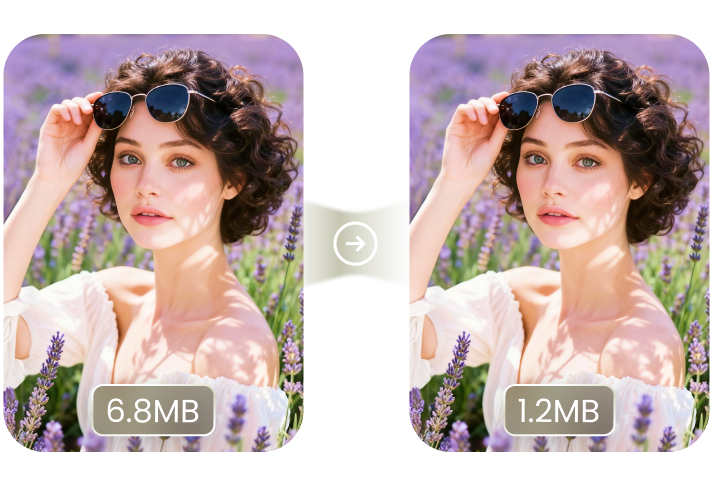
Images are important for websites, forms, and social media. But many platforms only allow images with a limited file size. This is where an Image resizer in KB free tool becomes useful. It helps you reduce the image size without losing much quality.
You can quickly resize photos online in just a few clicks. You do not need advanced editing skills or heavy software. In this guide, you will learn how to use an Image resizer in KB free tool to resize images online easily and make them ready for upload.

Table of Contents
- Part 1: What Is an Image Resizer in KB?
- Part 2: How to Resize Image Online Free in KB -- Step-by-Step Guide
- Part 3: Best Free Online Image Resizer ToolsHOT
- Part 4: How to Resize Image to 20KB, 50KB, or 100KB
- Part 5: Tips to Reduce Image Size Without Losing Quality
- Part 6: FAQs About Image Resizer in KB Free
Part 1: What Is an Image Resizer in KB?
An Image resizer in KB free tool helps reduce the file size of an image to a specific KB limit. KB (kilobytes) is a unit used to measure file size. Many websites, online forms, and job portals only allow images under a certain KB size.
If your image is too large, it may not upload. An image resizer in KB free tool solves this problem by compressing the image size while keeping the picture clear. You simply upload your image, resize it to the required KB, and download the smaller file. It is quick, easy, and does not require any special skills.
Part 2: How to Resize Image Online Free in KB -- Step-by-Step Guide
If you want a quick solution, you can use a free online resize image in KB tool like PixPretty AI Image Compressor. It helps shrink image file size in just a few seconds.
Follow these simple steps:
Step 1: Upload Your Image
Go to PixPretty AI Image Compressor. Drag and drop your photo or click the upload button to select the image from your device.

Step 2: Compress the Image
Choose the compression level or select a preset size. The tool will automatically reduce the file size to the desired KB while keeping the image quality balanced.

Step 3: Download the Image
Once the compression is complete, click download to save the smaller image. The compressed image will be ready to use and upload anywhere.

Part 3: Best Free Online Image Resizer Tools
1. PixPretty AI Image Compressor
PixPretty AI Image Compressor is a modern tool that uses AI technology to compress and resize images quickly. It supports multiple formats like JPG, PNG, BMP, and GIF. You can upload an image, choose the compression level, and download the optimized version in seconds. The tool also allows batch compression, so you can resize multiple images at once.
PixPretty is very useful when you need to resize image online free in KB while maintaining good image quality. It also provides presets and adjustable compression levels so you can control how much the file size is reduced.

Pros

Cons

Simple drag-and-drop interface
Some advanced features may require login
Supports many formats (JPG, PNG, GIF, etc.)
High-resolution export may be limited in free version
Batch compression for multiple images
Keeps image quality clear after compression
2. iLoveIMG
iLoveIMG is one of the most popular tools for editing images online. It offers many features such as image compression, resizing, cropping, and format conversion. The tool works directly in your browser and supports formats like JPG, PNG, GIF, and WebP.
It is a good option when you need to image resize in KB free or quickly reduce image size for social media, websites, or documents. The platform also supports resizing multiple images at once, making it convenient for bulk editing.

Pros
Cons
Easy drag-and-drop interface
Requires internet connection
Supports many formats
Some advanced features may require premium version
Batch image resizing available
No watermark on downloads
3. BulkResizePhotos
BulkResizePhotos is a fast browser-based image resizing tool. It allows users to resize multiple images at the same time without uploading them to a server. The processing happens directly in your browser, which helps protect your privacy.
This tool is helpful when you want to resize image online free in KB for many images at once. You can adjust dimensions, reduce quality, or compress images to meet file size limits like resize image to 100KB or 50KB.

Pros
Cons
Batch image resizing
Limited advanced editing features
No signup required
Interface is basic compared to other tools
Works directly in the browser
Fast processing for large image sets
4. Online Image Compressor by ImageResize.org
ImageResize.org provides a simple tool to compress and resize images online. You can upload a photo, adjust the compression level, and download the optimized file within seconds. The tool is designed for users who need quick results without complicated settings.
It works well when you need to resize image to 20KB,or other size for online forms or official documents.

Pros
Cons
Very simple and beginner-friendly
Limited batch editing features
Supports common formats like JPG and PNG
Fewer advanced settings compared to other tools
Quick compression process
5. ResizePixel
ResizePixel is a well-known free tool that allows you to resize images by dimensions or file size. You can upload an image and set a target size in KB to compress it exactly as needed.
It even provides specific options to resize image to 20KB or 50KB, which is useful when submitting photos for forms or websites with strict size limits.

Pros
Cons
Resize by exact KB size
Only basic editing features
Supports many formats (JPG, PNG, GIF, WebP)
Batch compression options are limited
Free and easy to use
No software installation required
Part 4: How to Resize Image to 20KB, 50KB, or 100KB
Sometimes online forms require images with a specific file size. For example, you may need to resize image to 20KB, 50KB, or to 100KB. You can easily do this using PixPretty AI Image Compressor.
PixPretty offers a Custom Size option. This feature allows you to set the exact file size you want in KB. The tool will automatically compress the image to match your requirement.
Follow these simple steps:
Step 1: Upload Your Image
Open PixPretty AI Image Compressor and upload your photo from your device.

Step 2: Choose Custom Size
Go to the Compress section and select Custom Size. In the field "Each Image Under", enter your desired size, such as 20KB, 50KB, or 100KB.

Step 3: Start Compression
Click the compress button. The tool will reduce the image size while keeping
the picture clear.

Step 4: Download the Image
Once the process is complete, download the resized image to your device.
Part 5: Tips to Reduce Image Size Without Losing Quality
Reducing image size does not always mean losing quality. With the right steps, you can make images smaller while keeping them clear and sharp. Here are some useful tips.
1. Resize the Image Dimensions First
Large images often have very high width and height. If you reduce the dimensions before compressing, the file size becomes much smaller. For example, reducing a 4000px image to 1000px can significantly lower the size.
2. Choose the Right Image Format
Different image formats create different file sizes.
-
JPEG works best for photos.
-
PNG is better for logos and graphics with text.
-
WebP usually provides smaller file sizes while keeping good quality.
3. Use Balanced Compression
Most image tools allow you to select a compression level. A medium compression level usually keeps the image clear while reducing the size effectively. Very high compression can make the image blurry.
4. Remove Extra Image Data
Images often contain hidden information such as camera settings, location data, and timestamps. Removing this metadata can reduce file size without affecting the visual quality.
5. Compress the Image Only Once
Repeatedly compressing the same image can damage its quality. It is better to keep the original file and compress it only once when creating the final image.
6. Use a Reliable Compression Tool
Using a good compression tool helps maintain image clarity while reducing size. Tools with smart compression can easily help you resize image online free in KB and meet limits like resize image to 20KB, 50KB, or 100KB without noticeable quality loss.
Part 6: FAQs About Image Resizer in KB Free
1. How to reduce image size in KB?
You can reduce image size in KB by using an image resizer in KB free tool. Upload your image to the tool, choose a compression level or set a custom size in KB, and download the smaller image. The tool will compress the file while keeping the image clear.
2. How to resize an image to 10KB?
To resize an image to 10KB, upload your photo to an online image compressor that supports custom size settings. Enter 10KB in the file size option, start compression, and download the resized image.
3. Can I resize an image for free?
Yes, many online tools allow you to resize image online free in KB. You only need to upload the image, choose the required size, and download the compressed file. Most tools work directly in your browser and do not require installation.
Final Words
Resizing images does not have to be difficult. With an Image resizer in KB free, you can quickly reduce image size and meet upload limits without losing quality. Online tools make the process fast and simple for everyone. If you want an easy and reliable option, PixPretty AI Image Compressor is a great choice. It lets you compress images, set custom KB sizes, and download high-quality results in just a few clicks.
PixPretty Image Compressor
- Lossless compression that keeps images crisp and clear
- Batch compress images to custom sizes in seconds
- Supports JPG, PNG, WEBP, and more for any workflow