



Switching AI tools should not mean losing your important chats. If you plan to transfer ChatGPT chats to Claude, the process is easier than you think. Your ideas, notes, and useful prompts can move with you.
In this guide, you will learn simple ways to transfer ChatGPT chats to Claude without losing your data. The steps are quick and beginner-friendly. Follow along and keep all your valuable conversations safe while smoothly continuing your work in Claude.
Table of Contents
Part 1. Can You Transfer ChatGPT Chats to Claude
Yes, you can transfer ChatGPT chats to Claude, but it is not a one-click process. Right now, there is no tool that moves every conversation exactly the same way from ChatGPT to Claude. Still, you can move most of your important information and context.
ChatGPT lets you export your chat history. You can download your conversations and use them to rebuild your context in Claude.
Here are some simple facts:
-
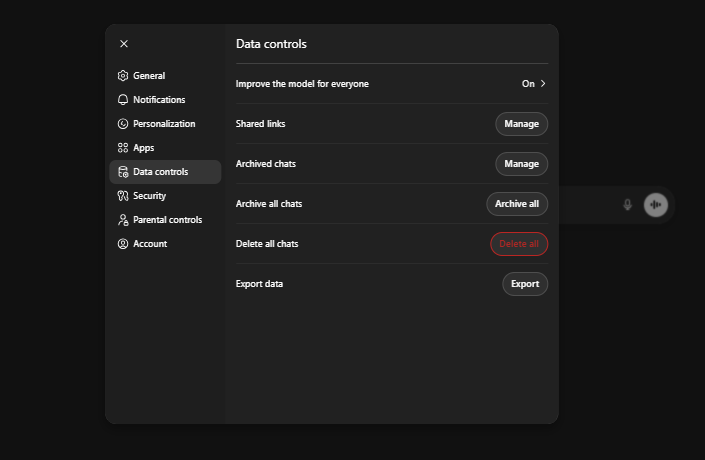
You can export your ChatGPT data from Settings, then Data Controls, and choose Export Data.
-
The data comes as a ZIP file with your chat history.
-
Inside the file, chat.html contains most of your conversations.
-
You can upload this file to Claude and ask it to summarize your chats.
-
Then you can save that summary in Claude's memory settings.
Part 2. How to Transfer ChatGPT Chats to Claude
There are a few practical ways to move your ChatGPT memory to Claude. Some methods move your memories and preferences quickly, while others help you rebuild your chat context from old conversations. Below are the most useful and simple methods.
Method 1. Use Claude Memory Import Feature
This is the easiest and newest method. Claude now allows users to Import ChatGPT Data to Claude for Free using a built-in memory tool.
You simply copy a special prompt from Claude and paste it into ChatGPT. ChatGPT will generate a list of stored memories and context. Then you paste that information back into Claude so it can save it in its memory.
-
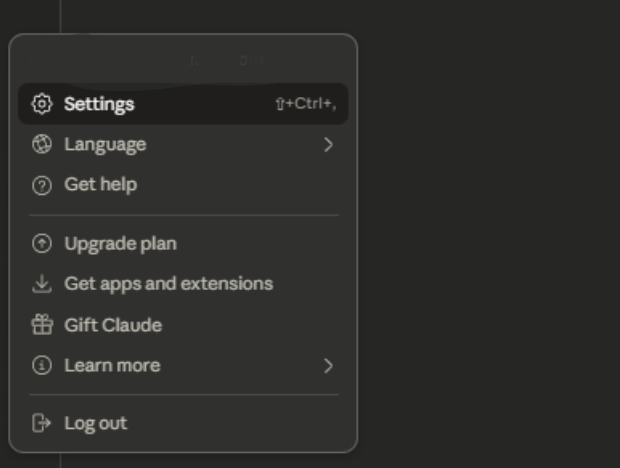
1.Open Claude and go to Settings.
-
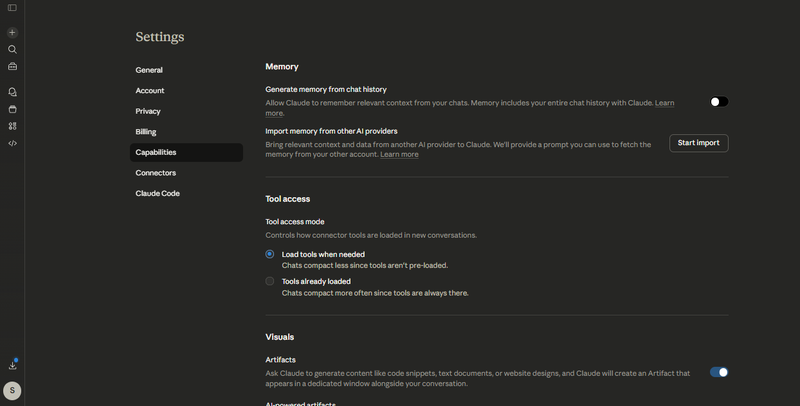
2.Click on the Memory section under capabilities.
-
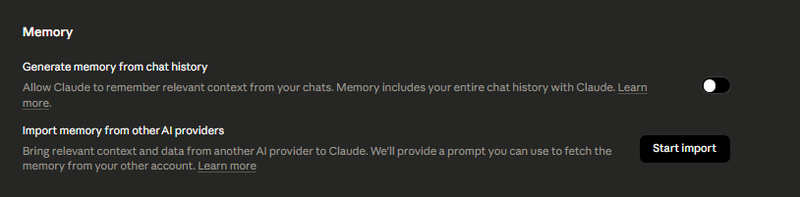
3.Select Start Import. Claude will generate a prompt for you.


-
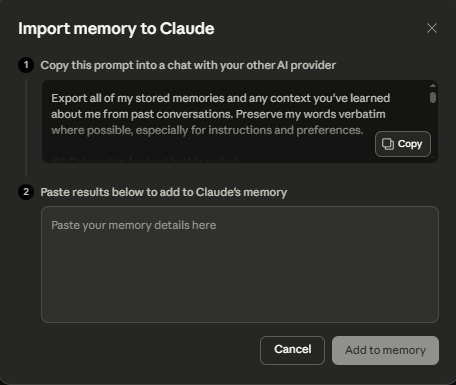
1.Copy this prompt and open ChatGPT.

-
1.Paste the prompt in ChatGPT and submit it. ChatGPT will create a file with your stored memories and preferences.

1.Copy the results from ChatGPT.
-
2.Paste the copied data back into Claude's memory import box.
-
3.Click Add to Memory. Claude will now remember your preferences, projects, and instructions automatically.
Method 2. Export ChatGPT Data and Upload to Claude
Another common method is to export ChatGPT conversations to Claude using the official data export feature.
ChatGPT allows users to download their complete chat history. This file usually contains all conversations in a folder along with a file called chat.html. This method helps you move your full conversation history into Claude and create a useful reference.
1.Open ChatGPT and go to Settings.
-
2.Select Data Controls and click Export Data.
-
3.Wait for the download email. The file may take some time depending on your chat history size.


1.Download the ZIP file and extract it on your computer.
-
2.Locate the chat.html file, which contains all your conversations.
-
3.Open Claude and start a new chat. Upload the chat.html file.
-
4.Ask Claude to review the chats and create a summary of your key projects, preferences, and style.
Method 3. Create a Context Summary from Your Chats
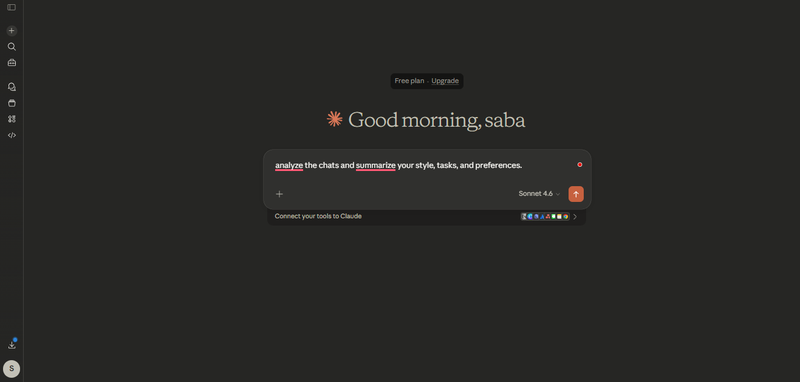
Some users prefer a smarter method. Instead of uploading thousands of messages, they ask Claude to analyze their ChatGPT chat history and create a short profile.
1.Collect your important ChatGPT conversations.
-
2.Ask Claude to analyze the chats and summarize your style, tasks, and preferences.
-
3.Claude will generate a profile including your communication tone, recurring projects, tools, and instructions.
-
4.Review the summary to remove anything you do not want to transfer.
5.Save the summary in Claude's memory section.

Part 3. Tips to Transfer ChatGPT Chats to Claude
When you migrate from ChatGPT to Claude, taking a few smart steps can help you keep important context, preferences, and project history intact. Moving your memory to Claude is easier when you follow proven techniques that users on Reddit and tech guides have shared. Below are practical tips and precautions to ensure a smooth transition as you transfer ChatGPT chats to Claude.
Tips for Moving Your ChatGPT Memory to Claude
Use Claude's Memory Import Tool
Claude has a feature to import memory from other AI tools. You can run a prompt in ChatGPT and then paste the results into Claude's memory for easy transfer.
1. Focus on Important Information
Long chat histories have lots of repeated or unnecessary details. Only move the key conversations, instructions, and preferences to keep Claude's memory clean and useful.
2. Check Imported Information
After adding memory to Claude, ask questions like "What do you remember about my projects?" to make sure it understands correctly.
3. Add Missing Details Manually
Some context may not transfer automatically. Add your key preferences, ongoing tasks, or style manually so Claude knows your workflow.
4. Use Exported Chat Files for Extra Context
Full ChatGPT exports can give Claude deeper context. Upload important parts to Projects or workspace tools for better results.
5. Give Claude Time to Learn
Claude may need a few sessions to fully process your imported memory. Using it regularly helps it adapt to your style and needs.
6. Clean Up Before Importing
Remove outdated or irrelevant content before importing. This keeps Claude's memory organized and accurate.
7. Precautions When Transferring Data
8. Protect Sensitive Information
Be selective about what personal data you include. Only import what you are comfortable storing in Claude's memory to maintain your privacy.
9. Expect Differences in Memory Handling
Claude's memory system is not identical to ChatGPT's. Some personal details or style elements might not transfer in the same way, so don't expect a perfect one‑to‑one replication.
10. Avoid Pasting Raw Chat Logs Directly
Directly dumping raw chat logs without summarizing can confuse Claude's memory. Creating concise summaries or highlights improves how Claude learns your context.
11. Verify Exported Files Carefully
When exporting your ChatGPT data, make sure that you select the right account and conversations. Incomplete or mixed data sets can lead to missing context once transferred.
Part 4. Improve Your AI Workflow with PixPretty AI
PixPretty AI is a free and easy-to-use photo editor that lets you remove backgrounds, enhance images, and edit visuals quickly. It's smart AI handles even complex edits in seconds, saving you time and effort. You can work with photos of people, products, animals, or graphics, making it perfect for any project.
Ideal for personal projects, social media, and e-commerce, PixPretty AI helps you create professional-looking images effortlessly. It also offers advanced features like AI photo enhancement, smart resizing, and object removal, giving you complete creative control.
Part 5. FAQs on How to Transfer ChatGPT Chats to Claude
Q1. How to transfer chats from Claude to ChatGPT or other AIs?
You can export your Claude chats using the memory or export feature, then import the data into another AI using its memory or upload tool. Make sure to review and clean up the content before importing to avoid irrelevant data.
Q2. Can Claude continue a ChatGPT conversation?
Claude cannot directly continue a ChatGPT conversation. However, you can export your ChatGPT chat history, summarize important details, and paste it into Claude's memory or projects to pick up where you left off.
Q3. What is the easiest way to move ChatGPT chats to Claude?
Use Claude's memory import tool. Run the generated prompt in ChatGPT to get your chat data, then paste it into Claude's memory. This keeps your context and preferences.
Conclusion:
Easily transfer ChatGPT chats to Claude and keep all your important conversations, preferences, and context intact. Claude's memory import tool makes the process simple and effective. Review your imported data to ensure everything is accurate. For editing images or creating visuals, PixPretty AI is a free, powerful tool that saves time and makes your workflow faster and smoother.
PixPretty AI Clothes Changer
- Instantly change outfits with AI in 1 click
- Realistic AI previews for every top, bottom, or dress
- Create and explore endless outfits and OOTDs without editing
Related Articles:


