


Snapseed makes photo editing simple and powerful, letting you create professional-looking images in minutes. One of its standout features is the ability to snapseed change background, giving your photos a completely new look without complicated tools.
You can easily replace a boring background, make your subject stand out, or add a creative touch using Snapseed’s simple and precise tools. In this guide, you’ll learn step-by-step how to change background in snapseed.
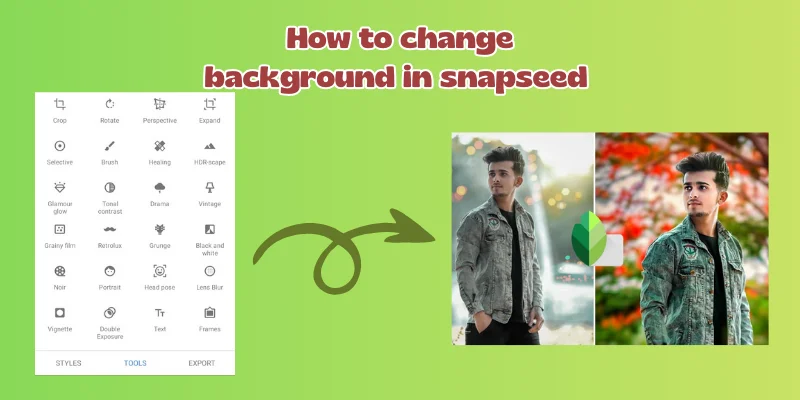
Table of Contents
Part 1.How to Use Snapseed Change Background
1.1 Best Method: Double Exposure Trick
The Double Exposure trick in Snapseed is one of the most effective ways for background change in Snapseed. It allows you to precisely isolate your subject and replace the background while keeping fine details, like hair or edges, intact. Its ideal for anyone who want to change background in Snapseed with accuracy and professional results.
How to change background in snapseed:
- Launch the app and select the image where you want to change the background.
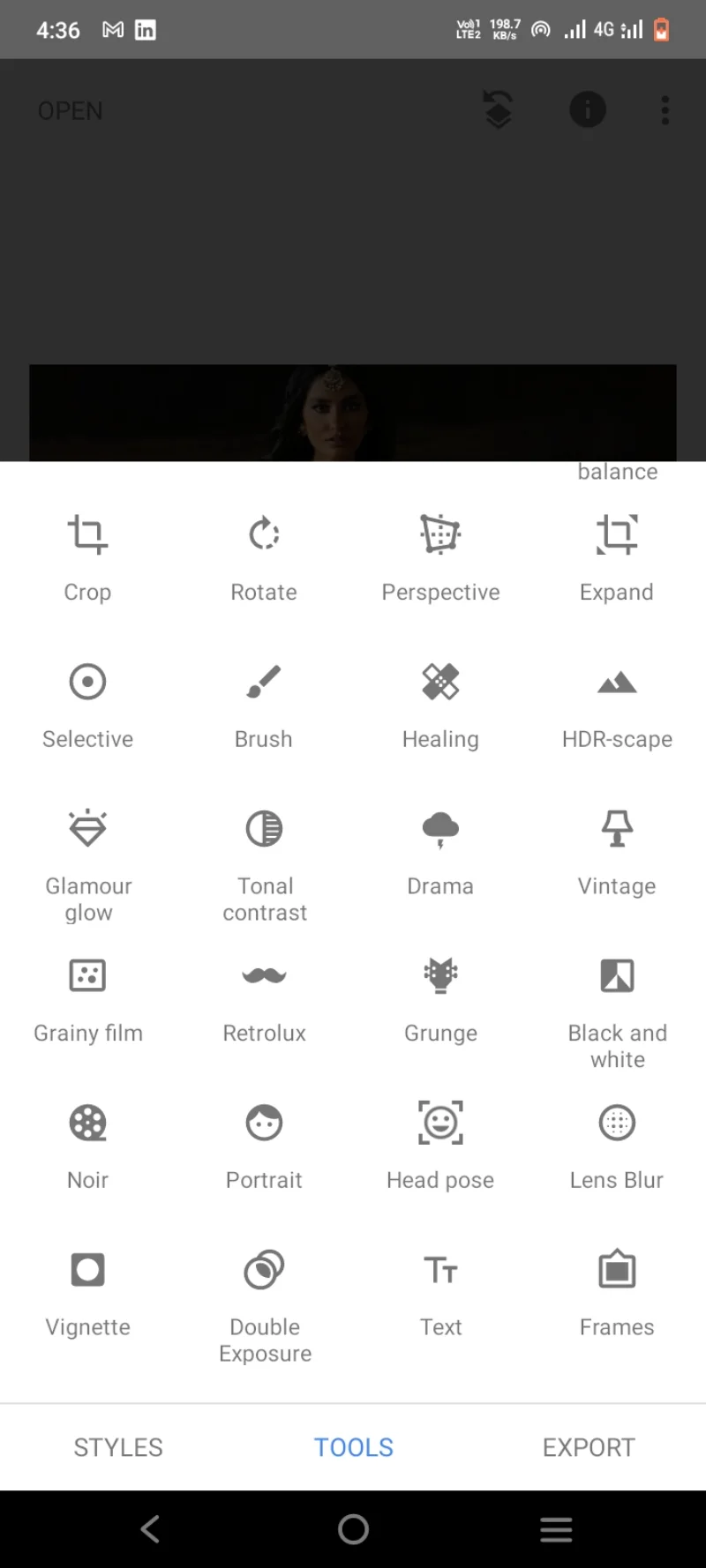
- Tap TOOLS and choose Double Exposure to start layering your image.
- Tap the + icon at the bottom and add the same photo again to create a top layer.
- Tap the Opacity (Droplet) icon and drag it to 0 so the top layer is fully hidden.
- Tap the Invert icon to turn the layer black. This mask hides everything until you reveal it with the brush.
- Tap the Checkmark to apply the mask and prepare your image for precise editing.
- Tap View Edits, select Double Exposure, and tap the Brush icon. Set it to WHITE to start revealing the subject.
- Zoom in and paint over the person or object you want to keep. Switch to BLACK to correct mistakes or remove extra areas. Take extra care around hair and edges.
- Tap the Checkmark to finalize your edits, then EXPORT your photo as a copy or PNG. Your background change in Snapseed is complete.



1.2 Alternative Quick Method
For a faster approach to snapseed change background color, Snapseed provides simple tools ideal for plain or lightly textured backgrounds. This method is great for quick photo editing when you want to remove or replace the background efficiently without complex masking.
By combining the Healing and Expand tools, you can clean unwanted areas and fill empty spaces smoothly, giving your photo a polished look in minutes.
Step-by-Step Guide background change in snapseed:
- Open your photo in Snapseed and go to the TOOLS menu, then select Healing.
- Use the brush to carefully cover small parts of the background you want to remove.
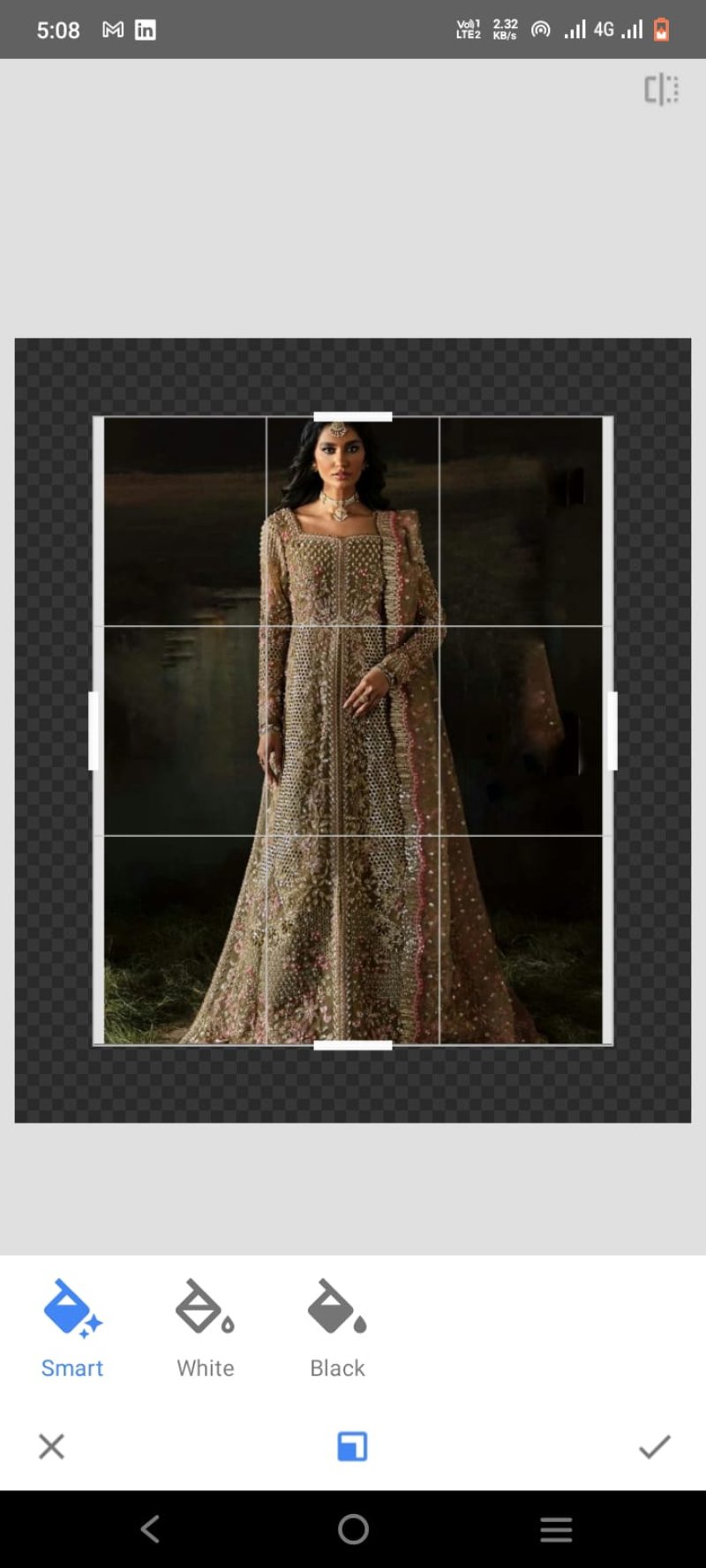
- After removing unwanted areas, open TOOLS again and choose Expand.
- Select Smart to automatically fill empty areas, or pick Black/White to apply a solid color background.
- Adjust the filled area to make sure it blends naturally with your subject.
- Tap the Checkmark to apply all edits. Save your final photo by selecting EXPORT and saving a copy.

Part 2. How to Make Background Black or White in Snapseed?
Snapseed does not have a dedicated tool to perfectly make a background black or white. Using filters or adjustments can sometimes affect the entire image, not just the background, which may change your subject as well.
For a simple workaround, the Vintage feature works well to create a black background effect:
Step-by-Step Guide snapseed change background color:
- Open your photo in Snapseed.
- Go to TOOLS and select Vintage.
- Set Saturation and Brightness to 0.
- Increase the Vignette Strength to 30 or more.
- Adjust as needed to ensure the background looks dark while keeping the subject visible.
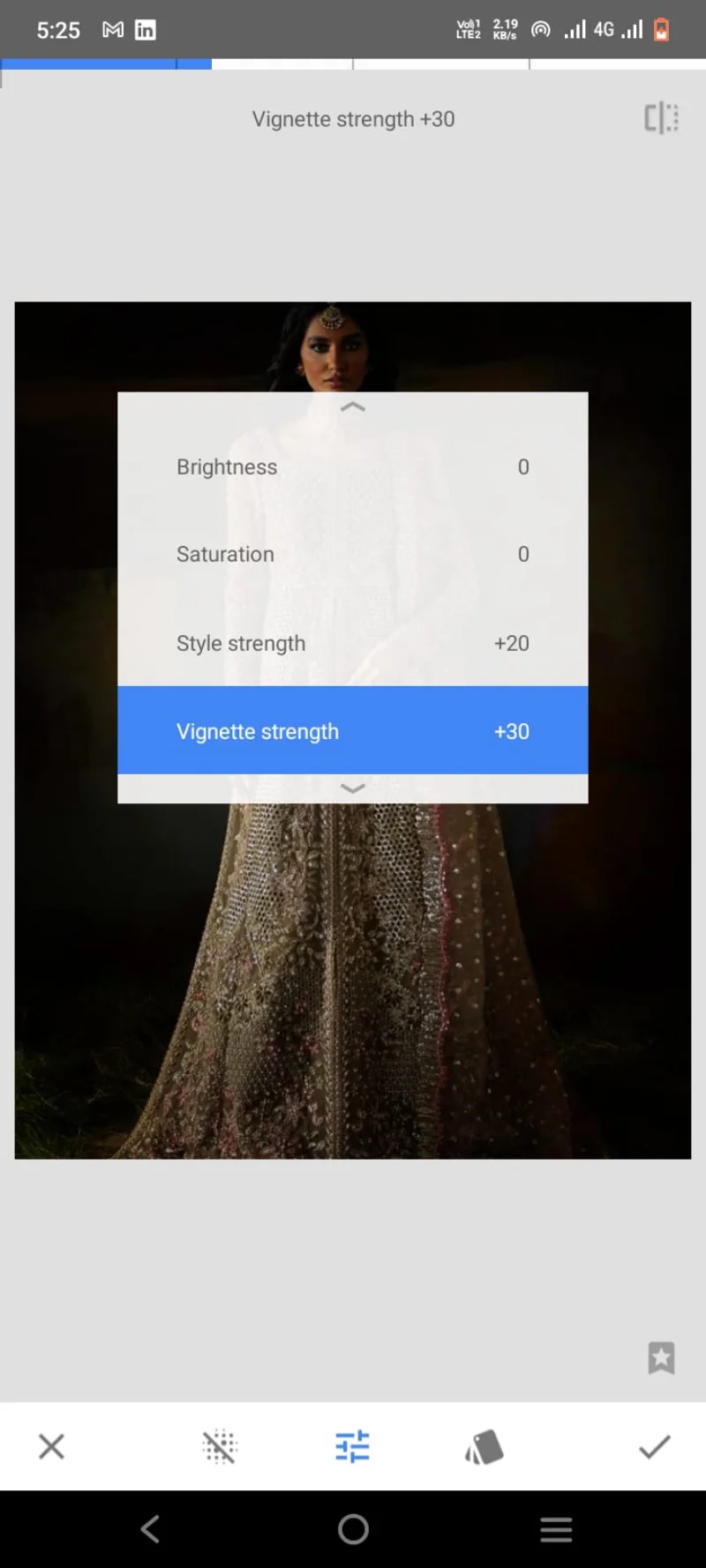
This method is not perfect for a true black or white background, but it gives a quick, stylish effect.
Part 3. How to Remove Background Objects with Snapseed?
Snapseed makes it easy to remove unwanted objects from your photos, offering a quick way to clean up backgrounds. This tool is great for fast Snapseed background change photo editing, but it is not perfect and may leave slight traces or marks where the object was removed.
Steps to remove object with snapseed:
- Open your photo in Snapseed.
- Go to TOOLS and select Healing.
- Brush over the object you want to remove. Snapseed will automatically fill the area with the surrounding background.
- Check the edited area and make small corrections if needed.
- Tap EXPORT to save your edited image.


Part 4. [Without App] Best Alternative to Change Background with One-Click
For a fast, accurate, and completely free way to change photo backgrounds online, PixPretty AI Photo Editoris the ideal solution. Unlike Snapseed, which can be tricky and imprecise, PixPretty uses AI to automatically detect your subject and remove or replace the background in seconds.
It works for product photos, portraits, animals, or any image, delivering high-quality results without complicated editing skills or software. You can also edit multiple images at once, making it perfect for e-commerce, social media, or creative projects.
Change Background in simpe way:
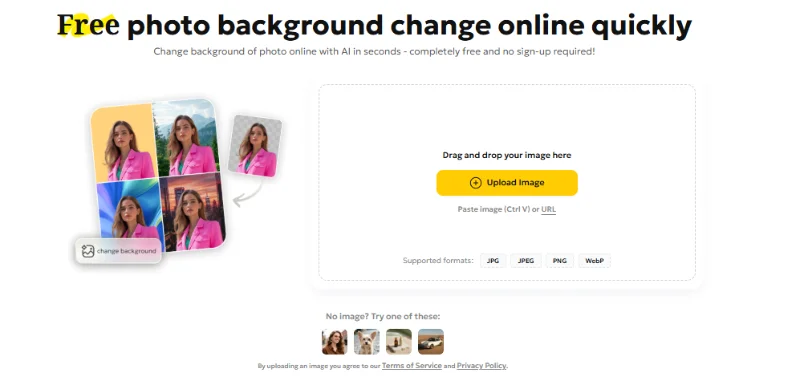
1.Upload Your Image
Drag and drop your photo or choose a file to upload. PixPretty supports JPG, JPEG, PNG, and WebP formats.
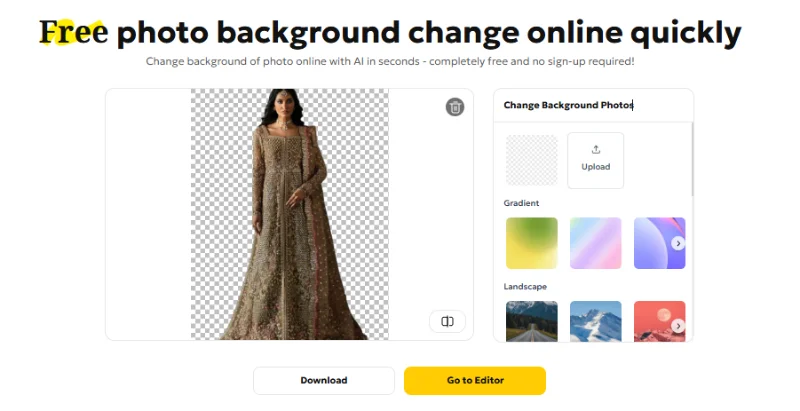
2.Change Background
Use AI-powered auto background removal or replace it with free images, custom colors, or your uploads. The tool automatically detects the subject for a clean, professional result.
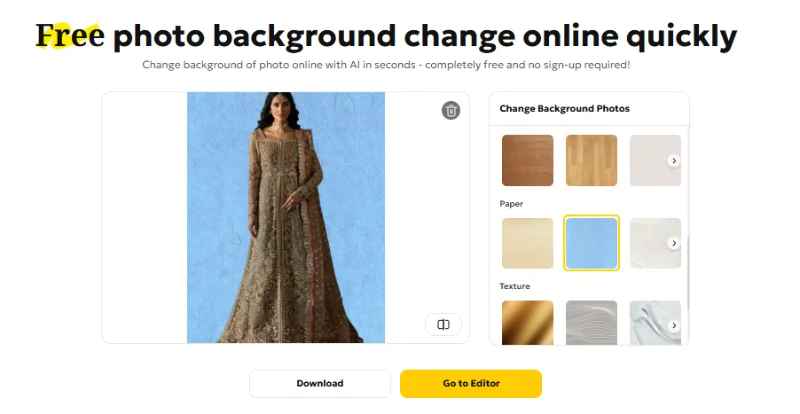
3.Download Your Photo
Save your edited image in standard resolution for free or unlock HD quality for high-resolution results
Final Word
Snapseed change background features can be useful for basic edits, but in my opinion, most of its tools don’t give accurate or professional results. For precise and fast background changes, I recommendPixPretty Ai. It removes unwanted objects, cleans up backgrounds, and delivers high-quality, seamless results in just one click, making photo editing easier and more reliable than traditional Snapseed methods.
PixPretty AI Photo Editor
- 100% free AI Image Generator (Nano Banana 2 powered)
- 4K image quality with fast generation speed
- AI effects & filters for personal and e-commerce use



