Scrolling through Instagram can feel slow or frustrating when your app is overloaded with cached data. Clearing this temporary storage can free up space, fix glitches, and make the app run smoother.
In this guide, we’ll show you how to clear Instagram cache on your iPhone and Android, without losing any of your content. With just a few simple steps, you can speed up your app, save storage.
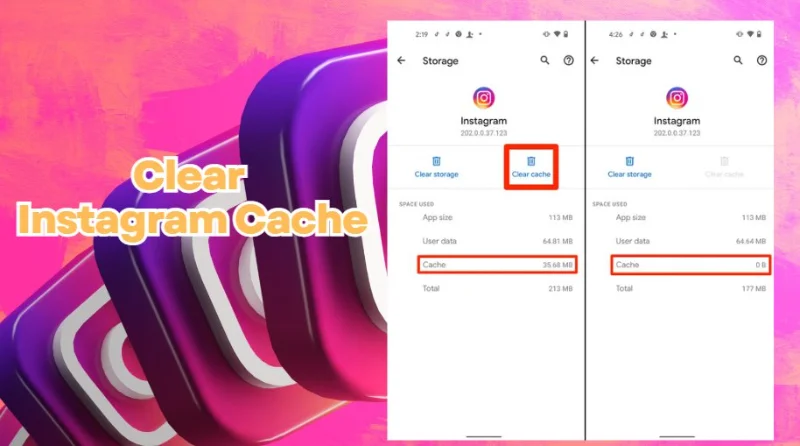
Table of Contents
- Part 1: What Does Clearing Instagram Cache Do?
- Part 2: How Often Should You Clear Your Instagram Cache?
- Part 3: How to Clear Instagram Cache on iPhone
- Part 4: How to Clear Instagram Cache on Android
- Part 4: Common Issues Solved by Clearing Instagram Cache
- Bonus Tip – Use Pixpretty Ai to Optimize Media Before Reposting
Part 1: What Does Clearing Instagram Cache Do?
Your Instagram cache stores temporary files to help the app load faster and remember your settings. Over time, these files can pile up, slowing down your phone or making Instagram lag.
When you clear Instagram cache, you remove this extra data, freeing up storage and helping the app run smoother all without deleting your photos, messages, or account.
Part 2: How Often Should You Clear Your Instagram Cache?
How often you clear cache instagram depends on your usage habits:
- Heavy Users: If you browse, post, and engage daily, clear your cache every 1–2 weeks to maintain smooth performance.
- Moderate Users: For those using Instagram a few times a week, once a month is usually enough.
- Light Users: If you rarely use the app, clearing your cache every 2–3 months is sufficient.
Part 3: How to Clear Instagram Cache on iPhone
On iPhone, Instagram doesn’t have a button to clear cache inside the app. The cache is made of temporary files that help Instagram load faster. Over time, these files can build up, slowing your phone and taking up storage. The easiest way to clear instagram app cache is by deleting and reinstalling the app. Don’t worry your account and posts are safe.
Steps how to clear instagram cache on iphone:
- Step 1: Tap the Settings app on your iPhone.
- Step 2: Scroll down and select General.
- Step 3: Tap iPhone Storage to see a list of all apps and how much space each one uses.
- Step 4: Scroll down and tap Instagram.
- Step 5: Tap Delete App. This removes the app and all temporary files.
- Step 6: Open the App Store, search for Instagram, and reinstall it.
- Step 7: Open Instagram and log in. Your posts, messages, and profile remain unchanged.


Part 4: How to Clear Instagram Cache on Android
On Android, you can clear Instagram cache without uninstalling the app. Cache files are temporary files that help Instagram run smoothly, but too much cache can make the app slow or freeze. Clearing them frees up space and improves performance.
Steps of how to clear instagram history and cache on Android:
- Step 1: Tap the Settings app on your phone.
- Step 2: Scroll down and select Apps or Application Manager.
- Step 3: Tap Instagram in the list of apps.
- Step 4: Open Storage to see cache and data details.
- Step 5: Tap Clear Cache. This removes temporary files without affecting your account.
- Step 6: If Instagram still feels slow, tap Clear Data. This logs you out, but your posts and account are safe. Tap OK or Confirm to finish.

Part 4: Common Issues Solved by Clearing Instagram Cache
Over time, Instagram stores temporary files and data on your device. While this helps the app load faster, it can also cause problems if the cache grows too large. Clearing your Instagram cache can resolve several common issues and improve overall performance. Here’s what you can fix:
App Freezing or Crashing:
If Instagram keeps freezing or closing unexpectedly, old cache files might be the culprit. Clearing them often fixes these crashes.
Slow Loading Posts and Stories:
A large cache can slow down your feed, stories, and reels. Removing cached data helps everything load faster.
“Storage Almost Full” Alerts:
Temporary files take up space on your phone. Clearing cache frees storage so your device runs smoothly.
Login or Upload Problems:
Cached data can sometimes conflict with new updates or uploads. Clearing it can fix login issues or failed uploads.
Unresponsive Features:
If Stories, Reels, or DMs feel buggy or slow, clearing the cache can restore normal functionality.
Bonus Tip – Use Pixpretty Ai to Optimize Media Before Reposting
Before you repost images or videos on Instagram, it’s important to make sure your media is sharp, properly sized, and looks professional. PixPretty AI offers a suite of AI-powered tools to compress, enhance, and edit images without losing quality.
Optimizing your media will improve upload speeds, visual appeal, and the overall look of your Instagram feed.
Key Features of
- Shrink JPG, PNG, JPEG, or WEBP images while keeping them crisp and clear.
- Compress multiple images at once to save time and effort.
- Choose Light, Medium, or High depending on your needs.
- Remove complex backgrounds in seconds for a cleaner look.
- Resize photos for different platforms without distortion.
- Smooth portraits, fix details, or change background colors.
How to Optimize Images with PixPrettyai
- Step 1: Upload Your Image Drag and drop or select the files you want to optimize. You can upload multiple images for batch processing.
- Step 2: Compress or Edit Pick a compression level or resize your images. Additionally, you can choose the size at which you want to compress the image.
- Step 3: Download Optimized Media Download your high-quality, ready-to-post images instantly. The images remain sharp, clear, and perfectly sized for Instagram.


Final Words
When Instagram starts to feel slow or cluttered, clearing stored data can free up space and boost performance. Follow easy steps of how to clear instagram cache and keep your app running smoothly. For sharper, high-quality posts, enhance your images with AI, making every photo looks polished and ready to impress your audience.
PixPretty AI Photo Editor
- 100% free AI Image Generator (Nano Banana 2 powered)
- 4K image quality with fast generation speed
- AI effects & filters for personal and e-commerce use

Related Articles:
- Free DL 3D Twinkle Twinkle Live Wallpapers for iPhone & iPad
- Miss Universe AI Prompt Guide: Try Your Own Pageant Costume
- 25 Best AI Prompts for YouTube Videos to Boost Channel
- 12 Best Stunning AI Prompt for Architecture Ideas Copy & Paste
- 15 Powerful Instagram AI Prompt for Followers to Grow Your Account


PixPretty Free Online Photo Editor
Clean, edit, and polish photos instantly — free and easy to use.