Converting PNG to STL has never been easier! Whether you are a beginner or an experienced 3D designer, turning 2D images into 3D printable models is now fast and simple. Tools like PNG to STL Blender let you create accurate, high-quality models while keeping every detail intact.
In this guide, we will explore the best methods to convert PNG to STL. Follow these steps to bring your creative ideas to life, save time, and get print-ready files effortlessly.
Table of Contents
- Part 1. What Is an STL File?
-
Part 2. Best 6 Ways to Convert PNG to STLHOT
- 1. Free Online PNG to STL Converters (Fast & Easy Browser Tools)
- 2. High‑Detail Online Conversion (PNG to STL with Better Mesh)
- 3. Blender Workflow for Precision (PNG to STL Blender)
- 4. SVG + Tinkercad Conversion (PNG to STL Tinkercad)
- 5. Meshy AI Converter for Refined Output (PNG to STL High Quality)
- 6. Aspose 3D Converter (Cross‑Platform PNG to STL Online Tool)
- Part 3. Tips for Better STL Files
- Part 4. Convert Image Formats Freely with PixPretty AI
Part 1. What Is an STL File?
An STL file is the most common format used for 3D printing. It stores the 3D model's shape as a series of triangles, making it easy for printers to read and print. When you convert PNG to STL, the 2D image is transformed into a 3D model that can be sliced and printed. STL files are widely supported by almost all 3D printing software, including Blender, Cura, and Meshmixer.
Part 2. Best 6 Ways to Convert PNG to STL
Converting your 2D PNG to STL file for 3D printing or modeling can be done in several ways. Below are the most reliable and widely used methods.
1. Free Online PNG to STL Converters (Fast & Easy Browser Tools)
Online converters let you convert PNG to STL directly in your web browser without installing software. These tools, such as MiConv and QuickSTL, are ideal for simple shapes, logos, or artwork that you want quickly turned into a printable 3D file. Because they run entirely in the cloud, you can use them on Windows, Mac, Linux, or even mobile devices.
How to Convert:
-
1.Open your preferred online PNG to STL converter in a browser.

-
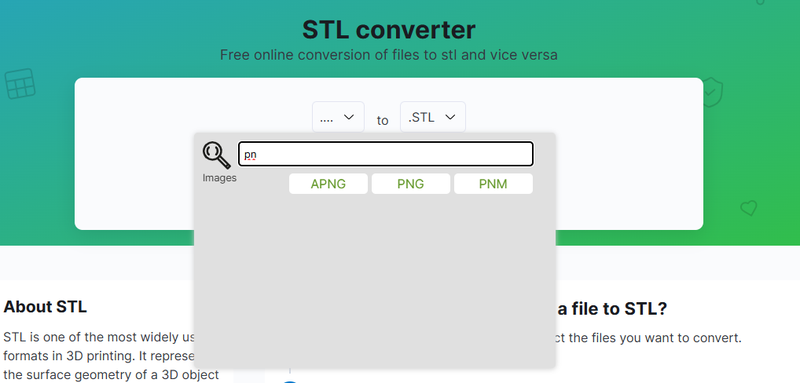
2.Click the upload button or drag your PNG file into the upload area.
-
3.Choose STL as the target input format.
-
4.Adjust any available settings such as image depth or resolution if the tool offers them.
-
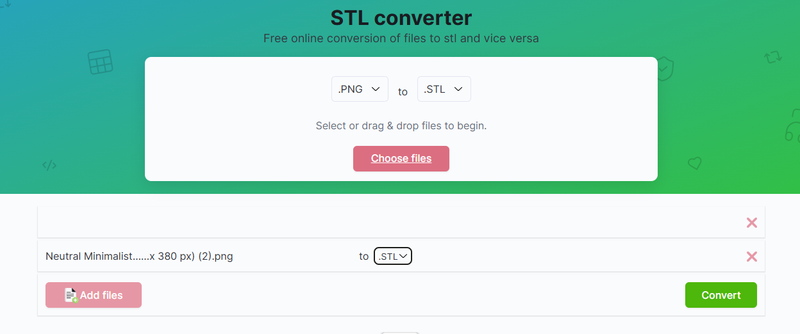
5.Click Convert and wait for the conversion to finish.
-
6.Download the generated STL file and open it in your 3D slicer to prepare it for printing.


2. High‑Detail Online Conversion (PNG to STL with Better Mesh)
Some web‑based converters go beyond basic extrusion by creating a higher‑quality mesh from your PNG file. These tools, such as PNGtoSTL.xyz's advanced mode, analyze pixel brightness to calculate height and contour detail. This makes it a good choice when you want a richer PNG to STL high quality result without complex software.
How to Convert:
-
1.Navigate to the online converter that offers advanced or high detail modes.
-
2.Upload your PNG image with good contrast and clear lines.
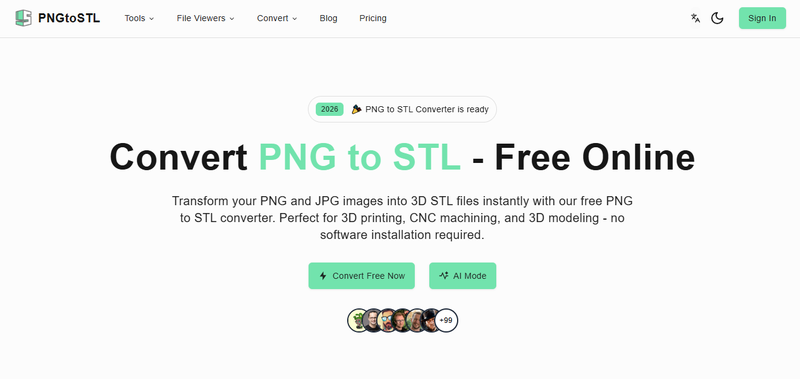
3.Select the advanced or high‑quality conversion option.
-
4.Preview the generated model and adjust depth or detail sliders if offered.
-
5.Click Generate STL and let the platform process your model.
6.Download the STL file and review it in your slicer.

3. Blender Workflow for Precision (PNG to STL Blender)
Using Blender allows professional‑level control when converting PNG to STL Blender because you're not limited to automated tools. Blender's modeling and modifier system lets you trace, extrude, warp, and refine your model.
How to Convert:
1.Open Blender and start a new project.
-
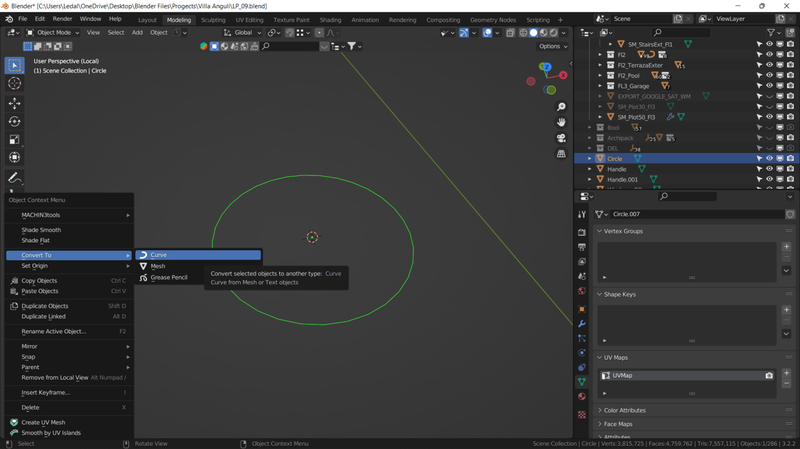
2.Import your PNG image by adding it as a reference image or converting it into a curve or mesh.
-
3.Trace the outline of your PNG using curves, then convert the curves to mesh.
-
4.Use modifiers such as Solidify or Displace to add thickness and shape.
-
5.Refine the mesh by editing vertices, smoothing surfaces, and repairing any irregularities.
-
6.Go to File > Export > STL and save your model for 3D printing.


4. SVG + Tinkercad Conversion (PNG to STL Tinkercad)
When your PNG contains crisp shapes or line art, converting it to an SVG vector and then using Tinkercad provides a user‑friendly way to turn graphics into 3D parts. Tinkercad lets you extrude shapes and modify them easily, making this a great option for logos, icons, or stylized designs that benefit from clear, vector‑based outlines.
How to Convert:
-
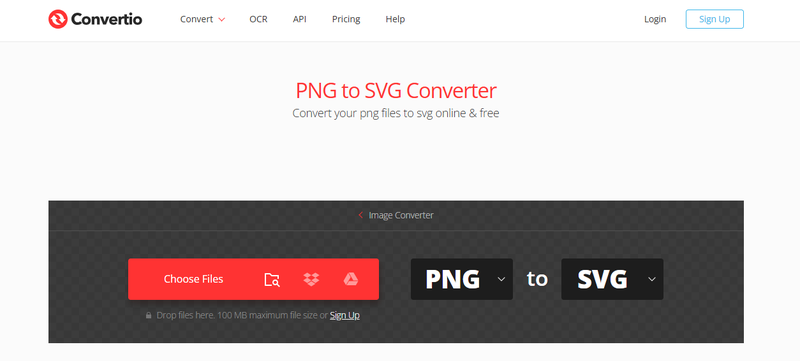
1.Use an online tool like Vectorizer or Convertio to turn your PNG into an SVG.
-
2.Open Tinkercad and start a new design.
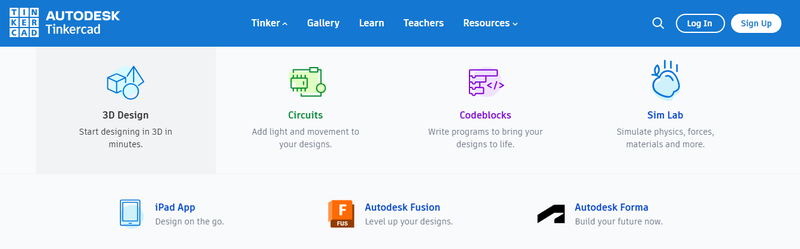
3.Import the SVG file into Tinkercad.
-
4.Use the extrude and shape tools to set the height and scale of your model.
5.Combine or adjust shapes within Tinkercad as needed.
6.Click Export > STL and save your finalized 3D file.


5. Meshy AI Converter for Refined Output (PNG to STL High Quality)
Platforms like Meshy.ai specialize in generating higher‑quality meshes from image data. For users seeking a streamlined PNG to STL high quality workflow without advanced modeling software, Meshy's AI‑enhanced algorithms produce clean, printable models that retain more detail than basic converters. This is especially useful for graphics with gradients or fine features.
How to Convert:
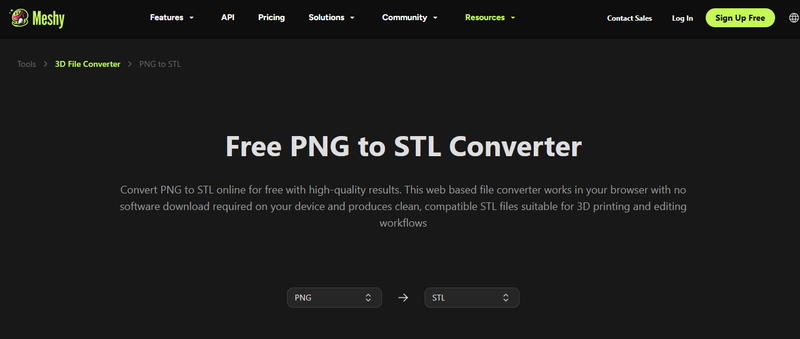
1.Open Meshy.ai's PNG to STL converter in your browser.
-
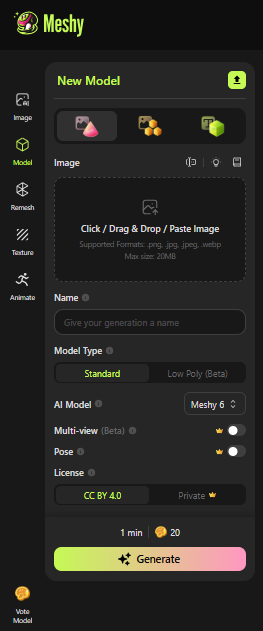
2.Upload the PNG image you want to convert.
-
3.Adjust available settings such as resolution or depth.
-
4.Click Convert and allow the tool to build a detailed 3D mesh.
-
5.Download the resulting STL file and inspect it in slicer software.


6. Aspose 3D Converter (Cross‑Platform PNG to STL Online Tool)
The Aspose 3D Converter is a simple, cross‑platform tool that works on virtually any device with a web browser. It gives users a straightforward method to upload PNG files and receive STL downloads without software installation or account creation, making it great for casual users or quick conversions.
How to Convert:
-
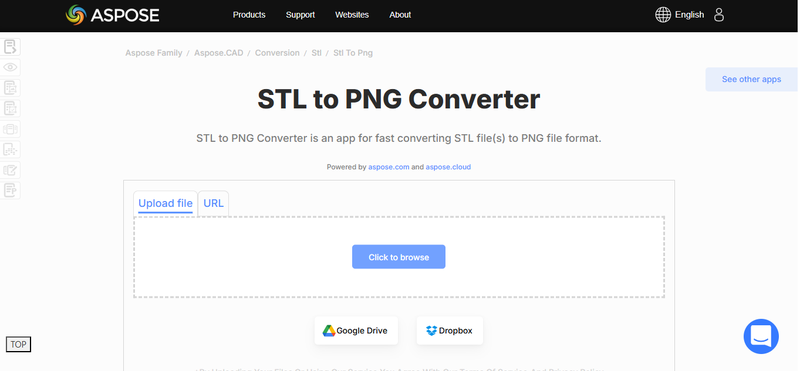
1.Visit the Aspose PNG to STL converter page in your browser.
-
2.Drag and drop your PNG file into the upload section.
-
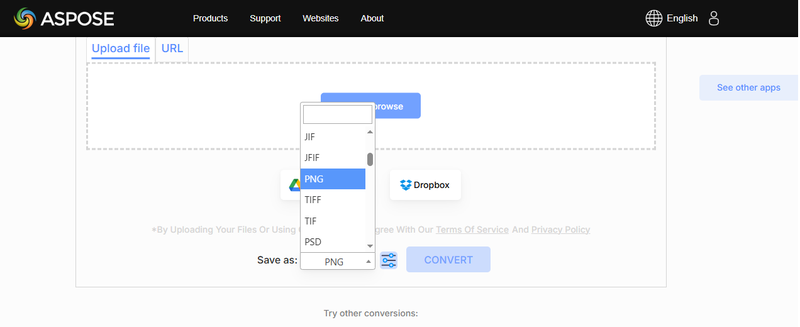
3.Choose STL as the output format.
-
4.Click Convert and wait for processing to complete.
-
5.Download the STL file and open it in your preferred slicer.


Part 3. Tips for Better STL Files
High-quality STL files are the key to smooth 3D printing and professional results. Even after converting your PNG or other 3D models, taking a few extra steps can improve accuracy, reduce errors, and ensure your prints come out exactly as intended. These simple practices save time, avoid printing issues, and make your 3D workflow more efficient.
Tips for Better STL Files:
-
Check and Repair Mesh: Fix holes, flipped faces, or non-manifold edges using Blender, Meshmixer, or similar tools.
-
Optimize Resolution: Balance detail and file size---too many polygons can slow printing, too few can lose detail.
-
Scale Accurately: Match your model's dimensions to your printer's build volume for precise results.
-
Maintain Wall Thickness: Ensure walls are thick enough to avoid collapse or weak prints.
-
Use Correct Export Settings: Export as Binary STL for smaller files or ASCII STL for editable versions.
-
Preview in Slicer Software: Inspect for gaps, overlapping faces, or other errors before printing.
-
Simplify Complex Shapes: Remove tiny details that your printer can't reproduce accurately.
-
Organize File Names: Keep clear, descriptive names for easier version tracking.
Part 4. Convert Image Formats Freely with PixPretty AI
PixPretty AI is a fast and easy tool designed for converting image formats without losing quality. Whether you need to change PNG to JPG, JPG to PNG, WEBP to PNG, or HEIC to JPEG, PixPretty handles it instantly while keeping your images crisp and clear. Its advanced AI makes sure that colours, details, and edges stay intact during conversion.
You can process single images or use bulk conversion to handle hundreds of files at once. This saves time, improves workflow efficiency, and eliminates the need for multiple software tools. PixPretty's AI also combines format conversion with background removal, resizing, and optimization, giving you a complete solution for professional-quality images in just a few clicks.
Conclusion:
Transforming images into 3D models is easier than ever. With PNG to STL conversion, you can create high-quality, print-ready files quickly and accurately. Whether you're a hobbyist or a professional, PixPretty AI makes image format conversion effortless, letting you prepare your visuals in seconds for flawless 3D results. Its smart tools save time and make sure your models keep every detail intact.
PixPretty Batch Photo Editor
- Edit multiple photos at once, instantly
- Remove backgrounds, crop, convert, and compress in bulk
- Consistent, professional images for stores, social, and ads