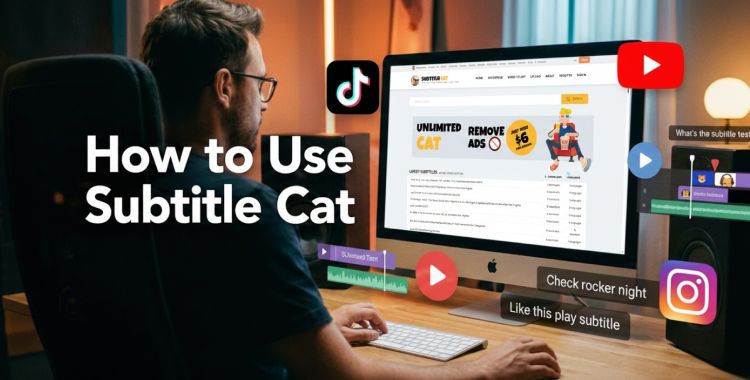
Silent scrolling is the new normal. Many people scroll social media without turning on the sound. They watch TikTok, Instagram Reels, and YouTube videos on mute. Because of this, subtitles are very important. Captions help catch attention, and make your videos easier for everyone to understand.
This is where Subtitle Cat helps. If you want to learn how to use Subtitle cat to add clear subtitles to your videos quickly, you are in the right place. In this guide, you will learn subtitle cat edit subtitles online for TikTok, YouTube, and Instagram.
Table of Contents
Part 1. What is Subtitle Cat?
Subtitle Cat is a free online subtitle editor that helps you find, create, translate, and edit subtitles for videos right in your browser. This tool is especially useful for social media creators and video editors. It helps improve accessibility and reach more viewers by adding or translating captions without installing heavy software.
It works with common subtitle formats like .srt and .vtt. It also supports many languages, making it easier to work with videos for TikTok, YouTube, and Instagram.
Key Features
These are the specific functions and tools that Subtitle Cat offers:
-
1.Online Subtitle Editing: Edit existing subtitle text, correct timing, split or merge lines, and prepare files for use in videos.
-
2.Automatic Speech Recognition (ASR): Generate subtitle text from spoken words in video using advanced speech-to-text technology.
-
3.Machine Translation (MT): Translate subtitle files into over 100 languages for global audiences.
-
4.Multilingual Support: Works with subtitles across many languages, including regional variations.
-
5.File Upload & Download: Upload your own subtitle files and download translated or edited versions in formats like .srt and .vtt.
-
6.Browser-Based: Cloud-powered platform means you can access Subtitle Cat on any device with a web browser.
Pros & Cons
Pros

Cons

Free and Web-Based:No subscription or software installation required just open your browser.
Translation Gaps:Machine-generated translations may sometimes need manual fixes for accuracy.
Easy to Use:Simple tools let you upload, translate, edit, and download subtitles quickly.
Limited Customization:Styling options like font choice and timing tweaks are basic.
Wide Language Support:Works with many languages, ideal for global audiences.
Subtitle File Only:You must upload a subtitle file raw video or audio upload isn't supported directly.
Fast Processing:Generates or translates subtitles faster than manual editing.
Part 2. How to Use Subtitle Cat Step by Step
Adding or translating subtitles with Subtitle Cat is quick because everything works online. You don't need to install any software or learn complex editing tools. Whether you want to translate an existing .srt file, use Subtitle Cat automatic translation the process is beginner-friendly.
Option 1: Search & Translate Existing srt Subtitle Files
This method is best if you don't already have a subtitle file.
Step 1: Visit the Website
Go to subtitlecat.com using your browser.
Step 2: Search for Your Video
Type the name of your movie, show, or video in the search bar. Subtitle Cat will display available subtitle files.

Step 3: Choose the Correct Version
Pick the subtitle that matches your video version. Check details like year, episode number, or runtime.
Step 4: Select Language & Translate
If your language is listed, select it. If not, click Translate and choose your target language. This uses Subtitle Cat automatic translation to convert the subtitles.

Step 5: Download the File
Once ready, download the translated .srt file and use it with your video.
Option 2: Upload & Generate Subtitles Directly from a Video
Use this method if you already have subtitles and want Subtitle Cat translate SRT to English or another language.
Step 1: Prepare Your Subtitle File
Make sure your subtitle file is in .srt format.
Step 2: Upload the File
On the Subtitle Cat homepage, upload your subtitle file.
Step 3: Choose Target Language
Select the language you want the subtitles translated into.

Step 4: Start Translation
Click Translate. Subtitle Cat will process the file using its automatic translation system.

Step 5: Download the Translated Subtitles
After processing, download the new subtitle file and use it with your video.
Part 3. Subtitle Cat vs Other Subtitle Tools
When you need to edit subtitles online, translate them, or prepare captions for platforms like YouTube, TikTok, or Instagram, there are several tools available each with its own strengths. Below, we compare Subtitle Cat with other popular subtitle editors and translators to help you choose the best option for your needs.
1. BlipCut Video Translator
BlipCut Video Translator is a more advanced solution designed for creators and teams who need large-scale subtitle translation and video localization. Unlike Subtitle Cat, BlipCut works directly with videos and uses AI to generate, translate, and even dub content in multiple languages. It's a strong choice for agencies or content creators managing many videos at once.

2. Maestra AI
Maestra AI focuses on making subtitle translation fast, accurate, and easy to manage. It combines subtitle generation, translation, and editing in one platform. Compared to Subtitle Cat, Maestra offers more flexibility because users can upload videos or subtitle files and make changes after translation. It's suitable for creators who want more control but still prefer a simple interface.

3. VEED
VEED is an online video editor with built-in subtitle tools. Instead of only working with subtitle files, VEED allows users to generate captions directly on videos and style them visually. This makes it a better option for social media creators who want eye-catching captions, while Subtitle Cat remains a better fit for people looking for a free online subtitle translator without video editing.

Part 4. Best Practices for Better Subtitle Quality
Good subtitles make videos easier to understand and watch. Even with Subtitle Cat automatic translation, keep them clear, short, and readable. This is important when you use Subtitle Cat for YouTube videos, especially for viewers watching on phones or without sound.
1. Prioritize Readability Over Word-for-Word Accuracy
Subtitles are meant to be read quickly while watching moving visuals. Because of this, they should focus on conveying meaning rather than copying every spoken word exactly.
-
Simplify long sentences
-
Remove unnecessary filler words
-
Shorten phrases without changing the message
2. Follow Proper Line Length and Structure
Subtitle formatting directly affects readability. Poor line breaks make text harder to process.
Professional guidelines recommend:
-
No more than two lines per subtitle
-
Balanced line breaks that follow natural speech patterns
-
Avoid splitting names, verbs, or important phrases across lines
3. Maintain Comfortable Reading Speed
Subtitles should stay on screen long enough to be read comfortably. If they disappear too quickly, viewers miss information; if they stay too long, they feel out of sync.
General timing standards:
-
Short subtitles: at least 1 second
-
Average subtitles: 2--3 seconds
-
Longer subtitles: up to 5--6 seconds if necessary
4. Synchronize Subtitles Precisely with Audio
Accurate timing improves viewer immersion.
Subtitles should:
-
Appear when speech begins
-
Disappear when speech ends
-
Match pauses and sentence breaks
5. Keep Language Natural and Conversational
Subtitles should reflect how people actually speak. Overly formal or literal translations can feel unnatural.
Use:
-
Everyday vocabulary
-
Natural sentence flow
-
Clear punctuation
6. Optimize Subtitles for Mobile Viewing
Many YouTube and social media viewers watch on small screens. Long lines that look fine on a desktop may feel crowded on a phone.
Test subtitles on different screen sizes to ensure:
-
Text is easy to read
-
Lines are not cut off
-
Timing still feels natural
Conclusion
Subtitles make videos easier to watch and understand. Learning how to use Subtitle Cat helps you quickly add, edit, and translate subtitles for YouTube, TikTok, and Instagram.
To make your videos look even better, try PixPretty AI. You can remove backgrounds, edit images in bulk, and create professional visuals fast. Using Subtitle Cat and PixPretty together makes your videos clear, engaging, and eye-catching.
PixPretty AI Clothes Changer
- Instantly change outfits with AI in 1 click
- Realistic AI previews for every top, bottom, or dress
- Create and explore endless outfits and OOTDs without editing