


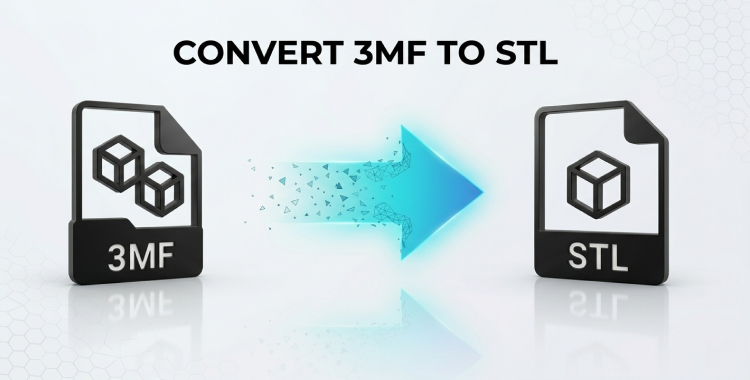
3D printing works best when your files are in the right format. While 3MF files are modern and detailed, many printers and slicers still prefer STL. That's why knowing how to convert 3MF to STL is important for smooth printing.
In this guide, you'll learn simple and effective ways to handle 3MF to STL conversion without losing quality. Whether you are a beginner or an experienced user, these methods help you prepare your models quickly. They also makes sure better and more reliable 3D printing results every time.
Table of Contents
- Part 1: What Is 3MF and STL?
-
Part 2. Best 6 Ways to Convert 3MF to STLHOT
- 1. Cura / Blender / Meshmixer (3MF to STL Converter Download)
- 2. ImageToSTL / AnyConv Online
- 3. Using Web Apps Like FABCONVERT or SwiftConverter (3MF to STL App)
- 4. Using Slicer Software (3MF to STL Windows / Mac)
- 5. Using Meshy AI Converter (Convert 3MF to STL Without Losing Quality)
- 6. Using Aspose 3D Converter (Cross-Platform Online Tool)
- Part 3. Tips for Better STL Files
- Part 4. Boost Your 3D Workflow with PixPretty AI
Part 1: What Is 3MF and STL?
Before converting 3MF to STL, it is important to understand these file formats.
3MF (3D Manufacturing Format) is a modern file type. It stores detailed information like colors, textures, and materials.
STL (Stereolithography) is the most widely used format in 3D printing. It is simple and works with almost all printers and slicers.
Converting 3MF to STL helps make your model ready for printing. It keeps the basic structure and ensures a smooth and reliable process.
Part 2. Best 6 Ways to Convert 3MF to STL
Converting 3MF to STL is simple when you use the right method. Whether you prefer online tools, software, or apps, each option has its own benefits. Some methods are quick and require no installation, while others give better control and quality.
In this section, we will explore the 6 best ways to convert 3MF to STL. Each method is easy to follow and works for different needs, from beginners to advanced users.
1. Cura / Blender / Meshmixer (3MF to STL Converter Download)
Professional tools like Cura, Blender, Meshmixer, and 3D Builder are some of the most reliable options for converting files. These programs allow you not only to convert but also to inspect, repair, and optimize your model before exporting. This is especially helpful for complex or high-detail designs where accuracy matters.

Pros:

Cons:

Offers maximum control over model quality and structure
Requires downloading and installing software
Allows editing, repairing, and optimizing before conversion
Beginners may find the interface slightly complex
Works offline, which is ideal for large or sensitive files
Setup and learning time can be longer compared to online tools
2. ImageToSTL / AnyConv Online
Online platforms like ImageToSTL, AnyConv, or 3DConvert let you convert 3MF to STL online directly from your browser. These tools are perfect for beginners, hobbyists, or anyone working on smaller projects who wants fast results. While they may not allow advanced editing or repairs, they provide a simple, accessible solution for users who prioritize speed and convenience.

Pros:
Cons:
No installation required works directly in your browser.
Limited file size in free versions.
Fast and simple conversion, perfect for beginners or hobbyists.
Some complex model details, like textures or colors, may be lost.
Accessible on any device, including Windows, Mac, or mobile.
Cannot perform advanced repairs or edits on the model.
Ideal for small or personal projects needing quick results.
Requires a stable internet connection for conversion.
3. Using Web Apps Like FABCONVERT or SwiftConverter (3MF to STL App)
For a more app-like experience, web apps such as FABCONVERT or SwiftConverter act as 3MF to STL apps. These platforms combine the ease of online tools with a streamlined, mobile-friendly interface, making them ideal for on-the-go conversions. While they don't offer deep editing options like Blender or Meshmixer, they are fast, lightweight, and intuitive, allowing you to quickly convert 3MF files into STL formats on desktop or mobile devices without installing anything.

Pros:
Cons:
No installation required works directly in your browser.
Limited file size in free versions.
Fast and simple conversion, perfect for beginners or hobbyists.
Some complex model details, like textures or colors, may be lost.
Accessible on any device, including Windows, Mac, or mobile.
Cannot perform advanced repairs or edits on the model.
Ideal for small or personal projects needing quick results.
Requires a stable internet connection for conversion.
4. Using Slicer Software (3MF to STL Windows / Mac)
Slicer software such as Cura, PrusaSlicer, or Slic3r is the preferred choice for Windows and Mac users who want to convert 3MF to STL while preparing the model for printing. These slicers not only handle the conversion but also allow you to adjust orientation, scale, and supports, ensuring your STL file is print-ready. Unlike basic converters, slicers integrate the conversion process with your printing workflow, making them efficient and precise.

Pros:
Cons:
Lightweight and fast converts files without heavy software.
Limited editing or mesh repair tools.
Mobile-friendly interface, suitable for on-the-go use.
May slightly reduce detail for very complex models.
No installation needed, saving storage and setup time.
Free versions often have conversion limits or watermarks.
Intuitive and easy to use, even for beginners.
Compatible with both desktop and mobile browsers.
5. Using Meshy AI Converter (Convert 3MF to STL Without Losing Quality)
For professionals or projects requiring maximum detail retention, Meshy AI Converter makes sure that your 3MF file is converted to STL without losing quality. This online tool preserves the geometry, mesh structure, and overall model integrity, making it perfect for highly detailed or intricate designs. Unlike basic online converters, Meshy AI focuses on accuracy and fidelity.

Pros:
Cons:
Maintains geometry and mesh details perfectly.
Free versions may have file size or feature limitations.
Ideal for professional-grade or highly detailed models.
No advanced editing or mesh repair options.
Fast and user-friendly online interface.
It may not be necessary for simple or hobbyist models.
Makes sure STL output is print-ready without errors.
Conversion quality depends on the original 3MF file integrity.
Works on any device with a browser.
6. Using Aspose 3D Converter (Cross-Platform Online Tool)
Aspose 3D Converter works on Windows, Mac, Linux, or mobile browsers, letting you convert 3MF to STL online from any device. This tool is ideal for users who need flexibility and accessibility without installing software. While it's not designed for advanced editing, it provides a fast, reliable, and platform-independent method to get STL files ready for printing.

Pros:
Cons:
Maintains geometry and mesh details perfectly.
No advanced editing or mesh repair options.
Ideal for professional-grade or highly detailed models.
May not be necessary for simple or hobbyist models.
Fast and user-friendly online interface.
Works on any device with a browser.
2. Part 3. Tips for Better STL Files
Creating a clean and accurate STL file is important for successful 3D printing. When you convert 3MF to STL, some details like textures and materials are removed, so focusing on geometry and structure becomes essential. Small mistakes in the file can lead to printing errors, poor quality, or failed prints.
By following a few simple tips, you can improve your STL files and get better results every time.
Tips for Better STL Files
-
Check Model Scale and Units
Always confirm the size and units before printing. Incorrect scaling can result in models that are too large or too small. -
Fix Mesh Errors
Repair holes, non-manifold edges, or broken surfaces using 3D tools. A clean mesh ensures smooth printing. -
Use Binary STL Format
Binary STL files are smaller in size and more efficient compared to ASCII format, especially for complex models. -
Simplify the Geometry
Reduce unnecessary details or excessive triangles. This helps improve performance and avoids slicing issues. -
Check Wall Thickness
Make sure walls are thick enough to print. Thin walls can break or fail during printing. -
Verify Model Orientation
Proper orientation improves print quality and reduces the need for support structures. -
Preview Before Printing
Always open the STL file in a slicer to check layers, structure, and possible errors before printing. -
Keep a Backup of the Original File
Always save your original 3MF file. This allows you to go back and fix issues if needed.
Part 4. Boost Your 3D Workflow with PixPretty AI
Editing product or 3D images can be time-consuming, especially when backgrounds are messy or sizes don't match. PixPretty AI is a free AI photo editor that makes this easy. It can remove backgrounds in seconds, resize images automatically, and edit multiple photos at once.
PixPretty works for products, people, animals, cars, and graphics, giving clean, professional images every time. It also offers tools like bulk editing, smart resizing, AI portrait retouching, and object removal, so you don't need multiple apps. Whether you sell online or create designs, PixPretty AI saves time, lowers costs, and helps your images look their best.
Conclusion
Converting 3MF to STL doesn't have to be complicated. Whether you choose online tools, desktop converters, or slicer software, the right method ensures your 3D models keep their quality and are ready for printing. For faster editing and professional results, try PixPretty AI. It helps clean up images, remove backgrounds, and optimize visuals effortlessly, making it perfect for enhancing your 3D workflow.
PixPretty Batch Photo Editor
- Edit multiple photos at once, instantly
- Remove backgrounds, crop, convert, and compress in bulk
- Consistent, professional images for stores, social, and ads
Related Articles:


