


Creating clean and professional slides often requires removing the background from images. PowerPoint includes a built-in tool that allows you to powerpoint remove background from image easily. It works well for simple backgrounds, but complex images can be tricky.
In this article, we explain how to remove image backgrounds in PowerPoint step by step, share tips to refine the process, and introduce PixPretty by Tenorshare as a smarter alternative for precise background removal. Using the right tool ensures your presentations look professional, clean, and ready for any audience.
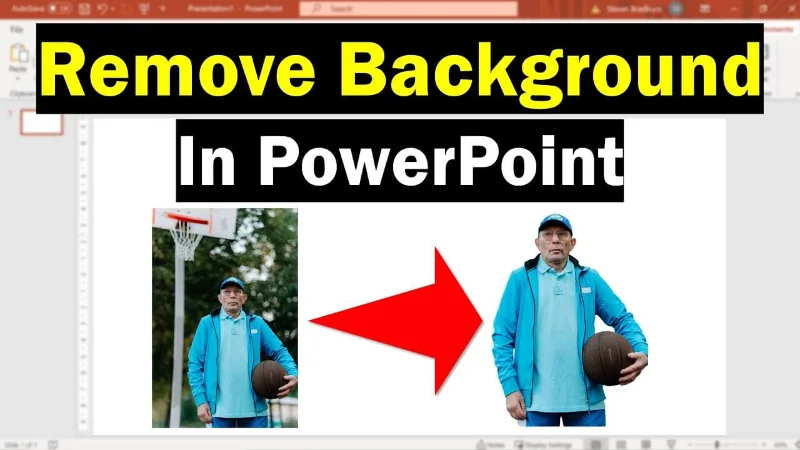
Table of Contents
Part 1: Understanding PowerPoint’s Background Removal Tool
Removing the background in PowerPoint can save time and improve slide quality. Before using advanced tools, it helps to understand what the built-in feature can do and when it works best.
How the Tool Works
PowerPoint remove background from image automatically detects areas to remove. It highlights them in magenta. Users can then manually adjust areas to keep or remove. This process works best with simple, clear backgrounds.
Ideal Use Cases
- Single-color or plain backgrounds
- Logos and objects that need isolation
- Quick edits for standard presentation images
Limitations of PowerPoint
PowerPoint struggles with complex images, gradients, or detailed backgrounds. Users may need multiple attempts to get precise results. In such cases, using PixPretty ensures cleaner and more accurate background removal.
Part 2: Step-by-Step Guide to Remove Background in PowerPoint
PowerPoint remove background from image is simple and helps your slides look professional. Follow these steps to edit your image and customize your slide visuals effectively.
Step 1: Select Your Image
Click on the image you want to edit. The "Format" tab will appear on the PowerPoint ribbon. This tab gives you all the editing options you need.

Step 2: Open the Background Removal Tool
Under the "Format" tab, click Remove Background in the "Adjust" section. PowerPoint will overlay your image with a mask: pink shows what will remain, and purple shows what will be removed.

Step 3: Adjust the Mask
PowerPoint may not perfectly detect the subject on the first try. Use Mark Areas to Keep and Mark Areas to Remove to refine the selection. Draw lines over areas to keep (pink) or remove (purple).

Step 4: Apply Changes
Once satisfied with the selection, click Keep Changes. Your image will now be free of the original background.

Step 5: Save or Reinsert the Edited Image
You can save the edited image as a new file or place it back onto your slide. Your slide now has a clean, professional-looking image.
Step 6: Recolor the Background
Recolor background in PowerPoint, select the image and pick a color from the Home tab. PowerPoint will fill the empty space while keeping the image boundaries intact.
Part 3: Using Set Transparent Color for Simple Backgrounds
For images with solid colors, PowerPoint offers a faster option. The Set Transparent Color tool works best when the background is uniform.
How to Use the Tool
- Click the image → Picture Format → Color → Set Transparent Color.
- The cursor turns into an eyedropper.
- Click on the background color to make it transparent.
Advantages
- Quick and easy for logos or single-color backgrounds
- Does not require manual marking of areas
- Keeps the subject intact without complex edits
Limitations
- Not suitable for images with gradients or multiple colors
- May require using Remove Background for precise editing
Part 4: Challenges You May Face
Even with PowerPoint’s built-in background removal tools, users can encounter several challenges. Understanding these common issues helps you avoid mistakes and ensures cleaner results when editing images.
Inaccurate Detection
PowerPoint’s automatic background detection sometimes mistakes parts of the main subject as background, especially when colors are similar. To fix this, manually use Mark Areas to Keep or Mark Areas to Remove. Careful adjustments improve accuracy and prevent important parts of the image from being hidden or deleted. Patience is key for detailed images.
Complex or Gradient Backgrounds
Images with detailed, gradient, or multi-colored backgrounds can be difficult for PowerPoint to process. The built-in tool may leave parts of the background or incorrectly remove sections of the subject. In such cases, using PixPretty helps, as its AI detects edges and removes complex backgrounds automatically, saving time and ensuring professional results.
File Type Issues
PowerPoint’s background removal only works with raster images like PNG and JPEG. Vector formats, such as SVG or AI files, are not supported. Attempting to remove backgrounds from unsupported files will fail.
Part 5: Perfect Your Images with Easy Background Removal
Creating professional-looking images has never been easier. With PixPretty, you can remove image backgrounds quickly, accurately, and without technical skills. Whether you are designing presentations, social media posts, or marketing materials, clean images help your visuals stand out. PixPretty uses AI to detect subjects and separate them from backgrounds, saving you time and effort. Even complex images with multiple colors or gradients can be processed effortlessly. By using PixPretty, you ensure that every image looks polished and ready for use in PowerPoint or any other design project.
Key Features of PixPretty:
- AI-Powered Background Removal: Automatically detects the subject and separates it from complex backgrounds with precision.
- Batch Processing: Remove backgrounds from multiple images at once, saving hours of manual work.
- High-Quality Output: Export images in PNG format with transparent backgrounds for professional results.
- Easy-to-Use Interface: No design skills required; simple clicks deliver instant clean images.
- Background Replacement Options: Swap backgrounds instantly or keep transparency for versatile design use.
FAQs
Q1: Does removing the background in PowerPoint delete pixels?
No, PowerPoint does not permanently delete pixels when removing a background. It hides them instead, allowing you to restore any part of the image if needed at any time.
Q2: Can I remove backgrounds from SVG images in PowerPoint?
No, PowerPoint’s background removal tool only works with raster images like PNG or JPEG. Vector formats such as SVG cannot be edited using this feature.
Q3: Is PixPretty free to use?
PixPretty offers a free trial for basic features. However, advanced tools, batch processing, or higher resolution exports typically require a paid subscription plan.
Q4: Can I refine the background after using PixPretty?
Yes, PixPretty allows you to refine edges, adjust transparency, replace backgrounds, or remove additional areas even after the initial background removal is completed.
Q5: Does using PixPretty increase presentation size?
Using large PNG or high-resolution images from PixPretty can increase your PowerPoint file size. Optimize image resolution to keep presentations manageable without losing quality.
Conclusion
Mastering how to PowerPoint remove background from image can significantly improve the overall quality of your presentations. PowerPoint’s built-in background removal tool works well for simple images with plain or single-color backgrounds, allowing you to quickly isolate subjects without extra software. However, when dealing with complex images, gradients, or crowded scenes, achieving precise results can be challenging.
This is where PixPretty AI background remover becomes invaluable, using AI to remove backgrounds accurately and efficiently. By combining PowerPoint’s tools for basic edits with PixPretty advanced capabilities, you can create professional, clean, and visually appealing slides faster and with less effort.
PixPretty AI Photo Editor
- 100% free AI Image Generator (Nano Banana 2 powered)
- 4K image quality with fast generation speed
- AI effects & filters for personal and e-commerce use



