


A negative photo filter adds a bold and surreal twist to any image by inverting its colors. It highlights details, transforms ordinary photos into striking visuals, and works for both color and B&W pictures.
In this guide, you'll discover the top ways to use a negative photo filter, whether you prefer online tools, offline editors, free apps, or advanced software, making your images truly stand out.
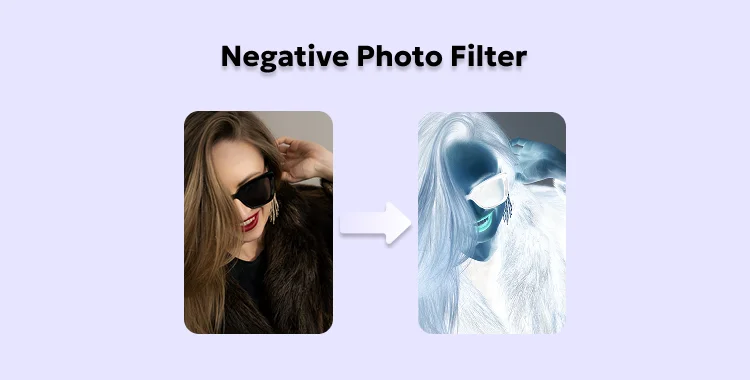
Table of Contents
Part 1. What to Know First About Negative Photo Filter
1. What Is a Negative Photo Filter?
A negative photo filter reverses the colors in a photo. Light areas become dark, dark areas become light, and each color changes to its opposite. For example, white turns black, red becomes cyan, green turns magenta, and blue changes to yellow.
This creates a surreal, sometimes eerie effect. People can look ghostly, and landscapes may appear otherworldly. The filter works by flipping the colors of each pixel.
It is useful for creative projects, art, graphic design, and marketing. It can highlight details, give a vintage look, and add an abstract style. It also helps improve contrast, assist color perception, and reduce eye strain.

2. Can You Apply a Negative Photo on iPhone?
Yes! You can easily invert colors on your iPhone using built-in features or apps. iOS allows you to apply a negative effect to images without needing extra software. This is helpful if you want a quick, dramatic look or want to highlight details in photos.
Part 2. Best 5 Free Online Negative Photo Filter Tools
1. LunaPic
LunaPic is a free online tool to convert photos into negative images easily. You just need to open the LunaPic website, choose your photo from your device or enter a URL, and the tool will automatically apply the negative effect. It is simple to use and works quickly, making it a great choice for anyone looking for a fast negative picture converter.
Ease of use: 5/5, Speed: 5/5. LunaPic is a great choice for anyone looking for a quick and reliable negative picture converter.

2. Invert Image
Invert Image is a free online tool that quickly reverses the colors of any photo. You just upload your image to the website, click the invert button, and the tool immediately creates the negative version. After that, you can preview and download your inverted image. It works entirely in your browser, requires no registration, and is easy to use, making it a simple way to apply a negative photo filter free.
Ease of use: 3/5, Speed: 1/5. This tool works, but it is less convenient for fast results.

3. PineTools -- Invert Colors
PineTools is a free online tool that allows you to easily invert colors in any photo. It quickly changes white to black, black to white, and switches other colors to their opposites. You can upload an image from your device or use a URL to apply the effect amd click invert. This tool is perfect for anyone who wants to convert negative to positive photo online free or simply invert colors online in images.
Ease of use: 4.5/5, Speed: 4.5/5. It is perfect for converting negative to positive photos online free or simply inverting colors online.

4. Image Inverter
Image Inverter is a free online tool to quickly apply a negative effect to any photo. Simply upload your image and click the invert button. The tool will immediately reverse all colors, creating a negative version of your photo. It is easy to use and works without registration, making it a convenient choice for anyone who wants a negative photo filter free.
Ease of use: 5/5, Speed: 5/5. This makes it a convenient choice for anyone who wants a negative photo filter free without any complications.

5. Zight -- Color Inverter
Zight is a free online tool to quickly invert colors in any image. Just upload your photo, click the invert button, and then download the image. It works on both computers and mobile devices, making it easy to use as a negative photo filter Samsung or negative photo filter iPhone. No registration or special skills are needed.
Ease of use: 4.5/5, Speed: 4/5. Zight is great as a negative photo filter for Samsung or iPhone users.

Bonus Tip: Enhance Your Photos with Pixpretty AI
PixPretty AI is an easy-to-use photo editor that can quickly remove backgrounds, resize images, and enhance photos in seconds. It works with products, people, animals, and graphics, making editing fast and effortless.
Start Convert for FreeWith features like AI portrait retouching, background changing, and bulk editing, PixPretty AI helps you improve image quality, save time, and create professional-looking visuals for social media, e-commerce, or personal projects all for free.

Part 3. FAQs on Negative Photo Filter
Q1. Is negative filter the same as inverted image?
Yes, a negative filter and an inverted image are essentially the same. Both reverse the colors in a photo, turning light areas dark and dark areas light, while swapping colors with their opposites. This creates a surreal or dramatic effect in the image.
Q2. Can I use a negative filter on my phone?
Absolutely. Most smartphones have apps or built-in features that allow you to invert colors or apply a negative filter to photos easily.
Q3. How do I remove a negative filter from a photo?
You can remove a negative filter by applying the invert effect again, which restores the original colors.
Conclusion
A negative photo filter is an easy way to make your photos look creative and different. It changes the colors, adds drama, and highlights details in your images. You can use free online tools, apps, or simple editors to do this quickly. Make your images crisp, professional, and background-free using PixPretty AI in just a few clicks. Using a negative photo filter with Pixpretty AI makes your images look professional and eye-catching with very little effort.
PixPretty AI Photo Editor
- 100% free AI Image Generator (Nano Banana 2 powered)
- 4K image quality with fast generation speed
- AI effects & filters for personal and e-commerce use



