


AI music generation tools are now a go-to for anyone who wants to whip up professional-sounding tracks fast without using any instruments. Maybe you’ve come across TopMediai AI Music Generator. It’s one of the big names out there for making music with AI.
But how, really, do you make it sound like you are creating tracks in a professional studio? In this post, we’ll demonstrate how to make music with TopMediai and provide some tricks for generating a flawless track. Alongside, we’ll point out a few pitfalls you’ll want to dodge.
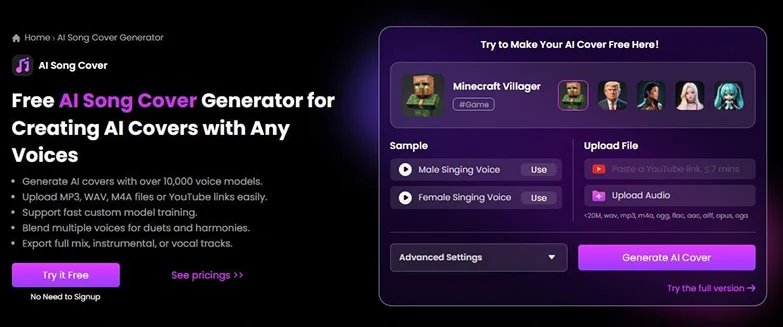
Table of Contents
Part 1: What Is TopMediai AI Music Generator?
TopMediai is an AI music generator online for free that lets users create original, royalty-free music from lyrics, text, or images. It helps content creators and songwriters make background tracks, song ideas, and try out different music styles. Here are this tool’s key features in detail:
- Broad Music Selection: Has a very broad selection of genres such as pop, trap, rock, country, etc.
- Flexible Inputs: Generate music by employing the lyrics, text descriptions, or pictures that establish the mood. The tool is also capable of creating lyrics from simple ideas.
- Personalization: Select genre, instruments (piano, guitar, drums), mood (sad, warm, excited), gender of the singer, and song name.
- Editable Songs: Users can refine and extend generated tracks for better results.
- High Quality: This AI song cover generator for free produces studio-level music and catchy lyrics in any style.
- Royalty-Free: Music is all safe to use commercially.
- Voice Cloning: Voice cloning is supported by custom vocals.
- API Access: This AI song cover generator for free is available for developers to integrate the tool.
- Export Options: With Topmediai AI music generator, download full songs, instrumentals, vocals, or MIDI files.
- AI Covers: Create AI cover songs from YouTube links or uploaded audio.
Part 2: How to Use TopMediai AI Music Generator?
You can employ the TopMediai AI Music Generator for free to create music from prompts, lyrics, and images. Here’s how:
- Step 1: Head to the TopMediai website. Then, click “Try For Free” to sign up for an account.
- Step 2: Log in to TopMeidiai AI music generator online for free. Then, choose between “Lyrics to Music,” “Image to Music,” and “Prompt to Music” options from the left pane.
- For text prompts, switch on “Instrumental” to generate lyrics-free backing tracks. Describe the music so the AI can create matching music. You can also add instruments, choose a singer’s gender, and give your track a title for easy organization. After this, hit “Create.”
- For lyrics, enter lyrics or generate them with another AI tool and then enter them in the field. Then, choose a model (use 3.5 for longer lyrics). Hit “Create.”
- For images, upload a picture, and customize the mood and instruments. Hit “Create.”
- Step 5: After generation with TopMediai AI Music Generator, you’ll get more than one version of the same song. Preview them.
- Step 6: Tap “Download” at the bottom of Topmediai AI Music Generator to download your desired version as the original song or in video form. You can also choose to “Extend” the track or download it as a MIDI or Sheet Music from the options at the bottom.


[Bonus Tip] Refine Images With AI Enhancer For Music Generation
If you want to use images to generate music with TopMediai but need to touch them up first, then try a free AI Enhancer like PixPretty AI Photo Editor . It can refine and boost image quality, modify pictures in batches, and even compress, resize, and convert (WeBP to PNG or JPG to PNG) them.
The tool can also extend, replace, and remove backdrops and watermarks, and change the colors of backgrounds. You can retouch portraits, facial features, and body contours with PixPretty, offering countless presets, filters, and shadow effects.
Part 3: Tips to Generate Music With TopMediai AI For Professional Results
To produce professional tracks with TopMediai AI Music Generator for free, here are some tips to follow, together with prevention steps:
- 1. Provide Specific Prompts: Include information such as instruments, genre, and mood in order to allow the AI to generate good music.
- 2. Match Lyrics and Style: Lyrics should match the rhythm of the song and its atmosphere.
- 3. Structure Lyrics: Have definite verses and choruses and transitions, and do not make them excessively long or complicated.
- 4. Select the Correct Model: Pick V5.0 for better results, and for long and complex songs, go with V3.5
- 5. Try Different Music Styles: Switch genres, moods, instruments (e.g., piano, guitar, saxophone).
- 6. Refine Your Song: Edit or extend the track after generation to improve quality.
- 7. Use Language Tags: Write lyrics in your chosen language and include a tag like “(Chinese)” for accuracy.
- 8. Apply AI Tools: Employ AI Dubbing to translate songs or AI Cover to reproduce the song using a YouTube link or upload.
- 9. Fix Song Issues: If songs sound off, check for too many lyrics, mismatched style, or wrong model selection.
Final Word
TopMediai AI Music Generator allows you to generate royalty-free, unique songs based on text, lyrics, or pictures quickly. With many styles and customization options, anyone can make studio-quality tracks in minutes. For better image-based music generation, employ PixPretty AI Photo Editor to improve image quality and match your visuals with your music’s mood for free.
PixPretty AI Photo Editor
- 100% free AI Image Generator (Nano Banana 2 powered)
- 4K image quality with fast generation speed
- AI effects & filters for personal and e-commerce use

Related Articles:


