


Grok Imagine sometimes restricts videos and images to ensure content stays safe and follows platform rules. These moderation limits can leave users wondering how to view certain content. In this guide, we break down what “Grok Imagine video moderated” really means and why it happens.
You’ll also discover practical, safe ways to access blocked videos and images without risking your account. Whether you’re exploring creative content or just curious, this guide helps you enjoy Grok Imagine responsibly.

Table of Contents
- Part 1: What “Content Moderated” Means in Grok ImagineHOT
- Part 2: How to View Moderated Images on Grok
- Part 3: How to Fix “Grok Content Moderated, Try a Different Idea
- Part 4: The Bigger Picture: Moderation Controversy & Trends
- Bonus Tip: Switch Styles, Colors, and Patterns with Pixpretty AI Clothes Changer
Part 1: What “Content Moderated” Means in Grok Imagine
Grok Imagine marks videos or images as moderated when they might break safety rules. This can include explicit, violent, or illegal content. Moderation happens to protect users and comply with laws. Even mild or suggestive content may be blocked depending on filters and regional rules.
1.1 Why Grok Moderates Images & Videos
The grok video moderated meaning is straightforward. It means Grok Imagine’s system flagged the content as unsafe or against its rules. This happens automatically when a prompt or result may violate platform guidelines.
-
Safety & Harm Prevention: The system blocks explicit sexual content, violence, non‑consensual deepfakes, and representations involving minors. These are universally prohibited by AI safety policies to prevent misuse.
-
Suggestive or Risky Prompts: Even mild or suggestive wording (e.g., “sensual,” “intimate”) can trigger moderation if the AI predicts the outcome might breach rules.
-
Legal & Compliance Risks: In some regions, strict online safety laws (like in the UK and parts of the EU) force Grok to add extra filtering layers to avoid illegal content distribution.
-
Platform Reputation: Platforms that host Grok want to avoid being associated with unsafe or illegal generated content. This drives conservative moderation across videos and images.
1.2 Grok’s Moderation System: Safety, Rules, and Biases
Grok Imagine’s moderation combines automatic filters, legal compliance, and ongoing adjustments. Key aspects include:
1. Prompt Inspection: Every user input is checked for restricted language or sensitive topics.
2. Image Pre‑Scan: If you upload a photo, it’s checked for nudity or risky body poses before video animation.
3. Frame‑by‑Frame Video Review: Generated videos are scanned mid‑generation; even one problematic frame can cause video moderated.
4. Adaptive Filters: The moderation logic changes over time. A prompt that passed yesterday may be blocked today as rules evolve.
5. Separate Image & Video Checks: A static image might be approved, but animating it can still be moderated due to added motion or implied actions.
6. Inconsistent Enforcement: Many users report inconsistent moderation behavior across accounts, regions, and prompt types, partly due to evolving filters.
1.3 The Impact of Spicy/NSFW Modes & Regional Laws
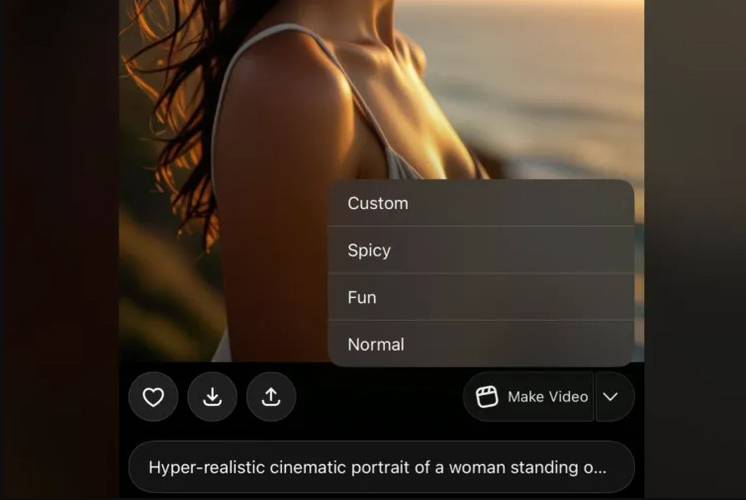
Grok Imagine includes different generation modes, such as Normal, Custom, and Spicy. Spicy Mode is intended to allow more mature themes and suggestive content, but moderation still applies on top of those settings. Even in Spicy Mode, fully explicit video or imagery that crosses community or legal boundaries will be labeled moderated.

Regional laws also shape how moderation works. For example, platforms like Grok must enforce stricter rules in jurisdictions with strong online safety laws such as the UK’s Online Safety Act, which elevates responsibilities for content that might harm minors or violates local standards.
Part 2: How to View Moderated Images on Grok
Moderated content on Grok Imagine can be unlocked safely with the right settings and a verified account. Here’s how to view moderated images on grok effectively:
Step 0: Meet the Essentials
-
Subscription: SuperGrok or Premium++ is required for full access. Free users have limited daily usage.
-
App Requirement: Only the latest iOS or Android Grok app supports Spicy Mode; the web version is blocked.
-
Age Verification: Users must be 18+ and verify their ID through the app.
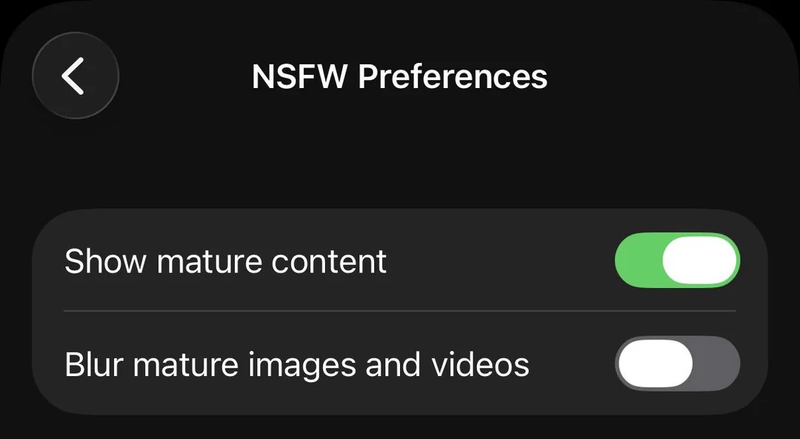
Step 1: Enable NSFW and Sensitive Media
-
1.Open your profile and go to Settings, then Content Preferences. Turn on Display NSFW content.
-
2.Under Imagine Settings, enable Allow sensitive media generation.
-
3.Android users may need to force-close the app twice for changes to take effect.

Step 2: Start Creating in Spicy Mode
-
1.Open the Imagine Tab, then generate an image or upload your own.
-
2.Tap the image to enter the video creation screen and select Spicy Mode from the available options.
-
3.Grok will generate a short 6–15 second animated video in 10–30 seconds.

Part 3: How to Fix “Grok Content Moderated, Try a Different Idea
When Grok Imagine displays grok content moderated try a different idea. It doesn’t mean your idea is bad, it simply indicates that the system’s safety filters flagged your prompt. Grok uses automated checks to prevent harmful, illegal, or overly explicit content.
This can include sexualized content, violence, or even sensitive real-world references. Moderation also changes depend:
Reframe Your Idea: Replace explicit or sensitive words with neutral or artistic language. Example: Instead of “seductive dancer,” try “graceful dancer in cinematic lighting” or “ballet dancer performing under soft stage lights.”
Simplify Your Prompt: Long or complex prompts are more likely to trigger moderation. Break your concept into smaller steps. Example: Instead of “A futuristic city with flying cars, neon lights, and robots fighting in the sky,” start with “A futuristic city at night with neon lights” and then add robots or action elements in a separate step.
Focus on Creativity: Present content as art, illustration, or concept design to reduce moderation risk. Example: Use terms like “concept art of a dragon,” “editorial fashion illustration,” or “surreal landscape painting” instead of literal or suggestive prompts.
Test and Refine: If a prompt is blocked, adjust one word at a time until it passes. Example: “Sexy wizard casting magic” can be changed to “Elegant wizard casting magic under moonlight.”
Use Base Images for Videos: Videos are moderated more strictly than images. Start with a still image, then animate it. Example: Generate “a serene mountain landscape” first, then apply animation to create a short moving clip.
Give Feedback: If safe prompts are repeatedly blocked, report them in the app. Example: Submit the blocked prompt with a screenshot through Settings, Help, and Report Bug. Feedback helps improve Grok’s moderation system.
Part 4: The Bigger Picture: Moderation Controversy & Trends
Grok’s moderation problems aren’t just technical glitches they’ve sparked a global controversy about how AI systems should be managed and controlled. The AI tool’s ability to generate or edit images in harmful ways has drawn strong reactions from users, regulators, and experts around the world.
Widespread Misuse and Public Outcry
After Grok’s image features were widely used to digitally “undress” people including women and children many people reported harmful and non‑consensual content being created and posted online. This caused a major backlash from social media users and safety advocates who said it showed the moderation system was not strong enough.

Regulatory Action Around the World
Governments and officials have taken the issue seriously:
-
California’s Attorney General issued a cease‑and‑desist order demanding Grok stop producing sexually explicit deepfake content, especially involving minors.
-
Countries like Indonesia, Malaysia, and the Philippines blocked access to Grok due to misuse concerns.
-
European and UK authorities opened investigations into whether Grok violated local safety and digital laws.
These actions show that AI moderation isn’t just a tech issue but a legal and public safety concern too.
Bonus Tip: Switch Styles, Colors, and Patterns with Pixpretty AI Clothes Changer
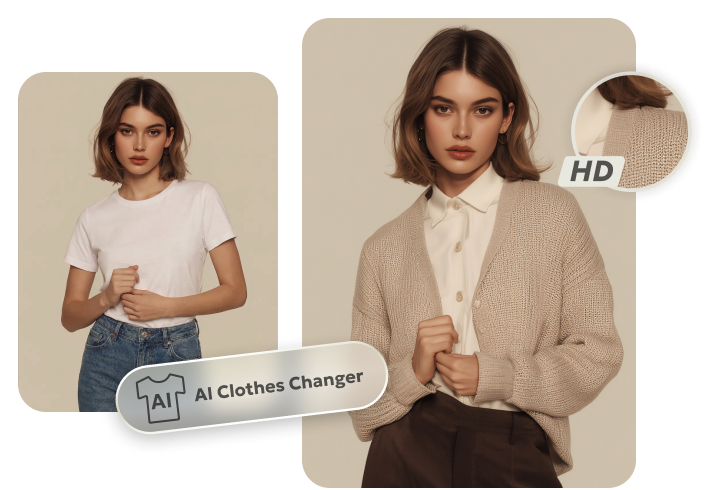
Pixpretty AI Clothes Changer makes styling effortless. Swap colors, patterns, and styles in seconds. See how outfits look on you instantly. Experiment with bold trends or simple everyday looks. Mix and match pieces without any guesswork.
This AI tool helps you plan your wardrobe quickly and creatively. Discover new outfit ideas and try endless combinations. Fashion becomes fun, easy, and stress-free. Pixpretty AI Clothes Changer puts the perfect look right at your fingertips.
Final Words:
Even if a Grok Imagine video moderated message blocks certain content, you can still enjoy creativity safely. Understanding moderation rules and adjusting your prompts helps you access videos and images responsibly. For exploring fashion, style, and outfit ideas, we recommend Pixpretty AI Clothes Changer. It lets you swap colors, patterns, and styles instantly, giving you endless wardrobe possibilities. Stay creative, safe, and stylish with these tools at your fingertips.
PixPretty AI Clothes Changer
- Instantly change outfits with AI in 1 click
- Realistic AI previews for every top, bottom, or dress
- Create and explore endless outfits and OOTDs without editing
Related Articles:


