


Grok is a powerhouse of an AI assistant. Quick, smart, and ready to chat about almost anything. But, every now and then, Grok doesn't work for some users, leaving them staring at frozen chats or error messages. But there are only a handful of reasons why your Grok is not working.
In this article, we'll go over them. Alongside that, we'll share some solutions according to those reasons and some alternatives as well. So, read till the end!
Table of Contents
Part 1. Why Is Grok Not Working?
If your Grok is not working now, like it's not available or not replying, it could be due to the following reasons:
-
1.Service outages and glitches: Grok servers or models (e.g., Grok 4 Fast Reasoning) can have temporary outages, crashes, or slowdowns.
-
2.Account and authentication issues: Problems such as expired login sessions, subscription sync issues (app store vs. web), or invalid API keys can block access.
-
3.Local connectivity or software problems: Unstable internet, outdated browsers or apps, corrupted cache files, VPNs, or browser extensions can interfere with Grok.
-
4.Usage limits reached: You might've hit the usage cap for your subscription tier.
-
5.Moderation system issue: Your safety filter might have failed due to backend instability or stricter filtering.
-
6.Regional restrictions or legal blocks: Some countries (e.g., Indonesia) have blocked Grok, while others (e.g., India and the UK) have launched investigations, which may limit access.
Learn more about Grok Content Moderate:
- How to Unlock Grok Imagine Spicy Mode
- Grok Content Moderated Try a Different Idea - How to Fix 2026
- Grok Imagine Video Moderation
- Best 20 Alternatives to Grok Without Restrictions
Part 2. Common Symptoms of Grok Not Working
When your Grok is not working, it could manifest this non-functionality in several errors or messages, such as the following:
-
1.Error calling moderation service/Content moderated: Temporary backend issue or stricter safety rules, and usually not your content being rejected.
-
2.'Oops, error retry friend' message: General temporary failure, often caused by internet problems, due to a session refresh needed, or brief server issues.
-
3.Chat unresponsive/freezing: Could be a major outage, network problem, or browser cache issue.
-
4.Message limit exceeded: You've reached your subscription usage cap or have an account or billing-related issue. But it's not because of a technical error.
-
5.Slow or inaccurate responses: Can be due to server load, vague prompts, or outdated model data unless real-time search is requested.
Part 3. How to Fix the 'Grok Not Working' Issue?
If your Grok is not working today, here's how you can fix it on your computer, iPhone, and Android:
Solution 1: Check the Grok Service Page
Start by checking the Grok Service Page before fixing the 'Grok not available' or 'working' issue on your device. This is because most of the time, this problem is due to a backend server outage at Grok's side rather than in your device. Here's how to check the
-
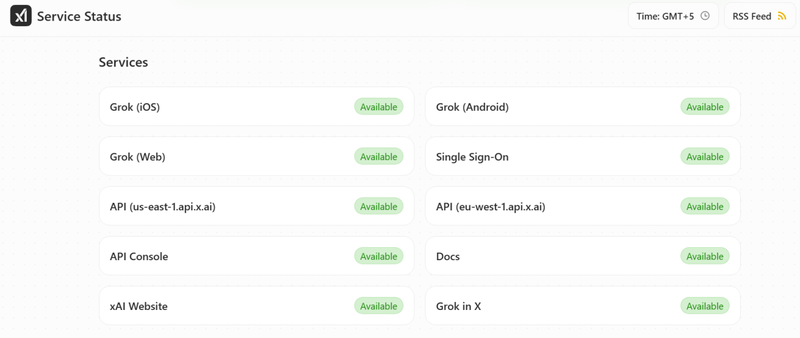
1.The most reliable source is to check the Official Grok Status Page. It shows overall service status and separate pages for specific apps. But if the main page shows "Service fully operational," the issue is likely not system-wide.
-
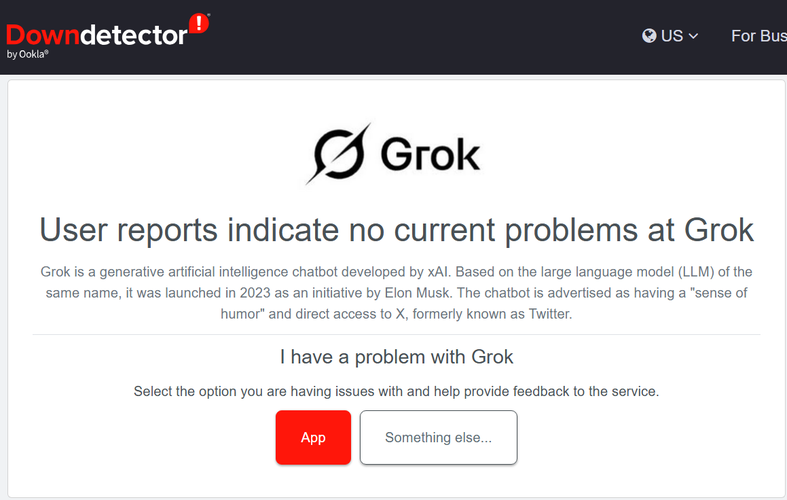
2.You can also use third-party sites like "Downdetector" to check on Grok's server status. It displays real-time user reports. Clusters under AI Generation, Website, or App indicate wider problems.


Solution 2: Check Your Internet Connection
A weak internet connection can also cause Grok to freeze or fail, and using a VPN can slow or block the service by routing your connection through distant servers. So, here's how to examine your internet connection and disable the VPN:
-
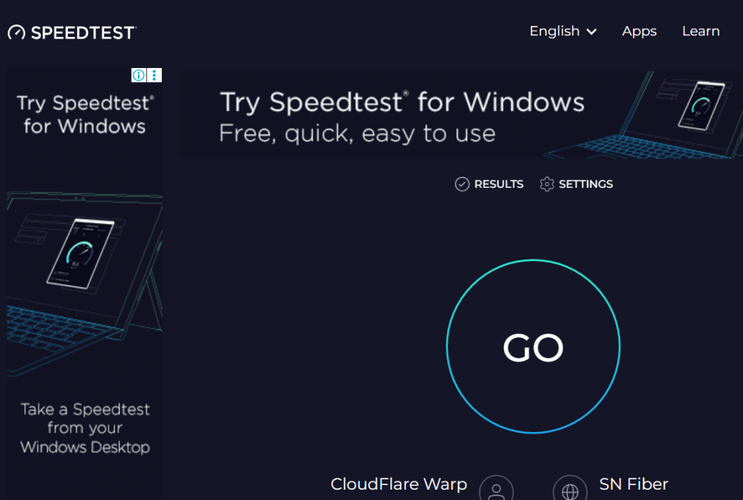
1.Check Internet Connection: Use fast.com or speedtest.net to check the ping/latency. Aim for under 100 ms. Also, inspect the download speed. 5--10 Mbps is enough for text apps like Grok.
-
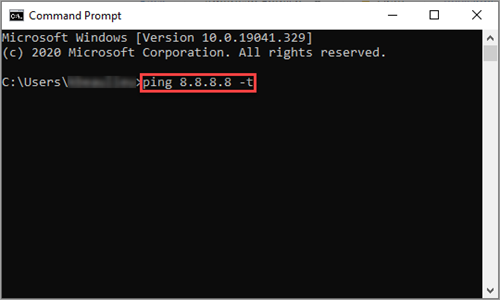
2.Inspect Internet Stability: Open "Command Prompt" and run the "ping 8.8.8.8 -t" command on Windows and 'ping 8.8.8.8' on Mac for 30 seconds. Stop with "Ctrl + C." If the result shows packet loss above 1--2%, it means an unstable connection.
-
3.Wi-Fi issues: Restart router and modem (30 seconds). You can also move closer to the router or try a different network (e.g., mobile hotspot).
-
4.Disable the VPN: On desktop, disconnect the VPN from the system tray or menu bar. But if 'Grok is not working' on iPhone or Android, open the VPN app and tap "Disconnect."


Solution 3: Clear Your Browser or Device's Cache
If there's no issue at the server end or with your internet, the 'Grok not replying' or 'working' malfunction could be because of a corrupted cache. When you clear the cache, this forces the app to load fresh data from the server. So, here's how to troubleshoot the 'Grok not working on Android, iPhone, or web' issue:
On the Web:-
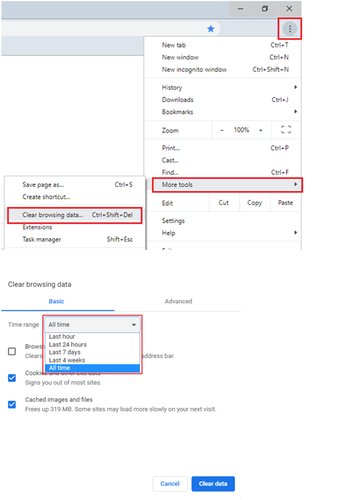
1.Chrome: Open the "⋮ More" menu, and visit "History." Then, select "Clear browsing data." Choose "Cached images and files." Pick a time range (use "All time" for a full reset), and confirm.
-
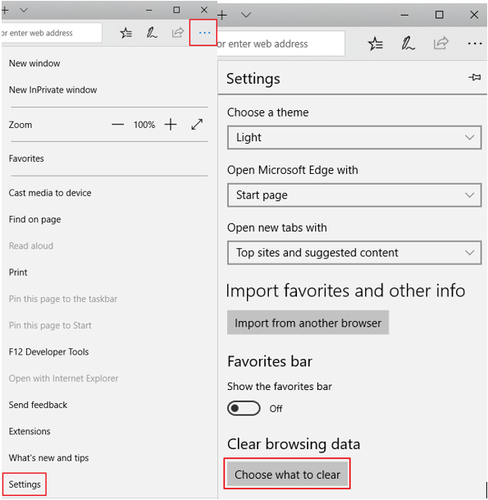
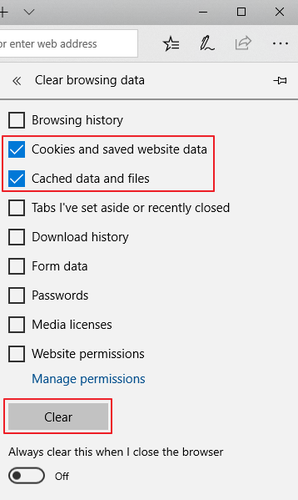
2.Edge: Open "•••." Then, head to "Settings." Choose "Privacy, search, and services." Next, select "Choose what to clear" beneath "Clear browsing data." Pick "Cached images and files." Pick a time range, and confirm.
-
3.Safari: Open "Safari." In the menu bar, open "History." Then, tap "Clear History." Next, select "all history." Hit "Clear History" again.


-
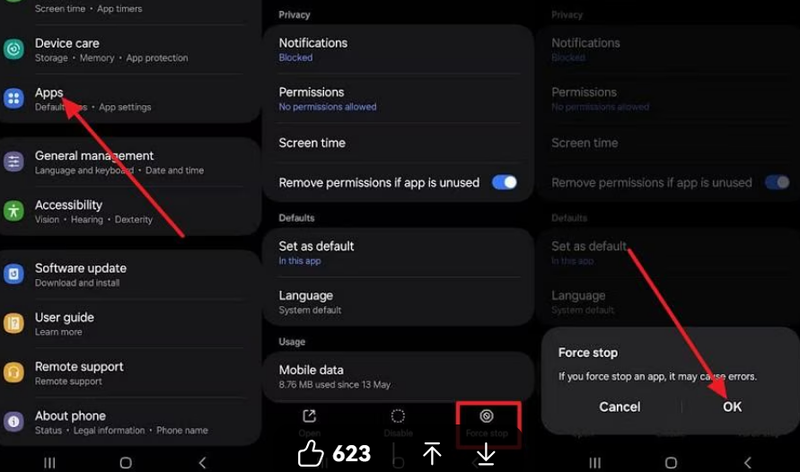
1.Open "Settings." Then, choose "Apps." Tap "Grok."
-
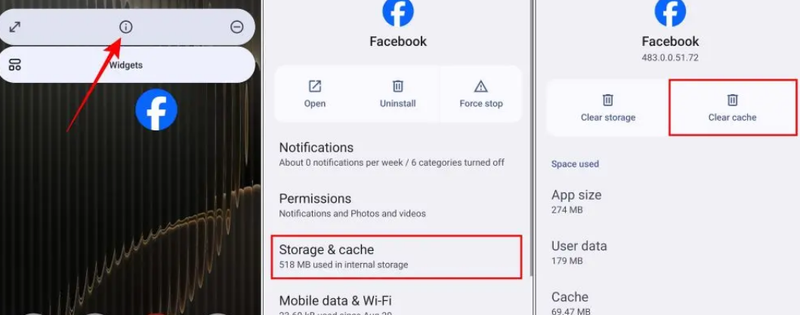
2.Click "Force Stop." Next, long-press the "Grok" icon. Click the "i" icon. Choose "Storage & cache." Click "Clear cache."
-
3.Your login info will not be deleted. You can log out of the Grok app, then log back in and check if it's functioning again.


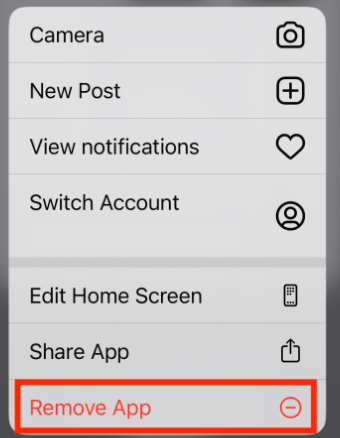
Unfortunately, on iPhone, you can't clear the Grok cache. You'll need to remove the app, which will clear its cache, and reinstall it. Here's how to do that:
-
1.Long-press the Grok app icon on your home screen. Click "Remove App."
-
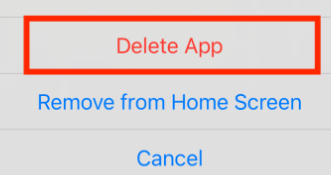
2.Then, hit "Delete App." Next, head to the App Store to download and reinstall the Grok app. Check if it's functioning again.


Solution 3: Check Your Account Status and Limit Type
Your Grok might not function if your account has hit its limit. Usage limits depend on your X (formerly Twitter) subscription tier. You can check them in Grok beneath "Settings" → "Subscriptions" to see if you have Premium or Premium+ (Premium+ has higher or unlimited caps).
Free previews or trials have very strict and limited quotas, while paid plans have fixed caps based on tier. But most limits reset on a rolling schedule, often every 2--3 hours or daily. Once you understand your Grok usage limits, here's what you need to do:
-
1.Wait for the automatic reset, as message limits usually refresh after a few hours, letting you chat again.
-
2.Space out messages after limits are reset to avoid hitting them again.
-
3.Be clear and concise, rephrase prompts, and combine follow-ups in one chat instead of starting new ones.
-
4.Avoid very long text and sensitive keywords, and ask for summaries of sections instead.
-
5.Log out of Grok on all devices and sign back in, as this can refresh your subscription status and clear incorrect limit errors.
-
6.Upgrade to X Premium+ for higher or unlimited message limits.

Solution 4: Try In Incognito Mode
If Grok is not working on Chrome or another browser, it could be due to extension(s) or add-ons conflicting with it. So, here's how to go about fixing it:
-
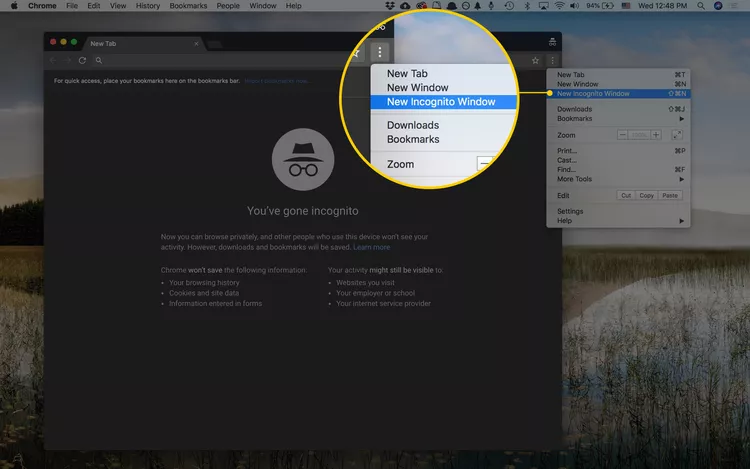
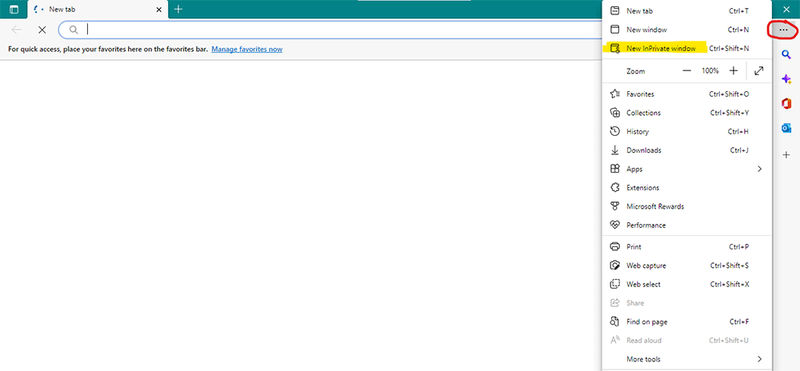
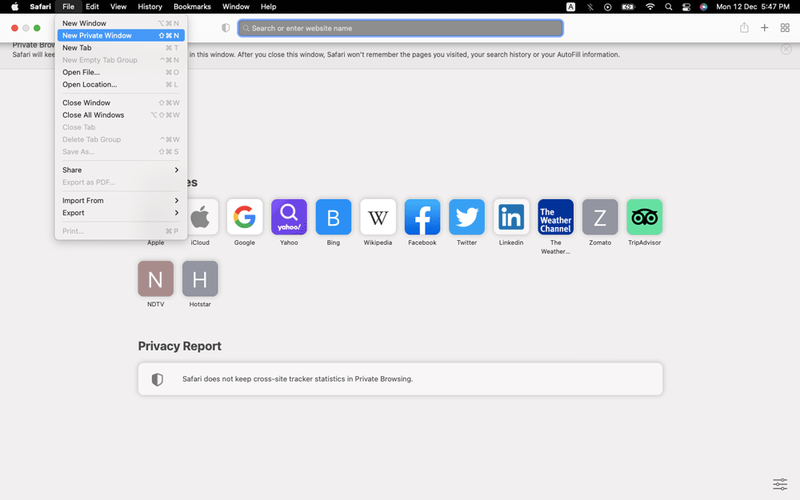
1.First, open your browser in Incognito mode. Here's how:
-
2.Chrome: Open Chrome, click the "three-dot menu (⋮)," and select "New Incognito Window" (dark-themed with a spy icon).
-
3.Edge: Open Edge, click the "three-dot menu (...)," and choose "New InPrivate Window" (dark window with a blue "In Private" badge).
-
4.Safari: Open Safari, and go to "File." Choose "New Private Window" (a dark address bar indicates Private Browsing is active).


If Grok functions fine in Incognito Mode, the issue is likely caused by extensions or add-ons. So, you can disable them.
-
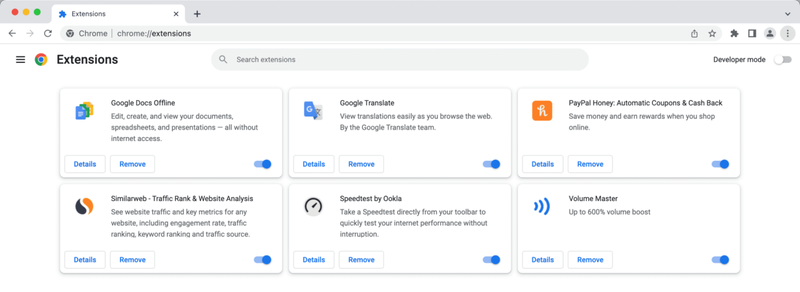
1.First, open the extensions page in each browser. Here's how:
-
2.Google Chrome: Type "chrome://extensions/" in the address bar and press "Enter."
-
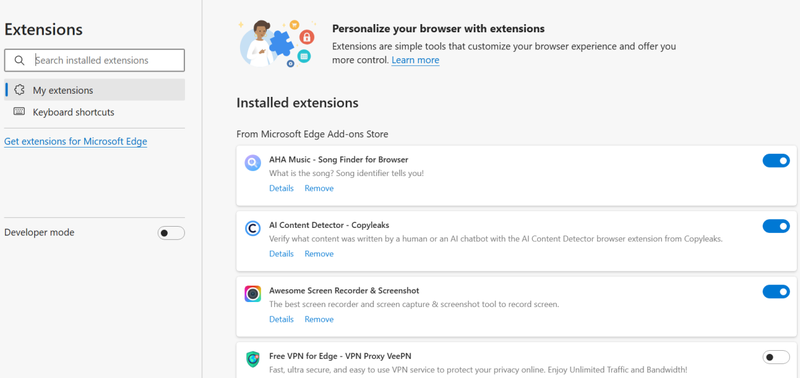
3.Edge: Type "edge://extensions/" in the address bar and press "Enter."
-
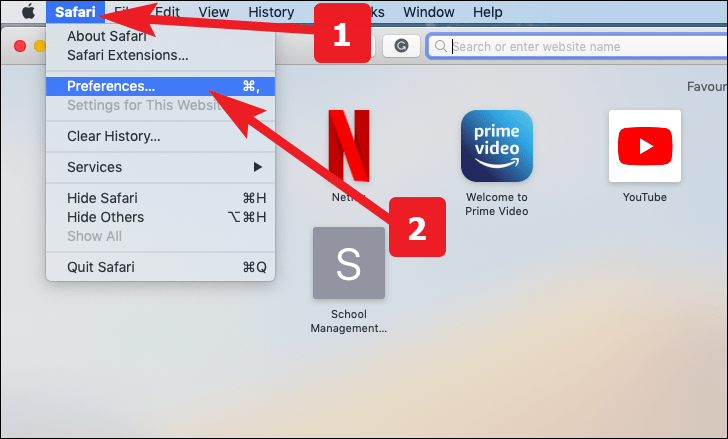
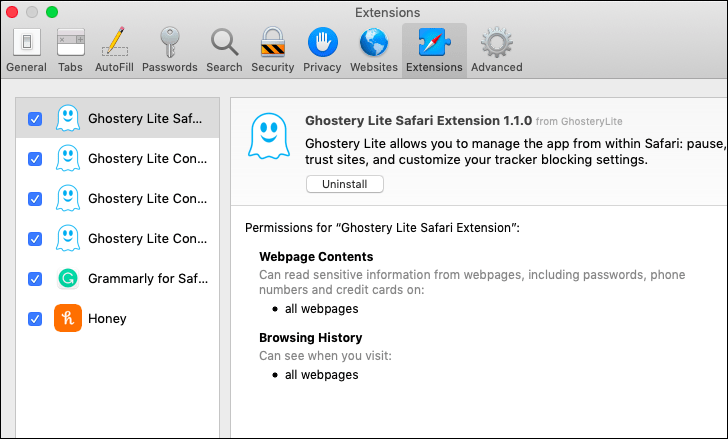
4.Safari: Click Safari in the top menu bar, then select "Settings..." Choose "Preferences," and go to the "Extensions" tab.
-
5.Disable all extensions, reload Grok, then re-enable them one by one to find the culprit.
-
6.After finding the problematic extension, keep it disabled for Grok, remove it, update it, or adjust its settings.
-
7.If Grok is still not functioning, test it in another browser (Firefox, Edge). If it does, the problem is your original browser setup.


Part 4. Alternatives if Grok Keeps Not Working
If Grok is still not functioning, even after trying all the solutions above, here are some alternatives you can utilize:
-
FreedomGPT: Uncensored AI chat with access to 400+ models. It keeps data private and hides user identity.
-
Venice AI: Private text & image generation, with no conversation logs, and all data in-browser and encrypted.
-
Janitor AI: Create and chat with custom AI characters (NSFW possible), but privacy depends on the backend (OpenAI, KoboldAI, and own LLM).
-
Ollama: Local & cloud-based open model platform. Data stays on your machine when local.
-
LM Studio: Run and test open-source LLMs locally. Fully offline and private.
-
Knolli: Build custom AI copilots from private data. Also, data never leaves your control, and it offers enterprise security.
-
FlowGPT: A visual canvas for structuring AI conversations, and pay-as-you-go workflow management.
Conclusion
If Grok isn't working, the problem can come from server outages, account issues, internet or device problems, usage limits, or browser conflicts. So, start by checking the Grok Status Page and your internet connection. Clear caches, review account limits, and try Incognito mode to spot extension conflicts.
If it still doesn't function, consider using alternative AI tools like FreedomGPT, Venice AI, or Ollama. After generating images with Grok, PixPretty AI lets you freely enhance your generated images at no cost, with no restrictions whatsoever.
PixPretty AI Clothes Changer
- Instantly change outfits with AI in 1 click
- Realistic AI previews for every top, bottom, or dress
- Create and explore endless outfits and OOTDs without editing

Related Articles:


