


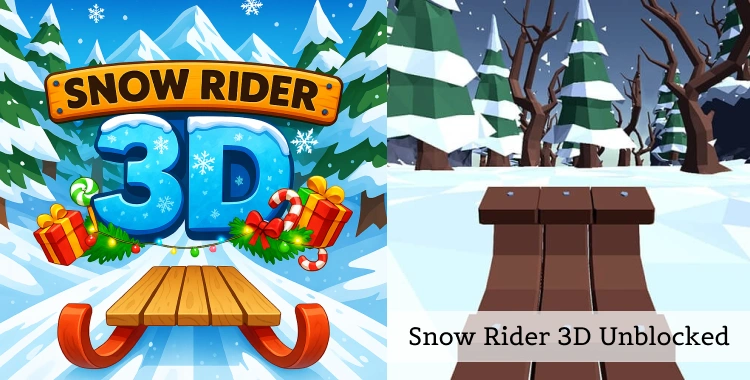
Snow Rider 3D is a 3D winter game where you ride a sled down an endless snowy hill and try not to crash. Many students and office workers like to play it in short breaks.
School and work networks often block game sites, so players look for “Snow Rider 3D unblocked” versions that still work on those networks. This guide shows how to play it anywhere, and how to improve your score.
Part 1. What Is Snow Rider 3D Unblocked?
In Snow Rider 3D, you steer a sled down a mountain, avoid trees, rocks, cabins, and snowmen, and grab gift boxes to unlock new sleds. The goal is simple: go as far as you can without crashing and beat your high score.

An “unblocked” version is the same game hosted on domains that pass through school or work filters. These sites use browser-only versions that do not need installs, so they are easier to access on locked-down devices like school Chromebooks.
Part 2. How to Play Snow Rider 3D on a School Chromebook
School Chromebooks block many game sites but allow safe browser games. Follow this detailed guide for quick, trouble-free access to Snow Rider 3D.
Detailed Step-by-Step Access Guide
Step 1: Check school rules first.
Open your student handbook or school portal. Look for "acceptable use policy" or game rules. Ask your teacher: "Can I play short browser games in recess?" Note the answer to stay safe.
Step 2: Open Chrome browser.
Click the Chrome icon on your desktop or taskbar. Make sure you're on school Wi-Fi but in a free period like recess.
Step 3: Search trusted sites carefully.
In the address bar, type exactly: "Snow Rider 3D unblocked Classroom 6x" or "Snow Rider 3D Hooda Math unblocked." Press Enter. From results, pick the first site with a green HTTPS lock icon in the address bar.
Step 4: Verify site safety before clicking.
Check for these signs: "Safe for school" label, no flashing ads, no "download now" buttons, no login pop-ups. If you see any, close and try the next result. Hover over links to see real URLs.
Step 5: Load and start the game.
Click the big "Play" button. Wait 5-10 seconds for it to load. If it asks for permissions (camera/mic), say no and close. The game runs fully in-browser on Chrome OS—no installs or apps needed.

Controls and Quick Start Tips
-
Use arrow keys or WASD to move. Press Up or Spacebar to jump (on some sites).
-
The game starts right away. Your high score saves in the browser. Play only 5–10 minutes during recess or lunch.
-
When the bell rings, close the tab (right-click → Close tab or press Ctrl + W). Clear history later if needed.
For Restricted Networks (Extra Filters)
If the site still blocks, try these safe next steps:
-
Step 1: Use framed portals. Search "Snow Rider 3D Classroom 6x unblocked" again. These wrap the game in an iframe that slips past basic school filters.
-
Step 2: Double-check safety. Confirm HTTPS lock, clean page (no ads), "no download" note. Close instantly if pop-ups appear.
-
Step 3: Time it perfectly. Only during unsupervised free time on Chrome browser. It loads in under 20 seconds, no extra setup.
Here are additional options students sometimes mention (but check school policy first):
-
Talk to IT/teacher. Say: "Can you whitelist Hooda Math for math games?" Many schools approve educational sites.
-
Personal hotspot (if allowed). Settings > Network > Add hotspot from phone. Confirm policy: "Are hotspots OK?" Then play via mobile data.
-
Never use VPNs/proxies. Schools track and punish this. Stick to portals to avoid bans.
Always close tabs after. Follow rules to keep access open.

Tip:
Always play on trusted unblocked sites, follow school rules, and avoid VPNs or risky tools to stay safe while enjoying Snow Rider 3D.

Part 3. Gameplay Tips to Improve Your Score
Players share that the game looks simple but needs focus to score high. Use these basic tips:
-
Look far ahead, not at the sled. This helps you react earlier to trees and rocks.
-
Stay near the center of the slope when you can, so you have room to dodge in both directions.
-
Do not chase every gift box if it puts you on a bad line; staying alive beats one risky present.
-
Learn the timing for jumps so you clear chopped trees and gaps without landing on the next obstacle.
-
Take short practice runs and focus on one thing at a time, like smooth steering or safe jumps, to build muscle memory.

Tip:
Use PixPretty AI Photo Editor for free to make game images or generate AI action figures of your best runs. This gives you fun visuals to share with friends.
Part 4. Why the “Unblocked” Version Matters
In many schools and workplaces, game sites are blocked by firewalls. Unblocked games avoid these restrictions by being hosted on sites that are allowed through network filters.
This means:
You can play without install or download.
It runs inside the browser only.
Works even on tight school filters if the site is allowed.
Unblocked games like Snow Rider 3D have become popular at school, because students play them on Chromebooks during free time, share scores, and challenge friends.
Conclusion
Snow Rider 3D Unblocked is a light, fast browser game that fits well into short breaks on Chromebooks, PCs, and even mobile browsers. Use trusted unblocked sites, follow school and work rules, and apply simple gameplay tips to enjoy higher scores.
When you want to create game-inspired Snow Rider 3D art, a free tool like PixPretty AI Photo Editor can help you create unique images to share.
PixPretty AI Photo Editor
- 100% free AI Image Generator (Nano Banana 2 powered)
- 4K image quality with fast generation speed
- AI effects & filters for personal and e-commerce use



