


Many people handle large numbers of photos for websites, online shops, school work, and social media. Learning how to resize bulk images helps you manage photos faster and keep your work clean. When you resize many images together, your website loads quicker and your collections stay organized.
This guide explains simple online methods, computer tools, and best practices so you can work without stress. You will learn the right sizes, quality settings, and mistakes to avoid. Follow this complete guide to resize large batches of images in minutes.
In this article, we will explore everything about AI editing using the SeaArt tool, including its reviews and a comparison with Tenorshare AI Portrait Retoucher as a strong alternative.
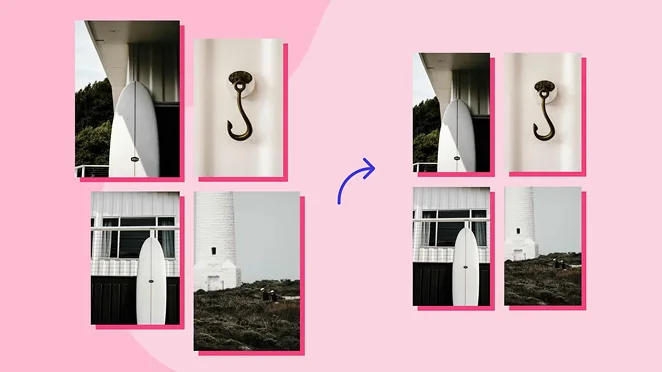
Table of Contents
Part 1: The Practical Value of Bulk Image Resizing
Resizing many images together keeps your files neat, saves storage, and improves website speed. Many people search how to resize bulk images because handling photos one by one wastes time. This part covers why bulk resizing is helpful for daily tasks, online work, and organized file management.

Improving Website Speed and Load Time
Large photos slow down websites and frustrate visitors. When you reduce image sizes together, your pages open quicker and search engines index them better. People learning how to resize bulk images often want better speed for product pages, galleries, or blogs. Smaller files also reduce server load. This simple step improves user experience and helps keep your website stable even during high traffic. It also prevents layout issues caused by oversized images stretching across the page.
Helpful for Online Stores and Social Platforms
Online shops use many product photos, while social media platforms require specific sizes. When you resize all images in one batch, your pages look cleaner and more uniform. This is especially useful for:
- Product listings with many items
- Instagram and Facebook posts
- Blog banners
- Portfolio images
Learning how to resize bulk images ensures your photos stay consistent, which makes your brand look more professional and easier to manage.
Saves Time for Regular Photo Management
Bulk resizing reduces hours of repetitive work. You load your folder once, choose your size settings, and the tool processes everything together. Many users who work with large photo collections depend on this method. It keeps your workflow simple and prevents mistakes like mismatched sizes or forgotten edits. Bulk resizing is especially useful for bloggers, teachers, freelancers, and small shop owners who need quick results.
Part 2: Simple Online Tools for Quick Bulk Resizing
Many people search how to resize bulk images to find easy online tools that work without installation. Online tools support different formats, offer quick settings, and help users finish tasks in minutes. This part explains common online options and when they work best.

Popular Online Tools for Easy Bulk Resizing
Several online platforms allow you to upload your images and resize them in one step. Common choices include:
- Bulk Resize Photos
- ILoveIMG
- Compressio
These tools support PNG, JPG, and WebP formats. They also allow fixed width, height, or percentage resizing. People who do not want to install software like these quick online solutions. They are useful for students, bloggers, and small shop owners who work with images often.
Great for Quick Tasks and Light Workloads
Online tools work best when your internet is stable and the files are not extremely large. They are perfect for blog posts, school projects, and social media images. Many who follow guides on how to resize bulk images use these tools when they need quick results. Online options save time, do not require setup, and are accessible from any device, making them convenient for simple chores.
Part 3: Bulk Image Resizing on Windows and Mac
Desktop programs are popular among users who want deeper control, offline access, and higher-quality output. Many people search how to resize bulk images on Windows or Mac to find reliable offline options. This part covers simple computer tools for both systems.

Windows Tools for Bulk Resizing
Windows users often choose IrfanView, XnConvert, or FastStone Photo Resizer. These programs let you set width, height, format, and output folders. The process is simple: load your images, apply settings, and run the batch. People who deal with hundreds of photos often prefer offline tools because they offer more stable performance and do not depend on the internet.
Bulk Resizing on Mac Using Preview
Mac users can resize images in bulk using Preview, which is built into the system. Select your files → open in Preview → choose “Adjust Size” → enter dimensions → save. This method works well for blogs, shops, and everyday tasks. Many users who search how to resize bulk images on Mac appreciate this option because it is fast, clean, and requires no extra downloads.
When Desktop Tools Work Better
Desktop tools work best when:
- You handle very large batches
- Internet is slow
- You want advanced settings
- You need full privacy
Offline software supports high-resolution work and precise output. This makes it suitable for professional use.
Part 4: Keeping Image Quality While Resizing in Bulk
Quality loss is a common concern when resizing many photos. This part explains how to resize images while keeping them sharp, clear, and accurate.

Maintain the Natural Aspect Ratio
The simplest way to keep quality is to maintain the original aspect ratio. This prevents stretching and blurring. Many beginners who want to learn how to resize bulk images forget this step. Using tools that lock the aspect ratio keeps the image balanced and avoids distorted shapes. This method works well for product images, portraits, blog photos, and social media visuals.
Use Compression Settings Carefully
Smart compression helps reduce file size without harming quality. Follow these tips:
- Keep compression above 70%
- Avoid enlarging small photos
- Use WebP when possible
- Only reduce dimensions when necessary
These steps keep your images clear and help your website load quicker.
Mistakes That Cause Quality Drops
Common errors include:
- Increasing size instead of reducing
- Exporting in low-quality formats
- Editing the same file repeatedly
- Mixing different sizes in one batch
Avoiding these mistakes ensures your photos stay clean and consistent.
Bonus Tip: Spotlight on PixPretty: A Clean Way to Handle Bulk Editing
PixPretty offers a simple way to manage large batches of photos without confusion. It helps users edit, resize, compress, and adjust images in a smooth process. The tool works for website owners, students, content creators, and small business owners who want fast results without losing clarity. Many people searching how to resize bulk images prefer tools that offer quick results, and PixPretty fits that need with practical functions. It handles many images at once and keeps quality steady, making it useful for regular projects.
Key Features of PixPretty:
- Resize large groups of images together while keeping clear details and balanced dimensions during export.
- Supports many formats, allowing you to prepare photos for blogs, shops, social media, or school tasks in minutes.
- Offers clean compression that reduces file size without making the image blurry or washed out.
- Provides simple tools that help with cropping, rotating, adjusting brightness, and organizing images easily.
- Exports final images in organized folders so you can place them directly into websites, documents, or listings.
FAQs
1. Why should I resize images in bulk?
Bulk resizing saves time and keeps your project organized by processing many photos in one step instead of editing them separately.
2. Will resizing many images lower the quality?
Quality stays good if you reduce the size instead of enlarging it. Using smart compression also helps keep images sharp.
3. Can I resize bulk images online?
Yes, many online tools let you upload multiple photos, apply size settings, and download them in a single zip file.
4. What tools can I use on Windows?
Windows users can try IrfanView or FastStone Photo Resizer, both of which support custom size settings for many images.
5. What are ideal image sizes for websites?
Blog images look good at 1000–1200px width, while product photos usually work best at 800–1000px width.
Conclusion
Resizing bulk images becomes easy when you follow a clear process and use the right tools. It saves time, improves website speed, reduces storage use, and prepares your pictures for any platform. You can resize hundreds of photos at once without losing quality if you use a dependable bulk image editor.
If you want a simple and quick way to handle large batches of images, PixPretty AI batch photo editor online is a great option because it works smoothly, keeps images clear, and supports many formats. Try it for your next project and make your image workflow easier and faster.
PixPretty AI Photo Editor
- 100% free AI Image Generator (Nano Banana 2 powered)
- 4K image quality with fast generation speed
- AI effects & filters for personal and e-commerce use



