


Removing a green screen in Photoshop is easier than it looks. Whether you are editing product photos, portraits, or YouTube thumbnails, Photoshop gives you full control to cleanly replace the background. In this guide, you will learn how to remove green screen in Photoshop using simple steps that anyone can follow.
I'll also share the best alternative tool if you want a quick, automatic background removal option. This helps you save time and get clean, professional results even if you are not an expert in Photoshop.
Part 1. What Is Green Screen in Photoshop?
1. What Is a Green Screen?
A green screen is a bright green background used while shooting photos or videos. This color is chosen because it is easy for editing tools to detect and remove. When you remove the green screen, you can replace it with any background you want like a studio setup, a beach, or a clean white background. It's one of the most common methods used in photography, filmmaking, YouTube videos, and product shoots to create professional-looking results.
2. What Is Photoshop?
Photoshop is a popular photo editing software made by Adobe. It allows you to retouch images, remove backgrounds, adjust colors, add effects, and do advanced editing with full control. Many creators use Photoshop to remove green screens because it gives precise results and lets you fine-tune every detail. Even though it has powerful tools, beginners can also remove the green screen easily with the right steps.
Part 2. How to Remove Green Screen in Photoshop
Photoshop makes it easy to remove a green screen and place your subject on any background you want. Whether you're editing product photos, portraits, or creating graphics for social media, the process stays almost the same.
The idea is simple: select the green background, mask it out, clean the edges, and then insert your new background. Below is a complete step-by-step guide in easy wording so even beginners can follow along confidently.
How to remove green screen in photoshop (Step-by-Step Guide)
Step 1: Select the Green Background
Start by opening your image in Photoshop. To begin removing the green screen, you need to highlight the green area.
You can choose any of these selection methods:
- Click Select Subject to automatically pick the main person or object.
- Or go to Select > Color Range to target the green screen directly.

If you're using Color Range, adjust:
- Fuzziness to around 40 (you can increase or decrease depending on your image)
- Selection Preview to Black Matte for a clearer view. Make sure Invert is checked so the background is selected, not the subject.

Step 2: Use the Eyedropper Tool to Capture All Green Shades
With the Color Range window open, select the Eyedropper tool. Click on the green background once to select it.
Then:
- Hold Shift and click on other green areas to add different shades
- If you select too much, press Ctrl + Z to undo. Once everything looks correct, click OK. This tells Photoshop exactly which color needs to be removed.

Step 3: Create a Layer Mask
Now you're ready to hide the green screen. Go to the Layers Panel and add a Layer Mask. Photoshop will remove the selected green area while keeping your subject visible. This step gives you a clean cutout that you can refine later.

Step 4: Add Your New Background
Once the green area is removed, replace it with your preferred background.
To do this:
- 1. Drag in your new background image
- 2. Move it below the masked subject layer
- 3. Adjust its size or position as needed
You can choose anything simple colors, a real scene, a studio wall, etc.

Step 5: Smooth and Improve the Mask
Most cutouts need some polishing to look natural.
Double-click the mask and open Select and Mask.
Use these sliders to improve the edges:
- Feather: softens harsh borders
- Contrast: sharpens the edge
- Shift Edge: pulls the edge inward or outward
Play with these settings until the cutout blends smoothly.
Step 6: Fix Remaining Green Edges (Fringing)
Sometimes a thin green outline appears around the subject.
Here's how to remove it:
- 1. Hold Ctrl and click the mask thumbnail to select your subject.
- 2. Go to Select > Modify > Contract and contract it by 1--2 pixels.
- 3. Invert the selection.
- 4. Use a soft, black brush to paint away leftover green fringes.
Step 7: Refine Hair and Remove Green Tint
Hair areas usually need extra work because they contain fine details.
Open Select and Mask again and use the Refine Edge Brush around the hair.
If Photoshop removes too much hair:
- Hold Alt to correct the selection manually
If the subject has a green reflection on their hair or skin, you can fix it using:
- Hue/Saturation
- Selective Color
- Color Balance
This helps remove the green cast and makes the subject look natural with the new background.
Part 3. Faster Alternative -- Remove Green Screen with PixPretty AI
PixPretty AI makes removing a green screen fast and effortless. This online tool automatically detects the background and creates a sharp, clean cutout in seconds. It handles tricky details like hair strands, shadows, and edges, giving professional-looking results without any complicated editing.
PixPretty works with all common image formats and provides tools for background replacement, batch editing, cropping, and HD downloads. It is ideal to remove green screen for product photos, eCommerce sellers, designers, or anyone who wants quick and accurate green screen removal without spending time in Photoshop.
How to remove green screen without losing quality with PixPretty AI
Step 1: Upload Your Photo
Open the PixPretty AI background remover page. Then:
- Click Upload Image and select your file, or
- Drag and drop your image, or
- Paste an image or URL directly

Step 2: Automatic Background Removal
Once your photo is uploaded, PixPretty automatically removes the green background.
The AI handles:
- Fine hair and small edges
- Soft shadows
- Any green reflections
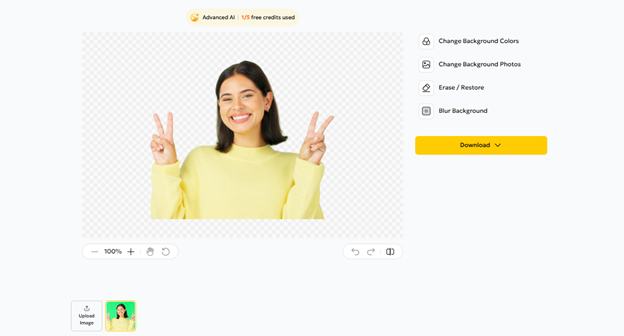
You can also replace the background with a solid color, custom image, or blur it for a professional effect.
Step 3: Download Your Image
After editing, click Download to save your image. PixPretty offers:
- Free HD downloads
- Transparent backgrounds
- Ready-to-use images for social media, product listings, or graphic design

Part 4. FAQs on How to Remove Green Screen in Photoshop
Q1. Can I batch remove backgrounds in Photoshop?
Yes, Photoshop lets you remove backgrounds from multiple images using actions and scripts. You can record the steps for one image and apply them to all others automatically.
Q2. What's the easiest way to remove a green background?
The easiest way is to use PixPretty AI. Upload your photo, and the AI automatically removes the green background in seconds, no manual masking needed.
Q3. Can I replace the green background with another image?
Yes, once the green screen is removed, you can easily add a new background. With PixPretty, the AI automatically places your chosen image just use the "Change Background Photo" option and select your photo. In Photoshop, the process is manual and takes more time and effort.
Conclusion
Working with green screens in Photoshop gives you full control and precise results, but it can take a lot of time and effort. We help you in how to remove green screen in Photoshop to create clean, professional images when manual editing is needed. For a faster, simpler solution, PixPretty AI allows you to remove green screen online free, handling fine details like hair, shadows, and edges automatically. With just a few clicks, you get sharp, ready-to-use images that look professional without the hassle of manual editing.
PixPretty AI Photo Editor
- 100% free AI Image Generator (Nano Banana 2 powered)
- 4K image quality with fast generation speed
- AI effects & filters for personal and e-commerce use



