


Everyone's shooting videos on their phones these days, and nobody wants to post something that looks sloppy. That's why knowing how to edit videos on iPhone is a must. You can trim out awkward bits, crop your shots, layer on text, fix the audio, or drop in some filters to give your video a polished look.
In this 2025 tutorial, we'll provide step-by-step instructions to edit your videos from the basic trimmings all the way to adding effects. By the end, you'll know exactly how to modify footage to your taste, without needing a computer.
Table of Contents
Part 1: Can You Edit Videos on iPhone?
Yes. You can learn how to edit videos on iPhone for free in a few simple ways. The built-in Photos app lets you do basic edits like trimming clips, adjusting brightness and color, and adding filters. If you want more tools, the free iMovie app by Apple gives you extra features. You can combine clips, add text, music, sound effects, voiceovers, filters, transitions, and even green-screen effects.
Part 2: How to Edit Videos on iPhone (Handy Guide)
Here's how to edit videos on iPhone 16/17, like trimming, cutting, cropping, adding text, editing audio, and adding filters and effects with the built-in Photos app:
How to Trim Videos on iPhone
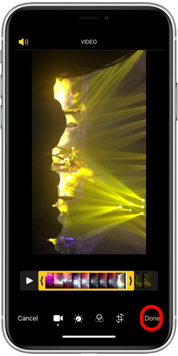
You can use the built-in Photos app on your iPhone to trim videos to remove unwanted sections. This is useful for getting rid of shaky footage at the beginning and end of a clip. Here's how to trim videos on iPhone without app with the Photos tool:
- 1. Open the "Photos" app on your iPhone. Then, select the video you want to trim. Tap "Edit" in the top-right corner.


- 2. Press and hold one of the arrows until the bar turns yellow. Drag the arrows to trim the part of the video you want.
- 3. For more accurate trimming, hold a slider for a second to enter precision mode. Click the "Play" icon to preview your changes if you want.


- 4. Hit "Done." Next, choose "Save Video" to replace the original or "Save Video as New Clip" to keep both versions.

How to Cut Videos on iPhone
The Photos app doesn't offer advanced video editing features like cutting the video from the middle. However, for this exact task, you can use the iMove app on your phone. Follow the instructions beneath to cut the video clip with the iMovie app on your iPhone:
- 1. Install and open the iMovie app on your iPhone. Then, to start a new project, tap "Create Project." Next, select "Movie" as the project type.


- 2. Pick the video you want to cut. Hit "Create Movie."

- 3. To remove a middle section, move the playhead to where the unwanted part starts. Click the video timeline.


- 4. Select the "Cut" tool. Hit "Split" to cut the clip from the marked place. Then, click the unwanted section on the timeline. Hit the "Delete" (trash) icon.


- 5. You can cut more sections of your video by repeating the above steps. Click "Done" when finished.

- 6. Use the "Share" button. Choose "Save Video" to save your edited clip.


How to Crop Videos on iPhone
With iOS 17, Apple has made cropping faster. You can still open a video, tap "Edit," choose "Crop," and adjust it like before. But now there's a quicker shortcut that lets you crop right away, making the whole process simpler and faster. Here's how to edit videos together on iPhone by cropping them:
- 1. Open the video in the "Photos" app. Then zoom in with two fingers until the framing looks how you want.
- 2. A "Crop" button will appear. Tap it to open the crop tool. To change the crop ratio, press and hold the "Crop" button instead of tapping it.


- 3. Choose from: Fullscreen, Original, Widescreen, or Square. No matter the ratio, the screen edges act as the cropping guide while you zoom. Widescreen uses 9:16 or 16:9, depending on orientation. Square uses a 1:1 ratio, and original keeps the photo's original aspect ratio. While full-screen matches your device's screen shape exactly.

- 4. Crop your video. Next, hit "Done" to save.


How to Add Text to Videos on iPhone
While the Photos app doesn't support adding text to videos on iPhone, you can employ the iMovie app for this purpose. It gives you different text styles like titles, captions, and lower thirds, so you can try them out and pick what fits your video best.
Some styles match certain themes, and switching the theme can change your text options. You can also keep the text on screen for the whole clip if you want. Here's how to edit videos on iPhone for YouTube or for other platforms by adding text to them:
- 1. Open the iMovie app on your iPhone. Then, tap "Create Project." Next, select "Movie."
- 2. Pick the video you want. Hit "Create Movie." Tap the clip where you want the text to appear.
- 3. Click the "Titles" (T) button. Next, pick a text style. Tap the text in the preview. Then, select "Edit." Type your text.


- 4. You can move, resize, and change the font (A icon). After picking a font, you can change the text color from the "Grid."


- 5. Click the "3-dot" menu for extra options like text style and effects. You can also adjust how long the text stays on screen, if needed, from "Full Clip Duration."

- 6. Hit "Done." Then, click the "Share" button. Choose "Save Video."
How to Edit Audio in Videos on iPhone
With iMovie, you can change a clip's volume, mute it, or boost it up to 500% on your iPhone. The app also allows you to add music, sound effects, or songs from your library. If needed, you can detach the audio from a video to edit it separately.
Furthermore, iMovie lets you add fade-in and fade-out effects, adjust audio speed, and reduce background noise for cleaner sound. Here's how to edit videos on iPhone like editing audio with iMovie:
- 1. Open the iMovie app on your iPhone. Then, tap "Create Project." Next, select "Movie."
- 2. Pick the video you want. Hit "Create Movie." Tap the clip whose audio you wish to edit. This will reveal the inspector at the bottom.
- 3. To add an audio, click the "+" button in the timeline. Choose "Audio." Pick from:
- Soundtracks (built-in music).
- My Music (songs from your library).
- iCloud Drive (audio stored in iCloud).
- Files (audio from the Files app).
- 4. Tap the "+" next to the track you want to add.

- 5. If you want to detach the audio from the clip, tap "Actions" in the inspector. Hit "Detach" (scissors icon). Now, you can move, delete, or edit the audio clip. To delete it, tap it. Then, hit "Delete."


- 6. If you want to fade the volume in and out, click the "Audio" button. Click "Fade." Drag the yellow sliders to adjust.


- 7. If you want to adjust the speed of the audio, click the "Speed" icon. Drag the sliders to create a range.
- 8. Then, move them right and left to increase and decrease the volume.

- 9. Hit "Done." Then, click the "Share" button. Choose "Save Video."
How to Add Filters and Effects on iPhone
iMovie lets you apply video filters to change the look of your clips, like making them black and white. You can also add filters to one clip or to the whole project. Follow the instructions beneath to add filters and effects on your iPhone with iMovie:
- 1. Open the iMovie app on your iPhone. Then, tap "Create Project." Next, select "Movie."
- 2. Pick the video you want. Hit "Create Movie." Tap the clip on which you want to add filters and effects. This will reveal the inspector at the bottom.
- 3. Click the "Filter" button (three overlapping circles). Choose a filter to preview it. Hit "None" to remove filters.


- 4. Use the slider to adjust filter strength if needed. Click outside the menu to apply it.
- 5. If you want to apply filters to the entire video, make sure no clips are selected. Then, click the "Project Settings" (gear) icon.

- 6. Choose a filter under "Project Filter." Hit "Done" to apply it.

Part 3: Edit Smarter with PixPretty AI
If you want more customization options, filters, effects, and presets for images, then PixPretty AI is the one for you. It's an online, free AI-powered image enhancer tool that supports all platforms, including iPhones. You can modify, resize, compress, and convert images, and extend, replace, and remove backgrounds.
The tool also allows you to remove watermarks and change backdrop colors. Moreover, PixPretty offers countless color adjustment options, and you can also create your own custom filters. You can refine hair and skin color, facial features, and body contours, and retouch portraits with this app. It's an ideal tool if you wish to improve pictures for Instagram stories, other social media, e-commerce, and marketing platforms.
Start Editing for FreePart 4: Top Video Editing Apps on iPhone
Other than the built-in Photos app and the iMovie app, there are several good apps available for editing videos on iPhone, such as:
- 1. CapCut: It's a user-friendly, all-in-one video editor popular with social media creators. The app lets you trim, split, adjust speed, use keyframes, and edit multiple layers. Moreover, it includes music, stickers, fonts, effects, and AI tools like auto-captions and background removal, and supports green screen, speed ramping, and 4K exports.

- 2. LumaFusion: It's a professional video editor for iPhone and iPad. It supports up to 12 video and audio tracks, offers advanced tools like color correction, effects, green screen, and blurs, and includes keyframe controls, a magnetic timeline, and multilayer titles.

- 3. InShot: It's an easy-to-use editor great for short vertical videos. The app offers basic tools along with AI features like auto captions and background removal. You can add filters, effects, text, emojis, music, and voiceovers, and it also supports keyframes, green screen, and high-quality 4K/60fps exports.

- 4. Filmmaker Pro: It's designed for creativity and gives you plenty of control. You can make unlimited projects and use as many clips and audio tracks as you want. The app offers features like 4K support, lots of transitions, green screen, keyframes, and motion tracking.

Part 5: FAQs on How to Edit Videos on iPhone
Q1. Can I edit videos on my iPhone without an app?
Yes, you can edit videos on your iPhone with its own built-in Photos app without using a third-party one. However, the Photos app allows for only basic editing like trimming, cropping, etc.
Q2. What's the best free video editor for iPhone?
iMovie is a great free video editor for iPhone that satisfies almost all video editing needs. However, if you want a wide range of features, CapCut is another great free option.
Conclusion
Knowing how to edit videos on iPhone is simple. You can perform quick trims in the Photos app to more detailed edits in iMovie, where you can cut, crop, add text, adjust audio, and apply filters. To improve your images alongside your videos, PixPretty AI provides free AI-powered tools for adjusting colors, backgrounds, and facial features. It helps you create polished visuals for social media or personal projects.
PixPretty AI Photo Editor
- 100% free AI Image Generator (Nano Banana 2 powered)
- 4K image quality with fast generation speed
- AI effects & filters for personal and e-commerce use

Related Articles:
- AI Twerk Video Generator – Turn Any Image into a Booty-Shaking Animation
- Veo 3 Prompt Hay: How to Create Powerful Video Prompts That Work
- Bound by Honor (ReelShort): Critical Review & Streaming Guide
- Where to Watch Step Aside, I’m the King of Capital & Movie Review
- Sweet Wild Bride of Mine (Full Movie) : Personal Review and Watch Guide


