


Do you want to know how to remove VEO AI Caption from your video? You are not alone. Many people find it frustrating that VEO AI makes captions that are far from their liking or cover important components of the video.
It looks really messy and unprofessional in the video clip. Luckily, however, it is easy to fix this problem. In this article, we will give you some simple steps on how to remove VEO AI captions, whether they are made a part of the video or are just added automatically, so that the video becomes clean and clear again.
Let's get started.
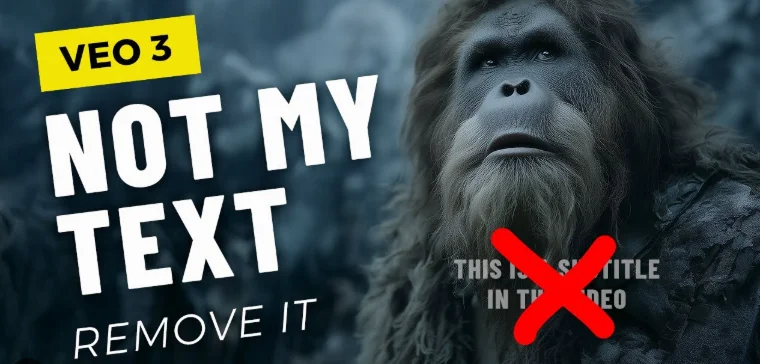
Table of Contents
Why do VEO AI Captions Appear?
The reason for the automatic VEO AI captions being posted is that it is intended to make your videos accessible and interesting to viewers. This is accomplished by the use of automatic captioning by VEO AI. When you make or edit a video by means of VEO AI captioning, it will automatically sense the spoken words in the video and express them in the shape of captions.

This is good as the viewers of your video will be able to get the drift of the message even though the sound of the video is off. This is a great advantage on social media platforms such as Instagram, TikTok, or YouTube Shorts.
Nevertheless, this is not something all concerned feel they would like on their videos. Sometimes, the automatic captions expressed by VEO AI would cover very important components of the video composition.
On other occasions, they are not in sync with the audio track and sometimes feel out of place in relation to the theme or the language desired to be expressed in captions.
For these reasons, you may find that captions appear even though you had not calculated on it. This is primarily due to VEO AI trying to assist automatically.
Is It Possible to Remove the VEO AI Caption?
You can definitely remove the VEO AI caption, though it will depend on which type of caption it is. If the captions are automatically created (meaning they are done in a separate subtitle upload), then you can just remove them when edited or exported.
If the captions are burned into the video, which is called hard-coding, then they are part of the video. Then you will have to use a video editing tool, or an AI removal tool, to cover them, blur them, or remove them.
It takes a little work, but don't worry, with the right tools and techniques, you will be able to easily clean up the video and make it the way you want.
Best Ways to Remove the VEO AI Caption
Here are 2 easy ways to remove the VEO AI captions:
Way 1: Ask VEO AI Not to Write Captions/Auto-Subtitles
The easiest way to eliminate captions you don't want is to not have them created in the first place. Following the guidance of the tools built on the Veo 3 model (which governs VEO AI), you can lower or eliminate the auto-subtitles created by
- 1.Writing prompts that specifically state: "No subtitles, do not give me text or captions", which has been known to reduce unwanted text on the screen.
- 2.Check to see if there is a toggle in the app or online interface for "auto-subtitles", "captions", or "text on screen", and switch that off. People have said that this toggle exists in some builds.
- 3.If you still see captions, create your video with shorter prompts and avoid including direct speech or "dialogue" instructions, since the system may then feel it needs to generate subtitles.
By stopping the captions at the source, you save yourself the effort of editing later.
Way 2: Use Editing Tools to Remove VEO AI Captions
If your VEO AI video has hardcoded captions (also called burned-in subtitles), that means the text is permanently part of the video frames; you can't simply turn it off or delete a subtitle file. But don't worry, there are still effective ways to remove or hide them using editing or AI-based tools. Here's how:
1.) Use AI Subtitle Removal Tools
The easiest and most advanced method is to use AI-powered tools that automatically detect and erase text from videos. These tools analyze each frame, remove the caption area, and fill in the background naturally.
Popular options include:
- 1.AniEraser (by Media.io): Upload your video, highlight the caption area, and let AI remove the text automatically.
- 2.Vmake.ai: Uses smart text detection to clean subtitles while keeping the background smooth.
- 3.HitPaw Watermark Remover: Works well for short clips and removes both static and moving text.
Steps:
Step 1: Upload Your Video
Go to the AniEraser website and click "Upload Video." Choose the video that has VEO AI captions from your computer. AniEraser works with popular formats like MP4, MOV, and AVI.

Step 2: Mark the Caption Area
After your video loads, you'll see a preview. Use your mouse to select the part where the captions appear, usually at the bottom of the screen. You can resize the box to make sure it covers all the text.

Step 3: Click "Remove" and Wait
Once the area is selected, click the "Remove" button. AniEraser's AI will automatically erase the captions and fill the background to make it look clean and natural. The process usually takes a few seconds or minutes, depending on the video length.

Step 4: Check and Download
When the process is done, preview your video to see the results. If it looks good, click "Download" to save your new version without captions.
2.) Manually Remove or Cover Captions with Video Editors
If you prefer more control, you can use a video editor like CapCut, DaVinci Resolve, or Adobe Premiere Pro to manually mask or hide the captions.
Option 1: Use a Blur or Mask
- 1.Import your video into the editor.
- 2.Add a rectangular mask or blur effect over the caption area.
- 3.Match it to your background or make it slightly transparent for a clean look.
- 4.Preview and export the final video.
Option 2: Crop the Caption Area
If the captions sit at the bottom and don't cover important visuals, cropping can be a quick fix.
- 1.Select the Crop tool.
- 2.Trim just enough from the bottom to remove the text.
- 3.Reframe or adjust the video if needed to keep the balance.
Conclusion
Removing unwanted VEO AI captions from your videos doesn't have to be complicated. Whether they're auto-generated or burned into the clip, you can easily clean them up using the right method, from disabling captions directly in VEO AI to using smart AI-powered tools that erase text smoothly.
If you want a simple, all-in-one way to edit your visuals, try PixPretty AI Photo Editor. It helps you clean, enhance, and customize images or video frames in just a few clicks, perfect for creating polished, professional-looking content without the clutter of unwanted text or backgrounds.

PixPretty AI Photo Editor
- 100% free AI Image Generator (Nano Banana 2 powered)
- 4K image quality with fast generation speed
- AI effects & filters for personal and e-commerce use



