


People now want AI tools that can turn text prompts and images into videos, and that demand is picking up fast. If you’ve read users on the internet chatting about BindWeave AI and you’re curious what it actually does, how much it costs, or how to use it, this review shares all.
In this review, we’ll outline the main features of BindWeave, and pricing, and show you how to use it. Besides, we’ve got a bonus tip for making your images look even sharper. So, your BindWeave videos come out looking truly polished.
Table of Contents
Part 1: What Is BindWeave AI?
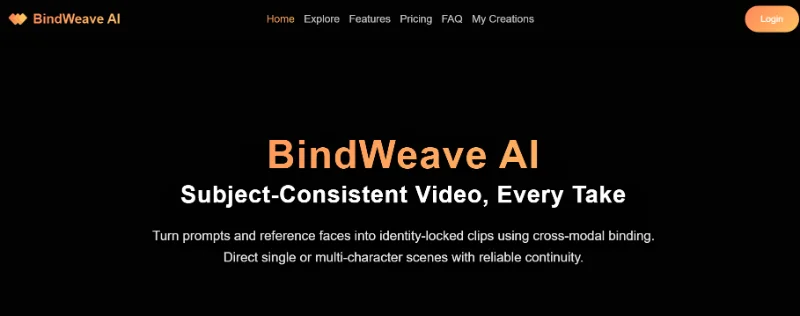
BindWeave is an AI video generator built to create clear, consistent videos using text prompts and reference images. It resolves frequent problems like characters changing appearance, weak prompt matching, and awkward movement in other popular video generators. The system functions in several steps, mixing visual layers, motion control, and diffusion, to keep subjects stable and actions smooth.
By tightly linking your text prompt with the visuals from your reference images, BindWeave AI makes sure the model understands both together. This helps the final video stay true to your description and keeps the character’s appearance consistent throughout.
1.1. Key Features of BindWeave AI
Here are BindWeave’s core functions that make it prominent:
- Consistent characters: It keeps a person’s look the same across the whole video, even if their pose or expression changes.
- Manages multiple subjects: It can manage scenes with several people or people interacting with objects without mixing up their identities.
- Knows roles: The model is aware of which character is which and what each is up to, so that the details do not mix between them.
- Various styles: It is also able to produce videos of various appearances: stylized, semi-realistic, or realistic in different applications, such as advertisements, animation, or short movies.
- Open-ended and adaptable: The BindWeave AI model can be customized and integrated with other systems to suit the developers.
1.2. Pros and Cons of BindWeave AI
Here are the benefits and limitations of the BindWeave AI Tool:
Pros:

Cons:

●Keeps visuals steady and scenes consistent without random changes.
●Not very beginner-friendly and requires some technical setup.
●Maintains character details like hair and eye color across all frames.
●Often needs Python or Colab setup, which can be tough for non-technical users.
●Follows your text prompt closely while still allowing smooth, natural movement.
●Takes longer to generate videos than simpler tools.
Open model design lets developers customize and experiment easily.
Functions best with a strong GPU when run locally.
1.3. BindWeave AI Pricing Plans
BindWeave AI Tool uses a one-time credit system, and all plans let you create 8-second MP4 videos with identity-stable results and text–image integration. Here are different credit plans for using the tool:
- Base ($9.9 for 99 credits): Good for simple, single-character videos.
- Pro ($29.9 for 330 credits): Most popular; supports multi-subject scenes, better role support, and faster processing.
- Ultimate ($49.9 for 570 credits): Adds advanced multi-character and human-object interaction features.
- Creator ($99.9 for 1300 credits): All features, top processing priority, commercial use, and more export options.
As each second of video costs one credit, an 8-second clip uses 8 credits.
Part 2: How to Use the BindWeave AI Tool?
Since BindWeave isn’t a simple click-and-use tool, you need a bit of setup before starting. Here’s how to use the BindWeave tool to generate a video:
Step 1: Get BindWeave from GitHub, Hugging Face, or Google Colab (easiest for beginners and those without a strong computer).

Step 2: Running the BinWeave AI video generator locally requires Python and some libraries. If that’s too technical, use a Colab notebook where most setup is already done. Step 3: Download the BindWeave AI model from GitHub or load it with one command on Hugging Face or Colab. Then adjust basics like video length, motion, and resolution. Step 4: Write a clear text prompt in the “[Subject] + [Action] + [Setting]” format or upload a reference image to guide the look of the character or scene.
Example:
Reference images: [girl.jpg], [dog.jpg] MLLM output:
- Subject 1: girl (red dress)
- Subject 2: golden retriever
- Action: playing fetch
- Setting: park
Step 5: Use 1–4 clear reference photos for each subject, with good lighting and simple backgrounds. Also, run a 24-step preview to confirm the layout and character look.

Example command:
# Switch to inference branch
git switch infer
# Install dependencies
pip install -r requirements.txt
# Run generation
python scripts/generate.py \
--ref_imgs "girl.jpg,dog.jpg" \ (Comma-separated image paths)
--prompt "A girl in a red dress playing fetch with her golden retriever in a park." \
--steps 50 \ (Denoising steps)
--cfg 7.5 \ (Classifier-free guidance scale)
--seed 42
Step 6: If the character changes, raise --cfg to 8.5. But if movement feels stiff, lower --cfg to 7.0 and add “slow motion” or “smoothly” to your prompt. For commercial projects, make sure you have the right to use any faces or logos.
Step 7: Create the video, review the result, and tweak settings like motion or consistency if you want a cleaner final version.

[Bonus Tip] Improve Images With an AI Enhancer For BindWeave
If you want to use the BindWeave AI image-to-video generation, you must start with high-resolution images. But you may not have high-quality pics or wish to sharpen the existing ones. In this case, employ a free AI Image Enhancer, such as Tenorshare PixPretty. It does have the ability to retouch portraits, adjust hair and skin color, and sharpen faces and body shapes. Besides, the tool is able to edit, compress, resize, and convert images, and alter the background colors.
You can also extend, replace, and remove backgrounds and watermarks. PixPretty has a myriad of filters, presets, color adjustments, and effects that you can apply to refine or even sharpen your pictures and remove blurring. You have the option of making your own custom filters as well, using the tool. Next, with the refined pictures, you can use BindWeave AI image-to-video generation for professional results.
Conclusion
BindWeave AI lets you create high-quality, consistent videos from text and reference images, solving issues like character changes and awkward motion. It supports multiple subjects, clear role handling, and various styles, and is flexible for developers, though it needs some technical setup and a good GPU. Videos are credit-based, with 8-second clips as standard.
For best results, especially with lower-quality images, using an AI Enhancer like Tenorshare PixPretty can sharpen and improve your references for smoother, more professional videos.
PixPretty AI Photo Editor
- 100% free AI Image Generator (Nano Banana 2 powered)
- 4K image quality with fast generation speed
- AI effects & filters for personal and e-commerce use



