


AI-powered photo editing tools have experienced exponential growth since 2025. From casual users looking to enhance selfies to professionals managing brand visuals, these AI tools have transformed how photos are enhanced. One such tool, SeaArt AI Edit Photo, has garnered particular interest due to its user-friendly interface and advanced editing features.
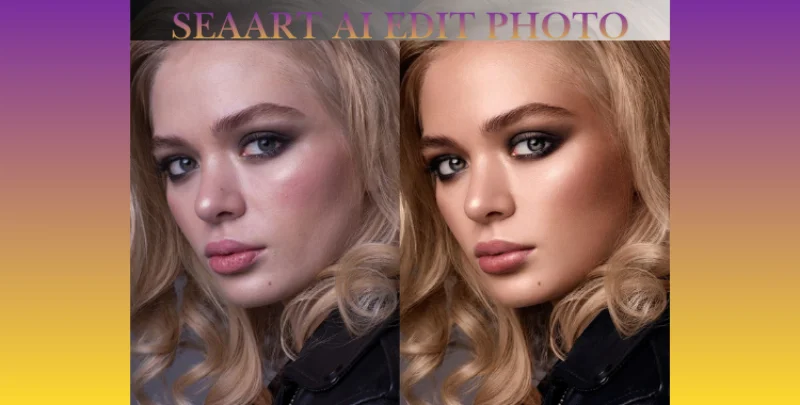
In this article, we will explore everything about AI editing using the SeaArt tool, including its reviews and a comparison with Tenorshare AI Portrait Retoucher as a strong alternative.
Table of Contents
Part 1. What is SeaArt AI Edit Photo and How Does It Work?
SeaArt AI is an AI photo editing software developed to streamline image enhancement processes. While traditional tools require manual adjustments for any changes made to an image, SeaArt AI leverages artificial intelligence technology to automatically retouch and restore photos within seconds.
Core Features of SeaArt AI
- AI Color Correction: Precisely adjusts color, saturation, and brightness for optimal results.
- Blemish Removal: Removes acne, scars, and skin marks for polished photos.
- Photo Restoration: Restores old or damaged photos by removing scratches and enhancing clarity.
- Portrait Editing Services: Provides face refinement, smoothing, and natural-looking enhancements for portraits.
1.1 Why Select AI Over Manual Editing?
Manual editing with tools like Photoshop can be time-consuming and requires expert knowledge. SeaArt AI photo editing software automates this process, saving both time and providing professional-grade results, even for non-professionals, with minimal effort. These tools are highly preferred by influencers, photographers, designers, and everyday users as they save huge costs.
Part 2. SeaArt AI Edit Photo Review: Features, Pros & Cons
Here are the primary features of SeaArt:
- Enhancements that deliver instant results in one click.
- Batch processing enables the simultaneous editing of multiple images.
- AI skin-smoothing technology that keeps natural textures intact is now available.
- Reviving vintage images through photo restoration.
- An intuitive dashboard with drag-and-drop support.
- Export high-resolution photos for professional printing or sharing via social media.
PixPretty

Other Brands

Simple for both untrained individuals and professionals.
Access requires payment and the SeaArt AI price might not be affordable by all users.
Automated AI tools help accelerate editing.
AI processing requires access to an internet connection.
It covers a vast range of use cases, including portraits, landscapes, and vintage photographs.
Manual fine-tuning options may differ significantly from those provided by software applications.
Part 3. How to Use SeaArt AI to Edit Photos (Step-by-Step Guide)
Step 1: Open the officialSeaArt webpage to select an image for editing.

Step 2: Tap on the ‘Click to Upload or drag images here’ available on the left side of the screen, to choose an image. You can either enter the URL or choose an image from the ‘Personal Works’ tab. Click on the icon to select an image from your PC.

Step 3: After selecting the image, type the prompt for required changes. SeaArt AI photo editor also offers a variety of templates to choose from. This gives a more comprehensive chance for photo editing.

Part 4. Best Alternative: Tenorshare AI Portrait Photo Retoucher
If you are not satisfied with the SeaArt AI reviews and its features and are looking for a more comprehensive list of features and automated actions, we recommend using Tenorshare’s AI Portrait Photo Retoucher. This is because the PixPretty AI helps users edit their artistic, wedding, advertising, and identification photos to reveal unique styles and postures.
Why PixPretty AI?
- Portrait Retouching Essentials: PixPretty's editing essentials are specifically designed to enhance facial beauty in portrait retouching photos with ease. Features include skin smoothing, blemish reduction, color adjustments, image cropping, and smoothing tools. All these features are created to help enhance facial features effortlessly.
- Batch Presets to Optimize Workflow: With batch presets, you can apply preset filters to multiple photos simultaneously. This saves both time and maintains consistency when editing a series of portraits.
- User-Friendly Interface and Workflow: The intuitive design of Portrait Enhance simplifies the user experience, making portrait editing accessible to even those without specialist knowledge.
- Lightweight System Requirements: PixPretty runs smoothly even on modest hardware setups. It only requires around 512MB of RAM and 1 GB of disk space, making it suitable even on older Windows systems.
- Continuous Development & New Features: Our changelog represents ongoing improvements. For instance, V1.1.1 (2025) introduced core features like portrait retouching, color adjustment, cropping, filtering, batch presets, and batch preset management.
PixPretty
Other Brands
It is free to download and offers 10 free editing credits for a period of seven days.
Currently, it only supports Windows 10 and 11 devices.
Users can export up to 10 images in a free trial, with access to enhanced features for professional photo editing.
The premium prices might not be affordable for most visitors.
How to Use PixPretty AI Tool?
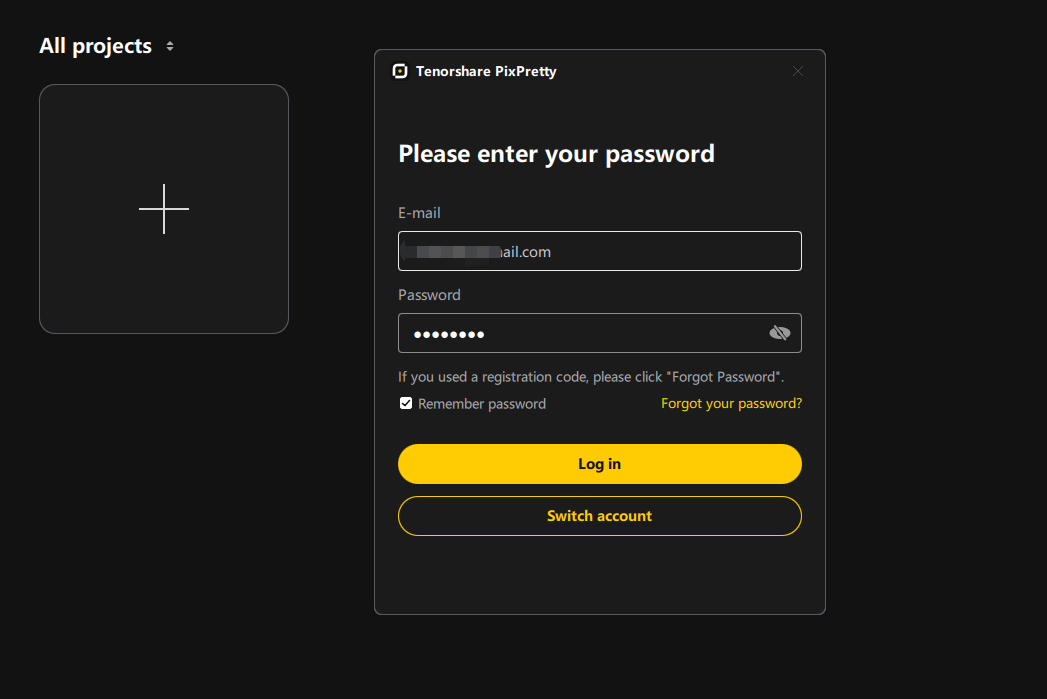
Step 1: Download the PixPretty tool from the official web page ofTenorshare by clicking on the ‘Free Download’ button. Install it and enter your email to get registered.
Step 2: Set a unique password. If you are already registered, simply sign in by adding your credentials.
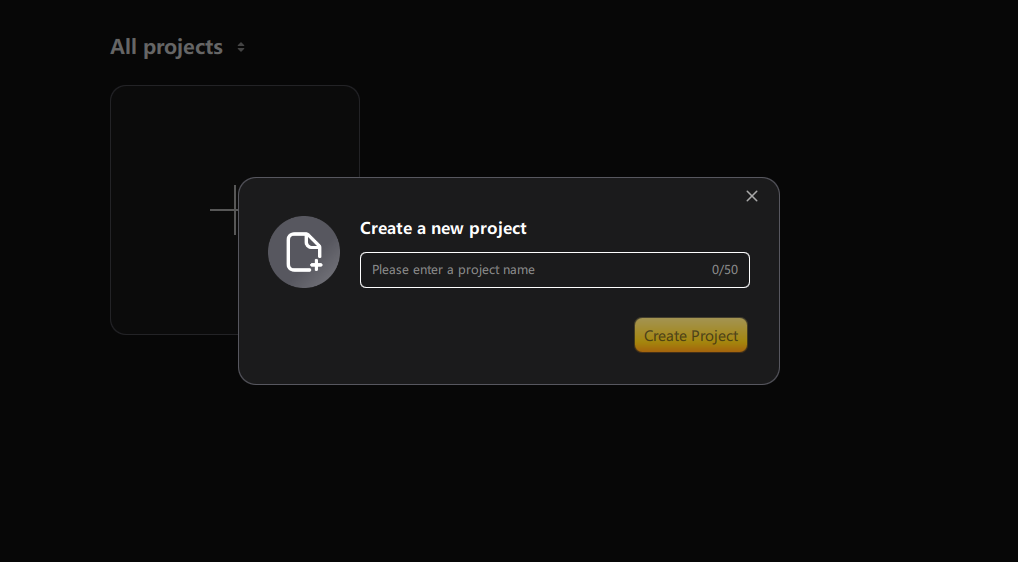
Step 3: Now, create a Project file to start editing. You can choose from Create New Project, Local Projects, and Project Sorting. For example, I choose "Create New Project" and then type a specific name for the project to easily identify it in the future.
Step 4: Open the ‘Gallery’ to choose an image and then adjust the zoom ratio, choose presets, and make all other changes you require, and then click on the ‘Export’ button at the top to download the edited image.
Conclusion
SeaArt AI Edit Photo software is one of the top AI photo editing programs currently available. It delivers professional-level results with features such as color correction, restoration, and portrait and facial hair editing, allowing users to achieve great results without advanced editing skills. The included templates for image editing provide inspiration and broader exposure for professionals and media content creators.
Tenorshare AI Portrait Photo Retoucher serves as a reliable option for editing portraits specifically. Visit the website and select the ‘Download’ button to access the software for free on Windows devices.
PixPretty AI Photo Editor
- 100% free AI Image Generator (Nano Banana 2 powered)
- 4K image quality with fast generation speed
- AI effects & filters for personal and e-commerce use

Related Articles:
- Free DL 3D Twinkle Twinkle Live Wallpapers for iPhone & iPad
- Miss Universe AI Prompt Guide: Try Your Own Pageant Costume
- 25 Best AI Prompts for YouTube Videos to Boost Channel
- 12 Best Stunning AI Prompt for Architecture Ideas Copy & Paste
- AI Prompt for Graduation Picture: Creative Photo Ideas
Hot Tags:


