


Sky-falling AI videos look dramatic, almost like scenes from a blockbuster movie, and it’s no wonder they get so much attention on social media. People can’t get enough of that epic, emotional vibe as they depict freedom, serenity, and a sense of being away from the world’s burden.
It’s not magic to create a skyfall video, but you do need to follow the right steps to make it look flawless and realistic. In this article, we’ll go over how to create a sky-falling AI video with step-by-step instructions. We’ll also share some ready-made templates to help you generate skyfall videos fast without putting in any effort!

Table of Contents
Part 1: What Is Skyfall Animation AI Video?
The sky-falling animation AI video is a visual effect trend that makes it look like a person is falling dramatically from the sky, with a slow-motion zoom on them. It’s made by creating two AI images of the person, one far away and one close-up, and then using AI video tools to animate the fall between them. This trend is not to be confused with the late 2023 Skyfall animation meme that uses Adele’s 2012 James Bond song “Skyfall” to soundtrack a slow, dramatic chase.

Part 2: How to Create a Sky-Falling AI Video?
There are 4 steps for creating a sky-falling video, starting with preparation, creating the start frame and the end frame, and animating the video. So, here’s how to create a sky-falling AI video, with step-by-step details:
1. Prepare
Use your phone or camera to take or select a clear full-body photo in a horizontal “lying down” pose, as this helps make the floating effect realistic.
2. Create Start Frame
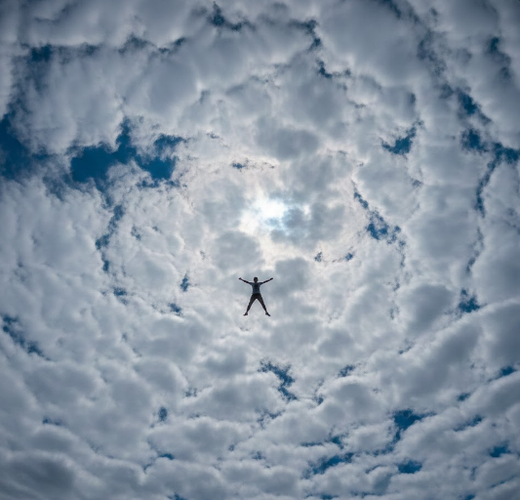
Generate a wide shot of yourself, tiny and high in the sky. You can use Nano Banana Pro (Image-to-Image AI) for this purpose. Keep the subject very small in the frame to show height and distance.
-
Prompt example: “Take a picture from below the person, as this person is very high in the sky, very small, and lying flat on their back, but not standing. The camera is looking up at the sky.”

3. Create End Frame
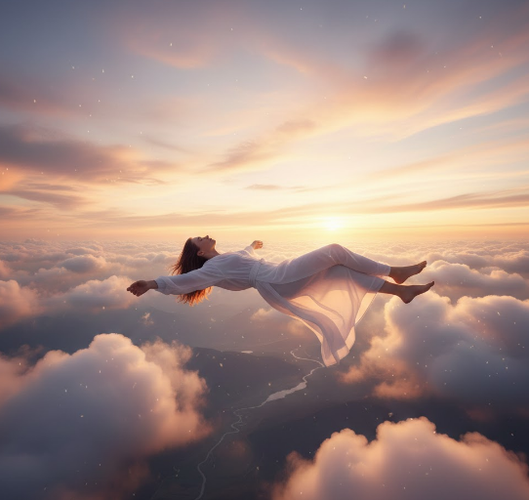
Generate a close-up shot of you floating among clouds. Again, you can use Nano Banana Pro (Image-to-Image AI) for this purpose. Focus on details for a calm, zero-gravity look.
-
Prompt example: "Create a cinematic shot of the person floating horizontally... high in the sky above soft pink/golden sunset clouds. Zero gravity, calm face.”

4. Animate the Video
Use the start and end frames to create a falling motion. You can use Kling O1 or Veo 3.1 (Image-to-Video AI) tools for this purpose. Upload the wide shot as “Start Frame” and the close-up as “End Frame.” The AI will interpolate the motion, creating a zooming fall effect.
- Video prompt example: “Wide long shot from below: the person is very high in the sky... floating horizontally... Soft pink, orange, and golden sunset clouds.”
Part 3: 10+ Prompts For Creating a SkyFall AI Video Animation
Platforms like Pippit.ai provide “Skyfall Transition Cinematic” templates. It lets you quickly add your own photos or clips to a pre-made effect, offering a faster but less personalized alternative to fully Skyfall AI-generated videos. You can also pick from our given ready-made templates for starting and ending images, and video animation. We’ve also shared 10+ varying Skyfall video prompts for different scenarios:
Prompts for Key Video Frames
The usual workflow is to make two key images, a distant “start” shot and a close-up “end” shot. Then animate them. Here are some example prompts for generating both shots:
1. Wide/Distant Start Frame Prompt
Take a picture from below, as this person is very high in the sky, very small, and lying flat on their back. The camera is looking up, the sky is the same color, and the angle is from bottom to top.
Details to Adjust: Keep the subject size “very small” for drama, and make sure the pose is “lying flat” and not standing.
2. Cinematic Close-Up End Frame Prompt
Create a cinematic shot of the person floating horizontally (lying flat on their back) high in the sky above soft pink/golden sunset clouds. Zero gravity and a calm face. Hair and clothes are gently drifting.
Details to Adjust: You can change clouds to stormy grey, or the face to screaming for humor.

3. Action-Packed Single Image Prompt
An ultra-realistic cinematic scene of a person floating and falling in midair above the clouds, in a dynamic upside-down pose with legs bent and arms slightly raised... a dramatic sense of motion... a wide-angle shot, an epic scale.
Adjust the Details: You can specify the outfit, or add elements like fighter jets.
4. Minimalist Wide Shot Prompt
A cinematic wide low-angle shot of a person floating high in the open sky midair, the subject very small in the frame, lots of empty sky, soft natural daylight, and a dramatic scale feeling.
Adjust the Details: You can change daylight to sunset/night, or add a shallow depth of field.
Video Animation Prompt
Wide long shot from below: the person is very high in the sky, tiny in the frame, floating horizontally/falling backwards. Soft pink, orange, and golden sunset clouds. Cinematic movie shot, slight atmospheric haze, beautiful color grading.
-
Adjust the Details: Change motion (“fast free-fall” /
“slow graceful descent”), and transition (“zoom-in to slow-motion
freeze”). You can also specify terms for video quality, like cinematic, 4k
quality, sharp focus, and beautiful color grading.
For camera control, you can utilize a wide-angle shot, a low-angle shot from below, or an extreme close-up. Also, you can define the scene, such as sunset clouds, daylight, stormy atmosphere, etc.

Prompt Categories for Creative Variations
Here are some varying prompt examples you can utilize by copying and pasting them into an AI video tool. Fill the brackets with your required details:
1. Outfit Reveal Prompt: A cinematic shot of [person] floating horizontally in a stunning [color/style] outfit against [sunset/stormy] clouds. The camera swirls around to showcase the outfit details in slow motion.
2. Dynamic Action Prompt: [Character] in a dynamic twisted pose, plummeting from the sky past [skyscrapers/mountains]. Heart-pounding, cinematic action scene with motion blur.

3. Couple/Romantic Prompt: Two people holding hands, floating peacefully back-to-back high above cotton candy clouds at golden hour. Dreamy, romantic, soft lighting.
4. Funny & Unexpected Prompt: [Person] in a business suit, sitting upright at a desk that is falling from the sky, typing calmly on a laptop as clouds whip by. Absurd, humorous.
5. Brand/Product Flex Prompt: Smooth, slow-motion shot of [person] floating, holding [product] prominently. Clean, professional lighting, focus on product details.

6. Fantasy/Superhero Prompt: [Character] soaring upwards through a portal in the clouds, glowing with energy, cape flowing. Epic fantasy, divine lighting, digital art style.
7. Emotional Portrait Prompt: Extreme close-up on [person]’s serene face as they float, hair drifting. A single ray of sunlight breaks through the clouds. Soulful, intimate, photorealistic.
8. Surreal & Abstract Art: A figure falling from the sky and dissolving into or emerging from a surreal landscape of floating geometric shapes and liquid chrome clouds. Conceptual, abstract, surrealist art by [artists like Dali or Giger].

9. Cozy & Whimsical: A person cozily tucked into a fluffy bed or a giant teacup, floating gently among puffy white clouds and pastel balloons, as if in a peaceful dream. Soft, warm, illustrated storybook style.
10. Horror & Thriller: A person tumbling downwards into a deep, dark abyss of swirling storm clouds, a single menacing silhouette watching from above. Sinister, chilling, high-contrast horror movie atmosphere.
11. Sci-Fi & Cyberpunk: A cyberpunk [runner/hacker] in neon-lit gear is free-falling through a vertical megacity canyon at night. Digital rain and holographic ads are flickering past. Blade Runner aesthetic, neon noir.

12. Mythological & Divine: A [deity/mythical being] like [Zeus/an angel], glowing with divine light, descending from the heavens through parting clouds. Epic, reverent, classical painting style with dramatic lighting.
[Bonus Tip] Swap Clothing For Your Skyfall Picture
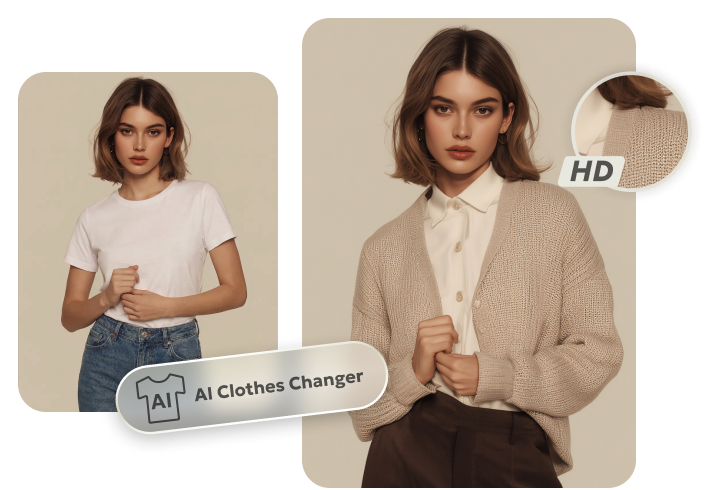
If you want to create a Skyfall video with yourself floating in your favorite dress, then you can first change the dress in the shots you’ve taken. Afterward, you can use the shots to generate the Skyfall pictures and finally the video. Pick Tenorshare PixPretty for this purpose.
It offers a free Online Clothes Changer that allows you to upload and swap dresses or pick from the given templates. You can also choose from accessories, jewelry, etc., and mix and match top and bottom clothing. The best thing about this tool is that it can mold any kind of dress to a person’s body shape, pose, and lighting, offering results in realistic HD. Here’s more info about this tool:
-
It’s a user-friendly online tool, so there’s no download, subscription, or technical skills needed.
The tool displays results with realistic fabric and color.
-
You can change your look without taking pictures in different outfits.
-
The tool also allows you to check how a brand’s clothing will look on them.
Step 1: First, upload your or a person’s picture and the image of the dress you want to see how it looks on you or the other person.

Step 2: You can also pick from the given dresses. Combine a top and a bottom to give your own unique style. You can also include shoes and accessories, like a purse, jewelry, etc.
Step 3: Click “Generate,” and in a few minutes, the PixpPetty Clothes Changer will swap the dress with your desired one.

Conclusion
If you wanted to learn how to create a sky-falling AI video, we’ve already told you to use two AI images, a far start shot, and a close-up end shot. Then, all of them must be animated together to create a dramatic falling-from-the-sky effect.
By taking a full-body photo, making the two frames with AI image tools, and animating them with AI video models, anyone can create this cinematic video. However, if you want to change outfits in your shots before using them to generate AI images and animation, Tenorshare PixPretty offers a free Online Clothes Changer. It allows you to swap clothes and accessories in realistic HD.
PixPretty AI Clothes Changer
- Instantly change outfits with AI in 1 click
- Realistic AI previews for every top, bottom, or dress
- Create and explore endless outfits and OOTDs without editing
Related Articles:


