


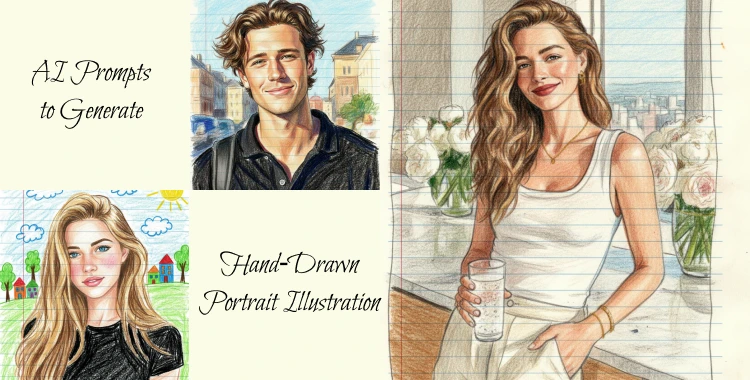
AI image generation is booming. Many creators want hand‑drawn portrait illustrations from their photos. These styles look artistic, personal, and perfect for social media. With the right AI prompts, you can turn simple photos into sketch art, pen drawings, doodles, or pencil portraits.
In this guide, you’ll get 20+ real and ready‑to‑use prompts, step‑by‑step instructions for Gemini AI, and easy tips to improve your results.
Table of Contents
- Part 1. 20+ AI Prompts to Generate Hand‑Drawn Portrait Illustration
- A. Realistic Pencil Portrait Prompts
- B. Ink & Pen Sketch Prompts
- C. Colored Pencil & Creative Texture Prompts
- D. Stylized & Mixed Media Illustration Prompts
- Part 2. How to Generate Hand‑Drawn Portrait Illustration with Gemini
- Part 3. Tips to Make Better Hand‑Drawn Portraits
Part 1. 20+ AI Prompts to Generate Hand‑Drawn Portrait Illustration
Here are many prompt ideas. They are grouped by style and ready to copy into Gemini or similar AI tools.
A. Realistic Pencil Portrait Prompts
These prompts focus on pencil texture, shadow depth, and paper grain, making them ideal for realistic portrait illustrations that look like they were drawn by hand with graphite on textured sketch paper.

1. Turn the uploaded portrait into a detailed pencil sketch illustration with layered graphite shading that captures every fine facial detail, soft transitions between light and shadow, textured sketchbook paper grain showing through, and crisp, realistic hair strands and eye highlights.
2. Create a full‑body hand‑drawn pencil portrait of the uploaded person standing naturally, focusing on accurate anatomy, gentle pencil strokes for clothes folds, deep graphite shadows along contours, and a subtle paper texture background for an authentic sketch feel.
3. Generate a lifelike pencil portrait with soft gradients of graphite, detailed shading around cheekbones and eyes, layered cross‑hatching for depth, light eraser smudges for atmosphere, and a minimal background to keep attention on the subject.
4. Transform the uploaded photo into a classic pencil illustration where the subject gazes thoughtfully off camera, deep pencil tones define facial planes, each hair strand is visible, and the sketch looks like it was drawn on high‑quality textured paper.

5. A refined pencil portrait of a person seated, hands relaxed in lap, soft graphite shadows under the chin and around the eyes, rich layered strokes for depth, fine paper grain visible, and DSLR‑quality detail in a timeless pencil art style.
B. Ink & Pen Sketch Prompts
This set of prompts emphasizes pen lines, ink strokes, and expressive hand‑drawn mark‑making, which are perfect for high‑contrast illustration styles that mimic traditional ink and pen artwork.

6. Using the uploaded image, create a pen and ink portrait on sketchbook paper with smooth continuous lines, detailed cross‑hatching for shadows, crisp bold outlines defining facial features, and expressive ink textures that mimic real fountain pen strokes.
7. Generate a high‑contrast ink line art portrait with firm black outlines, dynamic ink splattering and stippling on hair and clothes, minimal background, and fine textural detail that feels handcrafted and precise.
8. Convert this portrait into a detailed notebook sketch using black and blue ink tones, expressive line work for eyes and lips, shaded cross‑lines for depth, and light scribble details in margins, giving it a spontaneous, rough‑drawn artistic impression.

9. Produce a stylized pen and ink portrait where the subject’s silhouette is outlined in continuous ink with layered hatching for depth, faint calligraphic notes around the figure, and visible pen stroke weight variation for artistic richness.
10. Create a traditional pen line portrait on off‑white sketch paper, dramatic ink contours around features, dynamic hatch shading under the brow and jawline, and subtle textured dots in background to enhance dimensional perception.
C. Colored Pencil & Creative Texture Prompts
These prompts are suited for creators who want to add color and creative flair to hand‑drawn portraits, using colored pencil, crayon, or blended media effects that give artwork more visual richness and artistic expression.

11. Generate a hand‑drawn colored pencil portrait where the subject’s hair, eyes, and skin tones are rendered with layered color pencils showing paper texture, gentle highlights on cheeks, and light multicolor shading for vibrancy.
12. Turn this photo into a pencil and pastel hybrid portrait with delicate colored pencil shading on facial details, subtle pastel background wash, and vibrant color accents on clothing and accessories for artistic expression.
13. Create a crayon‑style notebook portrait where the subject’s clothing and background have bright, uneven strokes, soft colored pencil shading on the face, hand‑drawn doodle elements around, and playful artistic texture.

14. Illustrate the uploaded portrait with rich colored pencil detail, complementary hues to emphasize lighting, delicate texture on skin and fabric, and a warm background created with light pastel washes.
15. Convert the photo into a vibrant sketch that blends colored pencil and crayon effects, keeping realistic facial features but adding artistic, bold colorful strokes on clothing and background elements.
D. Stylized & Mixed Media Illustration Prompts
This category encourages more artistic, stylized, and experimental hand‑drawn styles, blending mixed media or imaginative design elements to produce portraits that feel creative, expressive, and visually striking.

16. Transform the uploaded portrait into a surreal hand‑drawn illustration with flowing abstract ink shapes around the subject, layered fine lines and stippled shading, balanced contrast, and an expressive textured background.
17. Create a watercolor and pencil hybrid portrait where soft watercolor washes fill the background and subtle pencil strokes shape the subject’s features, balancing fluid color and crisp line detail.
18. Generate a fantasy storybook portrait with lightly exaggerated proportions, delicate pencil shading for facial features, whimsical ornamental background, and pastel tones giving it a dreamy hand‑drawn illustration style.
19. Produce an ink‑wash traditional sketch with subtle diluted ink shading, dynamic variation in line thickness, gentle shadows that mimic brush pressure, and a soft textured paper aesthetic.
20. Illustrate the uploaded person in a surreal line art style combining minimal line contours with bold artistic strokes, creative negative space around the subject, dynamic light‑and‑shadow play, and elegant hand‑drawn feel.
21. Create an etching‑like portrait inspired by vintage illustrations, with dense cross‑hatching, varied line direction for texture, deep shadow contrast, and classic hand‑engraved art vibes.
Part 2. How to Generate Hand‑Drawn Portrait Illustration with Gemini
Here is a simple step‑by‑step guide to generate your illustration using Google Gemini.
Step 1 – Open Gemini
Open the Gemini web platform or app. You can use Text‑to‑Image or Image‑to‑Image mode.
Step 2 – Upload Your Photo
Upload a clear photo with good lighting. Close‑up portraits work best.
Step 3 – Paste Your Prompt
Copy and paste a prompt from above. You can add details like style or mood. For example:
“Using the uploaded photo, generate a hand‑drawn portrait illustration in red and yellow pen on notebook paper, expressive lines, realistic pen stroke texture, 4K resolution.”
Step 4 – Set Output Settings
Choose resolution (like 4K) or aspect ratio (4:5 for social posts).
Step 5 – Generate and Save
Hit Generate and wait a few seconds. Review the result and save your favorite. You can regenerate if you want a different look.
Part 3. Tips to Make Better Hand‑Drawn Portraits
Here are easy tips to get better results.
1. Use Clear Photos
Good lighting and simple background help the AI focus on the subject.
2. Try Different Styles
Mix prompts from pencil, pen, or doodle styles to see which fits your taste.
3. Add Artistic Details
Words like “texture,” “hand‑drawn,” “paper grain,” “shading,” or “cross‑hatching” help the AI produce real art feel.
4. Use Social Trends for Ideas
Look at Instagram or Reddit prompts to see what styles are trending. Creator communities often share new prompt ideas. ([Reddit][4])
5. Iterate and Refine
If the first result is not perfect, tweak your prompt words. Small changes can make big visual shifts.

Tip:
After you generate your hand‑drawn portrait, you can clean up or enhance it with tools like PixPretty AI Photo Editor. This free tool helps improve lines or remove background easily. Tools like this help your final art look crisp and social‑ready.
Conclusion
AI prompts make it easy to turn photos into beautiful, hand‑drawn portrait illustrations. With clear prompt wording, good photo input, and tools like Google Gemini, anyone can create art for social media, portfolios, or gifts. Don’t forget to explore style trends and refine your prompts for the best output.
Also, after creating your art, try PixPretty AI Photo Editor to tidy up your illustration and make it ready for sharing or printing.
PixPretty AI Photo Editor
- 100% free AI Image Generator (Nano Banana 2 powered)
- 4K image quality with fast generation speed
- AI effects & filters for personal and e-commerce use



