


Listening to music helps many students relax and focus, but school Chromebooks often block popular music apps and websites. If you’re wondering how to listen to music on a school Chromebook, there are still safe and legal ways to do it.
This guide explains simple methods and free tools for listening to music on a school Chromebook. It also covers unblocked music sites that work within school restrictions, without breaking any rules.
Table of Contents
Part 1: How to Choose the Right Unblocked Music Site for Chromebook
Choosing the right platform matters, especially when many music sites are blocked on school Chromebooks. If you are looking for reliable music apps for Chromebook unblocked, use the checklist below.
-
Works in a web browser
Many school Chromebooks do not allow app installs. Web-based music apps usually work better and load directly in Chrome. -
No login or sign-up required
Sites that let you play music without creating an account are more likely to stay unblocked and are easier for students to use. -
Free access with limited ads
The best free music apps for Chromebook to listen to music offer full playback without forcing paid upgrades or constant pop-ups. -
School-safe and legal content
Choose platforms that offer educational, radio, or royalty-free music. These are commonly approved on school networks. -
Low data and smooth playback
Lightweight music apps for Chromebook unblocked load faster and work well even on slow school Wi-Fi. -
Supports background listening
A good unblocked music site should keep playing while you switch tabs or work on assignments. -
Compatible with offline use (optional)
Some music apps allow downloads or local playback, which is useful when internet access is limited.
Part 2: 10 Unblocked Music Sites for School (With Pros & Cons)
School Chromebooks are controlled using Google Admin Console, where IT teams apply category-based web filters, DNS restrictions, and bandwidth rules. Most schools block platforms labeled as “Entertainment,” “Video Streaming,” or “Social Media.” However, music sites that fall under education, radio, public domain, or royalty-free categories often remain accessible.
The sites below were selected based on:
How school filters classify them
Whether they rely on audio-only streaming
Compatibility with Chrome OS browser limitations
Legal and policy-safe usage
1. Internet Archive
Internet Archive is a non-profit digital library widely used by schools, libraries, and universities. Because it hosts books, lectures, and historical media, it is rarely categorized as an entertainment-only site.

Pros

Cons

Fully legal and trusted by educational institutions
Music discovery is slower than modern apps
Streams directly in Chrome without plugins
Limited popular or current artists
Offers concerts, albums, and audio collections
No account or installation required
Why it works on school Chromebooks: School filters usually whitelist Internet Archive as an academic resource. This makes it one of the most reliable ways to listen to music when typical music apps for Chromebook are blocked.
2. Musopen
Musopen specializes in classical music recordings, sheet music, and educational audio. Many teachers actively recommend it for focus and study sessions.

Pros
Cons
Designed for education and learning
Only classical and instrumental music
Free streaming without login
Download limits on free tier
High-quality recordings suitable for studying
Why it works on school Chromebooks: Because Musopen is categorized as an educational music platform, it aligns with school policies and is commonly accessible on restricted networks.
3. AccuRadio
AccuRadio is an online radio service that uses lightweight audio streaming rather than video or heavy ads, which helps it avoid many school filters.

Pros
Cons
Hundreds of genre-based channels
Cannot choose exact songs
No sign-up needed
Requires continuous internet access
Optimized for low-bandwidth connections
Why it works on school Chromebooks: Radio streaming sites are often classified differently from on-demand music platforms, making AccuRadio a strong option for music apps for Chromebook unblocked.
4. Jango
Jango is a free online radio platform that lets students listen to curated playlists. Its simple structure and lack of social interaction make it less likely to be blocked on school Chromebooks.

Pros:
Cons:
Free to use with no login
Cannot download music
Lightweight and fast-loading on Chrome OS
No offline listening
Curated stations across multiple genres
Limited customization of playlists
Minimal advertisements
No mainstream chart features
Why it works on school Chromebooks:
School filters often allow radio-style sites because they lack user-generated uploads and social features.
5. Radio Garden
Radio Garden allows users to explore live radio stations from around the world. Schools often allow it because it promotes geography, culture, and language learning.

Pros:
Cons:
Streams global radio stations
Not ideal for specific songs
No account needed
Requires stable internet
Educational and cultural value
Audio quality varies by station
Works well in Chrome browser
Limited control over playlists
Why it works on school Chromebooks: Many schools allow Radio Garden because it supports geography, culture, and global awareness lessons.
6. Bandcamp (Free Tracks Section)
Bandcamp supports independent artists and allows free music downloads. While most albums are paid, many artists release tracks legally for free.

Pros:
Cons:
Legal free music downloads
Most full albums are paid
Compatible with Chromebook browsers
Must manually search for free content
Supports offline playback
Requires internet for initial download
Large variety of indie music
No algorithmic recommendations
Why it works on school Chromebooks:
Offline playback avoids school network restrictions entirely, making this one of the safest long-term solutions.
7. Jamendo Music
Jamendo focuses on royalty-free and independent music. Its platform is used by students and content creators, making it safe for schools.

Pros:
Cons:
Free and legal for personal use
No mainstream hits
Browser-friendly on Chromebooks
Smaller music library than other platforms
No sign-up required
Limited discovery tools
Wide range of indie and instrumental tracks
No offline streaming on the free plan
Why it works on school Chromebooks:
Royalty-free platforms are rarely flagged as entertainment-heavy, keeping Jamendo accessible.
Part 3: Proven Methods to Listen to Music on a School Chromebook (Safe & Legal)
Even with school restrictions, you don’t have to miss your favorite songs. This guide explains how to listen to music on school Chromebook safely using simple, legal methods anyone can try.
Method 1: Listen Using Local Music Files
When streaming sites like Spotify, YouTube Music, or Apple Music are blocked, the simplest solution is to download music directly to your Chromebook or Google Drive. Playing local MP3 files doesn’t rely on the internet and avoids blocked websites entirely.
Steps to Follow:
Step 1: Download Your Music at Home
-
1.Use a safe, legal converter or download tool for public-domain or purchased music.
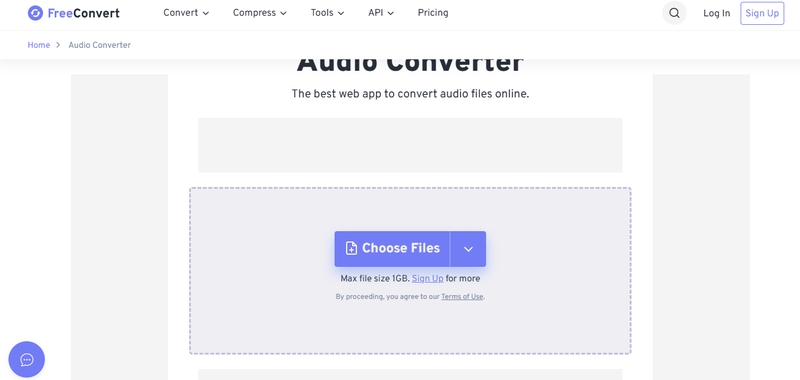
2.Save the MP3 files to your computer.
-
3.Transfer files to a USB drive or upload them to your personal Google Drive account.
Step 2: Play Music on Chromebook
-
1.4.Open the Files app on your Chromebook.
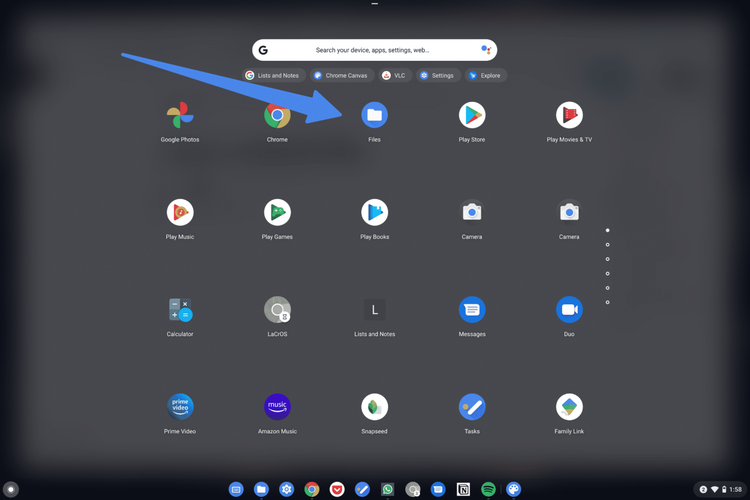
2.5.Locate your MP3 file and double-click to play.
-
3.6.If stored on Google Drive, open the file in the Drive music player for streaming.
-


Method 2: Use a Personal Phone or MP3 Player
If your school Chromebook has strict restrictions or limited permissions, using a separate device can bypass all restrictions completely.
Options:
Option 1: Smartphone with Wired Earbuds
-
Plug in wired earbuds and tuck the cord under your sleeve or shirt.
Play downloaded or offline music from your phone.
Option 2: Old iPod or MP3 Player
-
Buy an affordable MP3 player (e.g., iPod Shuffle) for under $50.
Transfer downloaded songs to the device.
Listen anywhere, without using school internet.
Option 3: CD Player or Retro Walkman (Optional)
Rip CDs to MP3 files and play on the device.
Works completely offline and bypasses school network rules.
Method 3: Stream Music Using a Phone Hotspot
A mobile hotspot lets you connect your Chromebook to an unrestricted network when streaming sites are blocked on school Wi-Fi. This gives you access to music apps and websites.
Steps to Follow:
Step 1: Enable Hotspot on Your Phone
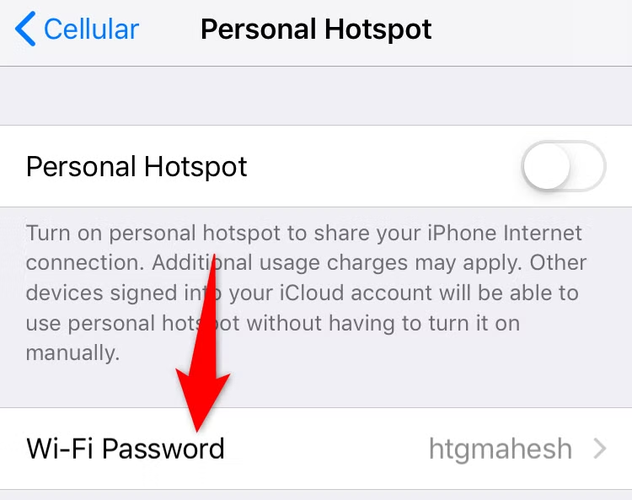
1.Open your phone settings → Hotspot & Tethering.
-
2.Turn on Wi-Fi hotspot and set a secure password.

Step 2: Connect Your Chromebook
Click the Wi-Fi icon on your Chromebook.
Select your phone’s hotspot and enter the password.
Step 3: Open Music Platforms
-
Access apps or sites like Spotify, SoundCloud, YouTube Music, or unblocked web players.
Play songs directly through your browser or using earbuds.

Note:
Using a hotspot will consume mobile data. Monitor usage to avoid extra charges.
Bonus Tip: Flip Your Look in Seconds with PixPretty AI Clothes Changer
PixPretty AI Clothes Changer instantly transforms your photos by letting you try on different outfits online. Upload an image and see yourself in casual, festive, or even matching pet outfits in seconds. The tool is free, works fully online, and requires no editing skills.
With realistic HD results, every outfit adapts naturally to your body, colors, and lighting, making it easy to explore styles, plan looks, and preview complete outfits effortlessly.
Final Words:
Enjoying your favorite tunes while learning how to listen to music on school Chromebook is simple and safe. Use local files, a personal device, or a hotspot for uninterrupted music. Plus, add a creative twist with PixPretty AI Clothes Changer, which lets you instantly try new outfits online free, fun, and easy for everyone. Experiment, have fun, and make your school day more enjoyable without breaking any rules.
PixPretty AI Photo Editor
- 100% free AI Image Generator (Nano Banana 2 powered)
- 4K image quality with fast generation speed
- AI effects & filters for personal and e-commerce use



