


Have you tried VEO 3 9:16, and your video is sideways, or it is cropped, or it is not the way you want it to be? Don't worry, you are not the only one. Many users have this issue with their vertical videos on TikTok, YouTube Shorts, or Instagram Reels etc. It is quite confusing in the beginning, but it is really easy to understand once you know how.
In this guide, you will find out what a 9:16 is, how to set it up, and how to fix different issues. When you finish this guide, you will know exactly how to use VEO 3 to produce perfect vertical videos.
So, let's get started.
Table of Contents
What Does 9:16 Mean in VEO 3?
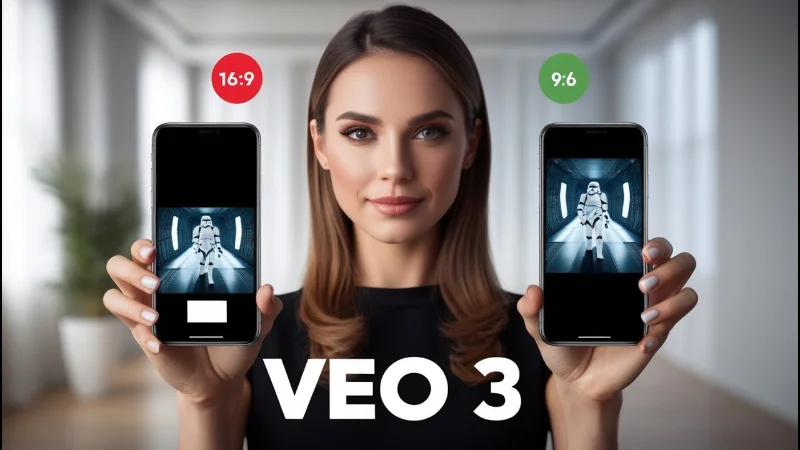
In VEO 3, the 9:16 indicates the aspect ratio of the video, which means the video is higher than it is wide. This format is called the vertical video format, which is perfectly suitable for TikTok, Instagram Reels, and YouTube Shorts.

When you shoot or export a video in 9:16 mode, it fills the whole of the phone screen in the vertical position. This makes your video a far more natural and engaging presentation on the mobile phone.
So to put it in simple terms, using 9:16 mode in VEO 3 allows you to create videos that are designed for mobile viewing, no black bars, no funny cropping, just full-screen vertical videos that fit perfectly on the social media platforms.
How to Enable and Use 9:16 Mode in VEO 3
Vertical formats such as 9:16 are best suited for mobile-oriented platforms such as TikTok, Instagram Reels, or YouTube Shorts. However, VEO 3 is primarily designed to operate generally in the 16:9 mode. Many creators use various tricks or integrations to create a vertical output.
Here is how to easily activate and use 9:16 mode:
- 1.Choose the vertical aspect ratio if available
When in the generation interface or any third-party app, look for a button or function that indicates 9:16 (vertical) under the format or canvas options.

- 1.Set your prompt for vertical composition
If you want to have vertical framing, make sure you ask for a vertical video format for mobile screen, "shoot portrait 9:16" or "ideal for Instagram Reels".
- 1.If 9:16 isn't natively available, reframe in a video editor
If you render out in a 16:9 format, you can take the rendering and then crop or reframe the scene for a 9:16 format in your editing program. The subject will remain in a vertical format.
- 1.Preview carefully and adjust framing
As you see the pre-rendered content, make sure the subject is centered and nothing important is being "cut off" from the output. Change your prompts accordingly if they don't work, i.e., "subject centered for vertical screen," "top and bottom safe zone."
- 1.Export in vertical format
Make sure you export in the vertical screen size (for example, 1080×1920 px) so your final video will work on mobile platforms.
Common Problems When Using VEO 3 9:16
As the 9:16 mode in VEO 3 is great for developing vertical videos, many users of the VEO 3 tool notice some problems when using this mode for the first time. Awareness of the lay of the land of the common problems will assist you in fixing them quickly.
- 1.Black Bars on Sides
Sometimes your video may show black bars on the left and right edges. This usually happens when the original content is in 16:9 and not properly reframed for vertical format.
- 1.Video Appears Cropped or Stretched
If you generate a video without adjusting the framing, parts of the subject might get cut off, or the video may look stretched. This happens when the AI tries to fit horizontal content into a vertical frame.
- 1.Audio Issues
Some users notice missing or low audio when switching to 9:16. This often occurs because the prompt doesn't explicitly mention audio, or the AI model prioritizes visuals over sound in vertical mode.
- 1.Poor Resolution or Pixelation
Vertical videos may appear blurry or pixelated if the export settings are not correct. Using low-resolution settings or generating large scenes in 9:16 can cause the video to lose quality.
- 1.Preview Looks Different From Export
Occasionally, what you see in the preview doesn't match the downloaded video. This usually happens due to temporary glitches or unsupported export formats.
Understanding these problems helps you avoid mistakes and ensures your vertical videos look professional and clear on mobile platforms.
How to Fix VEO 3 9:16 Not Working Properly
If your vertical videos in VEO 3 9:16 aren't coming out as expected, don't worry. Most issues have simple fixes. Here's a step-by-step guide to solving the common problems:
- 1.Check Aspect Ratio Settings
Make sure you have selected 9:16 (vertical) in your video settings before generating. If it defaults to 16:9, the output will not be vertical.
- 1.Adjust Your Prompt for Vertical Format
Include instructions like "vertical video for mobile," "portrait orientation," or "center subject for 9:16" in your prompt. Clear prompts help the AI frame the video correctly.
- 1.Reframe or Crop in an Editor
If your video comes out cropped, stretched, or with black bars, you can use a video editor to reframe it. Crop or reposition the content to fit the 9:16 vertical layout.
- 1.Regenerate the Video
Sometimes glitches happen during generation. Try regenerating with the same or slightly modified prompt. Shortening complex prompts or simplifying background elements often improves results.
- 1.Check Export Settings
Export your video with vertical dimensions (like 1080×1920 px) to maintain the 9:16 format. Avoid exporting in 16:9 or low-resolution formats, as this can ruin the vertical layout.
- 1.Test with a Short Clip First
Before creating a full-length video, generate a short 10–20 second clip to make sure the vertical format works and nothing is cropped or cut off.
- 1.Fix Audio Issues
If audio is missing or low, make sure your prompt explicitly asks for it. You can also add or enhance audio in a video editor after generation.
By following these steps, you can solve most problems and create clean, professional-looking vertical videos in VEO 3.
Conclusion
In short, VEO 3 9:16 is great for making vertical videos for TikTok, Instagram Reels, and YouTube Shorts. By knowing what 9:16 means, turning on the mode correctly, and fixing common issues, you can make videos that look professional without black bars or stretching.
Always keep your prompts simple, check your framing, and preview your video before exporting. To make your videos look even better, you can use PixPretty. It's an easy AI tool to improve images, adjust colors, and polish your visuals, helping your videos stand out before you share them.
PixPretty AI Photo Editor
- 100% free AI Image Generator (Nano Banana 2 powered)
- 4K image quality with fast generation speed
- AI effects & filters for personal and e-commerce use



